Shopify developer, Ukraine, working with Germany and Switzerland

Demo store

A store you can click through

Ember & Oak is an invented coffee brand on my own Shopify dev store. Nothing on it is a mock-up: the catalogue is seeded, the apps are installed, the orders exist. Open it, add things to the cart, break it.

Open the demo storeThe store is behind a password. Enter 12345 to get in.

Custom apps

Each app runs on its own Cloudflare Worker and is installed on the demo store through Shopify's managed installation. The storefront side lives in the theme.

Mix & Match Bundles

A bundle page where the customer picks 2 to 8 products across categories and the discount grows with the count: 10 % from two, 15 % from four, 20 % from six, plus a free tote. The box is sold as one product and becomes its real components at checkout.

Where the data comes from
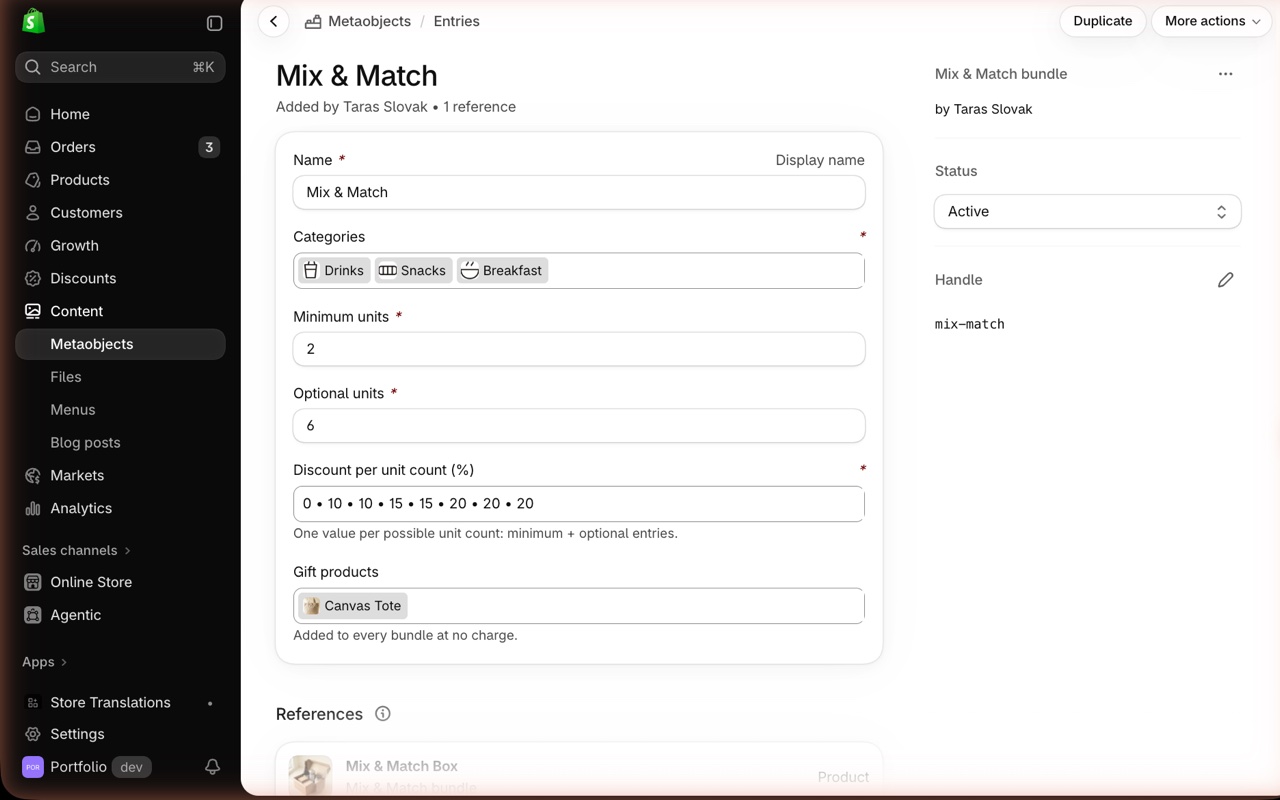
A "Mega bundle" metaobject on the product (custom.mega_bundle): the minimum and the optional number of picks, a discount percentage per slot, the free gift products, and the categories with an icon each. A category holds one or more "Products bundle" lists (the sub-tabs) of products or single variants. The app is extension-only: a Cart Transform, a discount function with its settings screen, and no server.
How it works
The theme section builds the box and prices it; the two functions make the same price hold at checkout and show the saving there. The steps below follow one box from the page to the order.

The store is behind a password. Enter 12345 to get in.

First built for BrekkyBowl

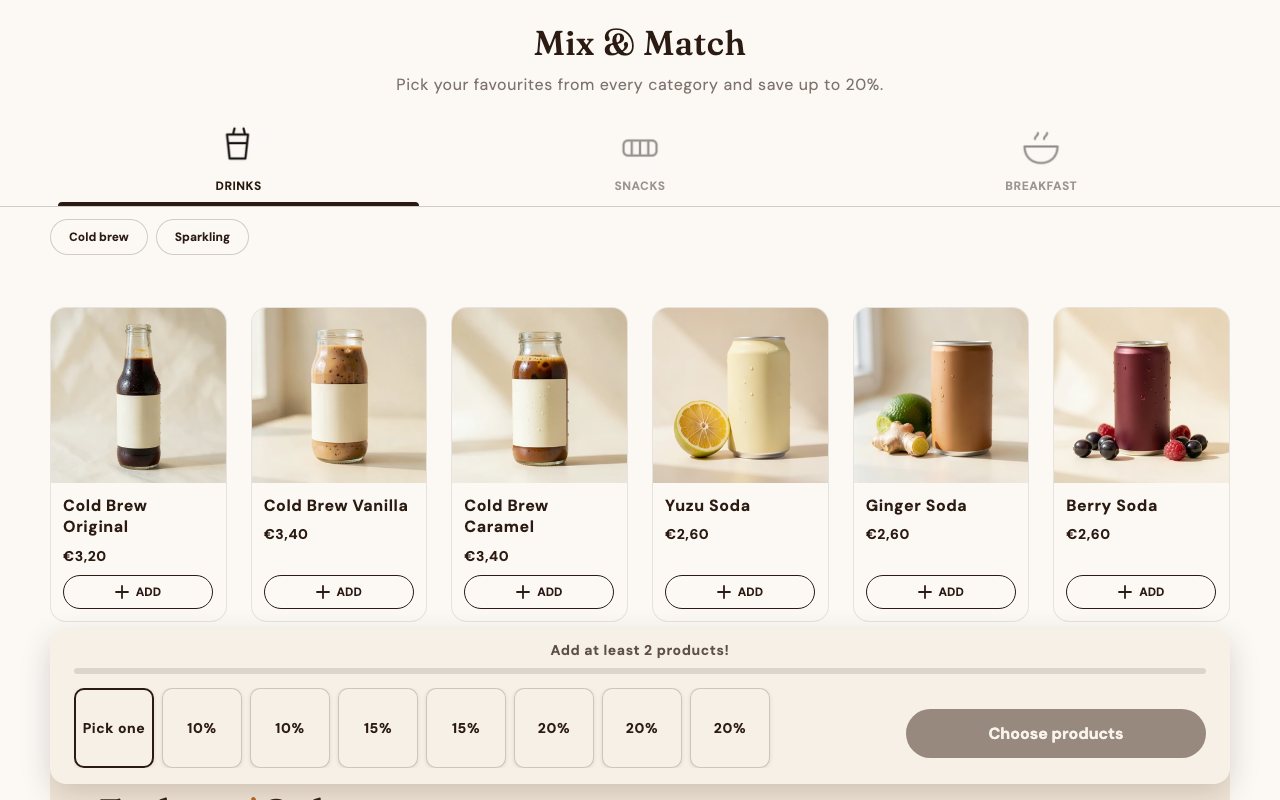
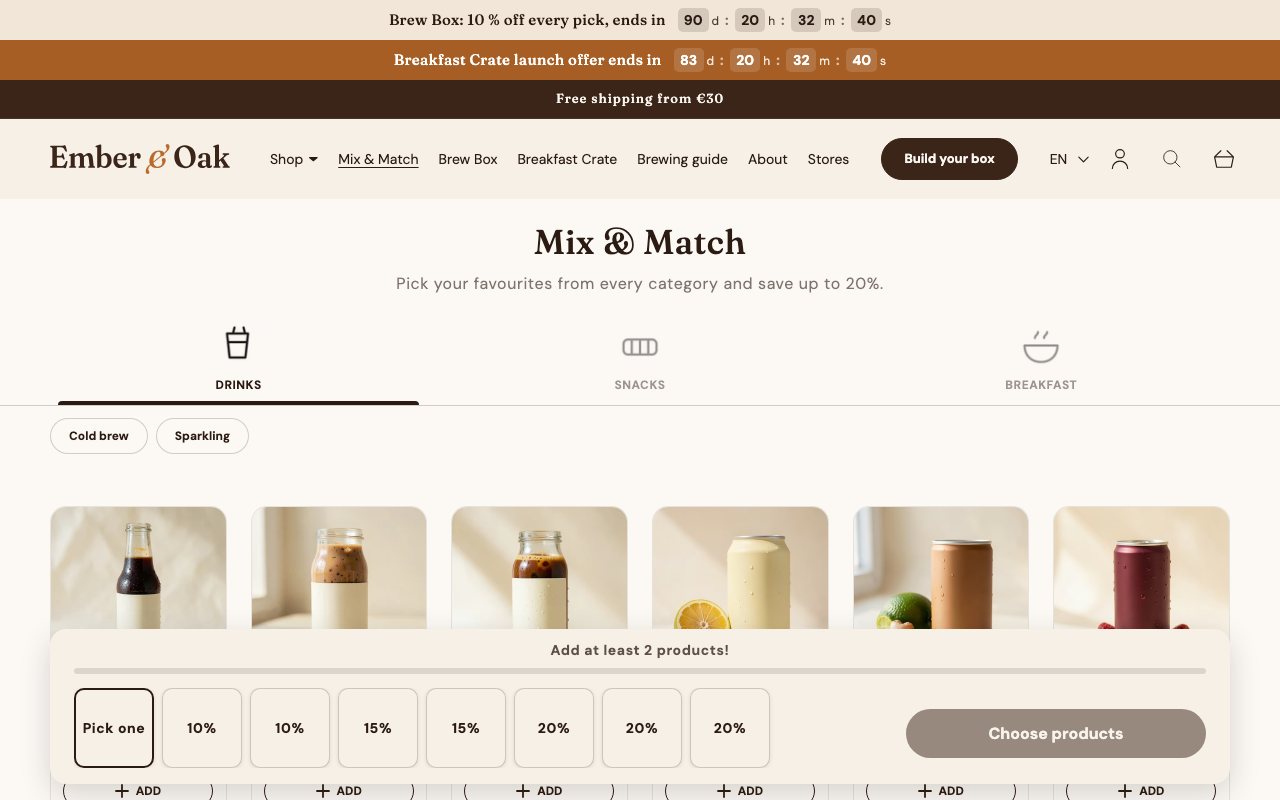
The Mix & Match page: categories, sub-tabs and the bar with a slot per pick
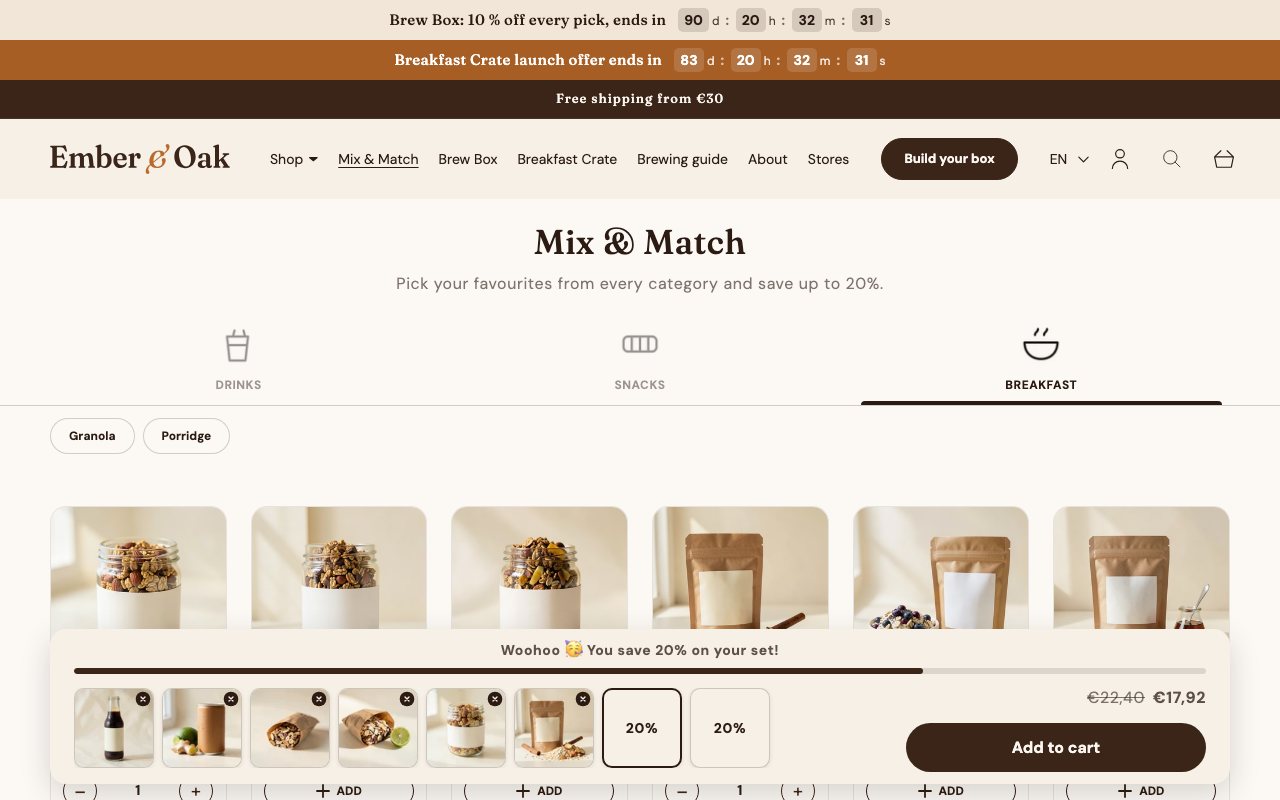
Six picks: the top tier is reached, €17,92 instead of €22,40
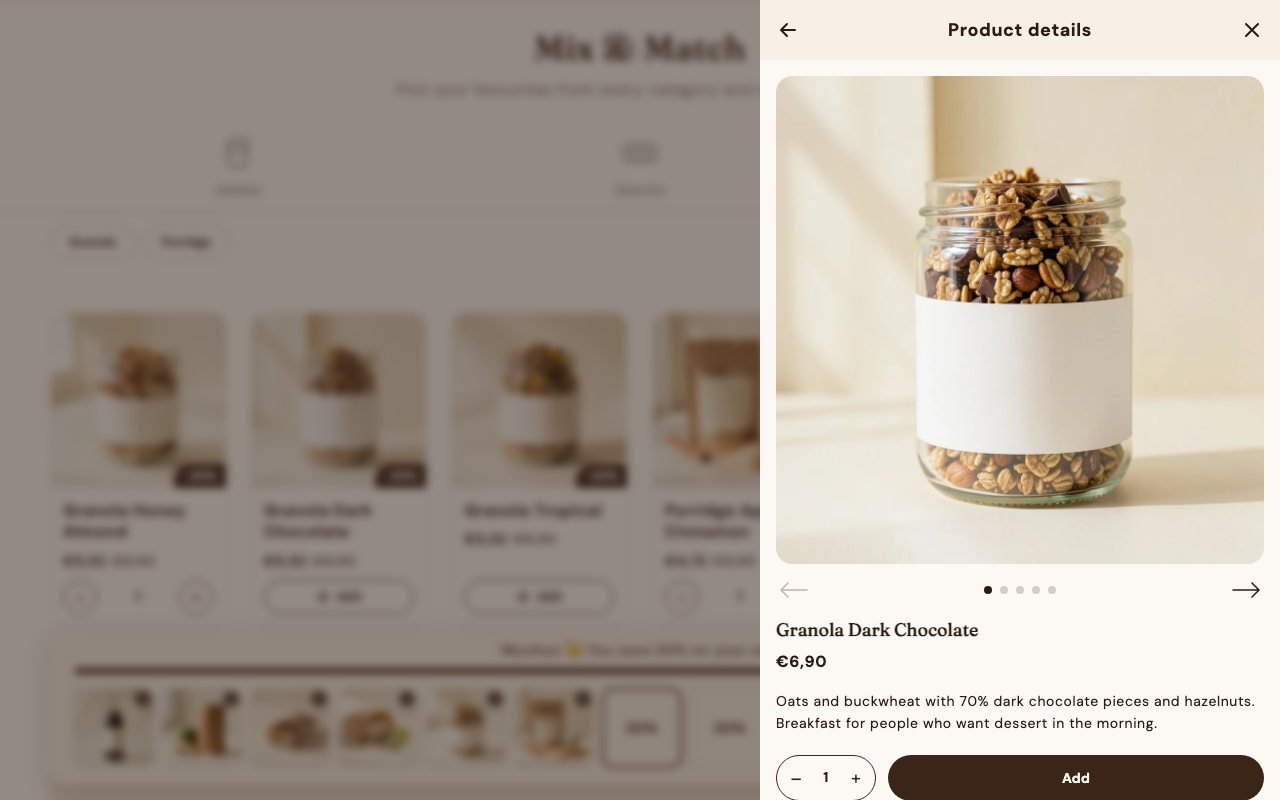
Product details in a side panel, with its own quantity and add button
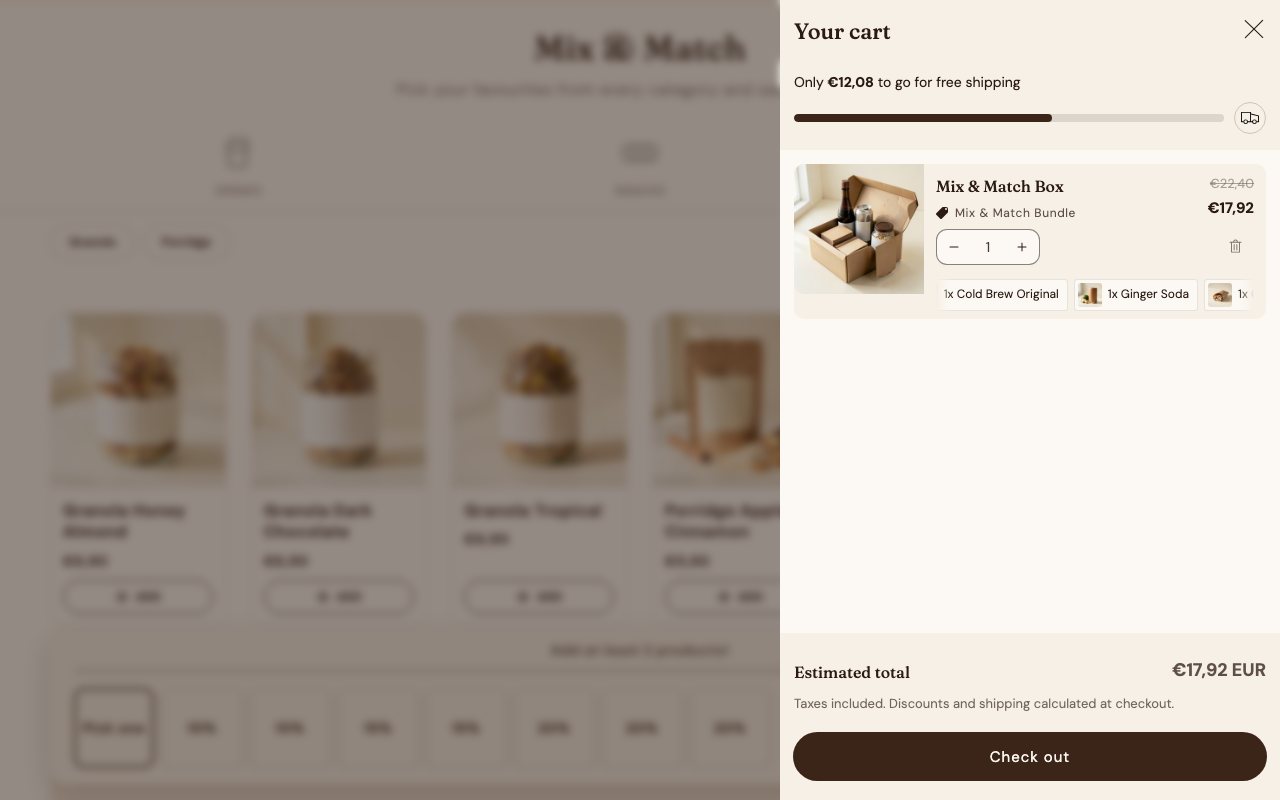
The cart drawer: one line, the discount named, the contents as a chip marquee
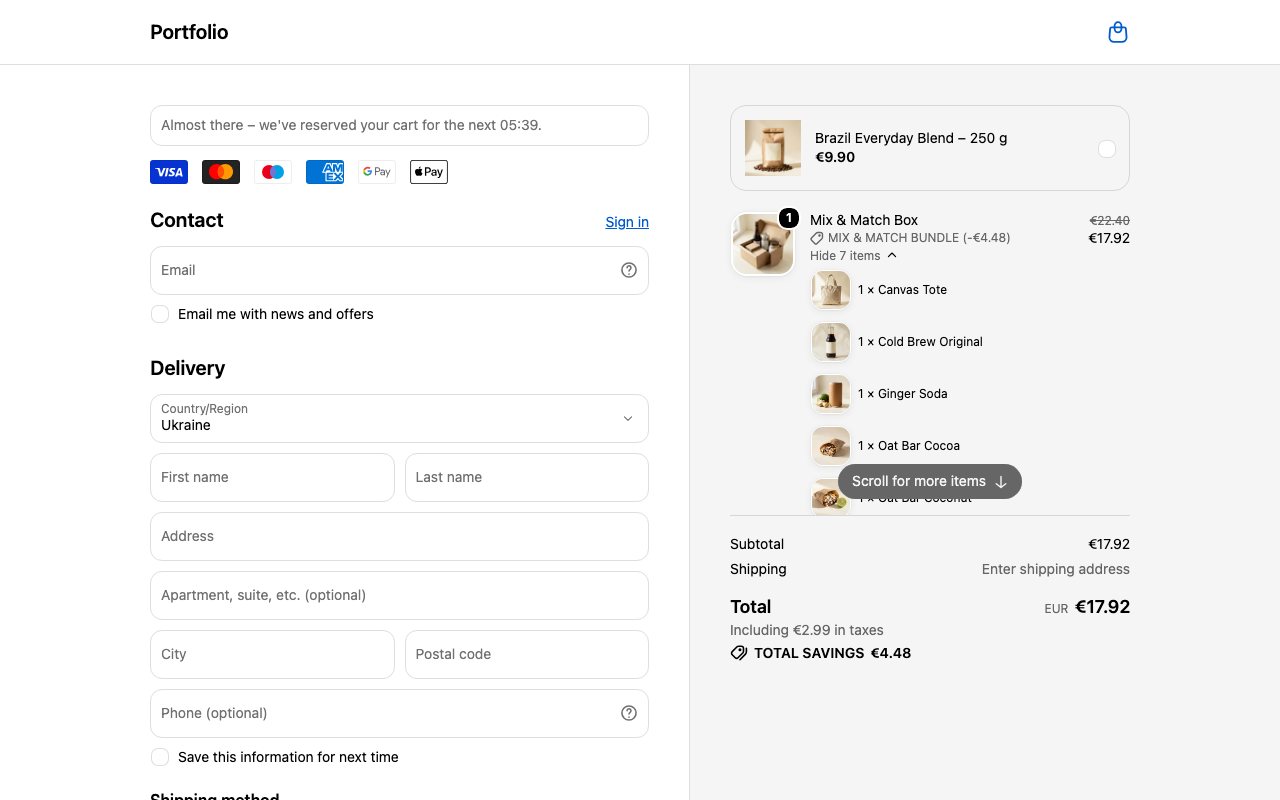
Checkout: the box expanded into seven items with the free tote, the original price struck through and the savings
In the admin the box is one metaobject entry: categories, minimum and optional picks, the discount per count, the free gift

Step by step

  1. Categories and tabsA sticky row of category buttons (Drinks, Snacks, Breakfast) switches the grid; a category with several lists gets sub-tabs (Cold brew, Sparkling) that filter it. Variants that are sold out are left out.
  2. Picking"Add" on a card puts one unit into the box and turns into a −/+ stepper. A click on the picture opens a details panel with the gallery, the description and its own quantity and add button.
  3. The bar at the bottomA fixed bar shows one slot per possible pick. Empty slots show the discount they unlock, filled ones the product photo with a remove button. Above them a progress line and a message: "Add at least 2 products!", then "2 more for 15% off your bundle!", and at the top tier "You save 20% on your set!".
  4. PriceOne rate applies to the whole box: the percentage of the last filled slot. Every unit is priced at its variant price minus that rate; the bar shows the total with the undiscounted sum struck through, and the cards show their discounted price too. Below the minimum the button reads "Choose products"; at the maximum further adds are refused with a note.
  5. Add to cartOne request adds the wrapper product once. Hidden line properties carry the box: _cb_selections (variant ids, one per unit, the free tote first), _cb_prices (the discounted price of each unit in cents, 0 for the gift) and _cb_compare_total (the undiscounted sum).
  6. Cart drawerThe drawer shows one line: the box, the original total struck through, the bundle price and the discount name "Mix & Match Bundle". Under it the contents run as chips, a marquee when there are more than three, which can be dragged with the mouse or a finger. Quantity and remove work on the whole box.
  7. The discount functionIn the cart the discount function reads the same properties and takes the exact difference between the two totals off the line as a fixed amount, so the price lands on the cent the builder showed, with no rounding drift.
  8. CheckoutThe Cart Transform expands the line into its components, scaled up to the undiscounted total, and marks them with the bundle's percentage; the discount function brings them back down. The customer sees the box with every item listed under it, the original price struck through, "Mix & Match Bundle (−€4.48)" and the total savings.
  9. The orderThe order holds the real variants, the tote at €0, so inventory and fulfilment run per product. Each component also carries the bundle's id, title and price, so the order confirmation email can print the box as one block.

Cart Milestones

A progress bar in the cart drawer and on the cart page: free shipping at €30, a gift at €50, 30 % off an accessory at €80. At each step the customer picks the reward.

Where the data comes from
One "Cart milestone step" metaobject per step: the threshold, the kind of reward and the products to choose from. The app's admin shows the steps and their state; the theme carries the bar, the picker and the option cards.
How it works
The bar re-renders with every cart change through Dawn's section rendering. Once a threshold is reached the gift icon opens a picker; the choice is added as a line the discount function prices at €0 or −30 %, and it is removed again if the cart drops below the step.

The store is behind a password. Enter 12345 to get in.

First built for Health-Bar

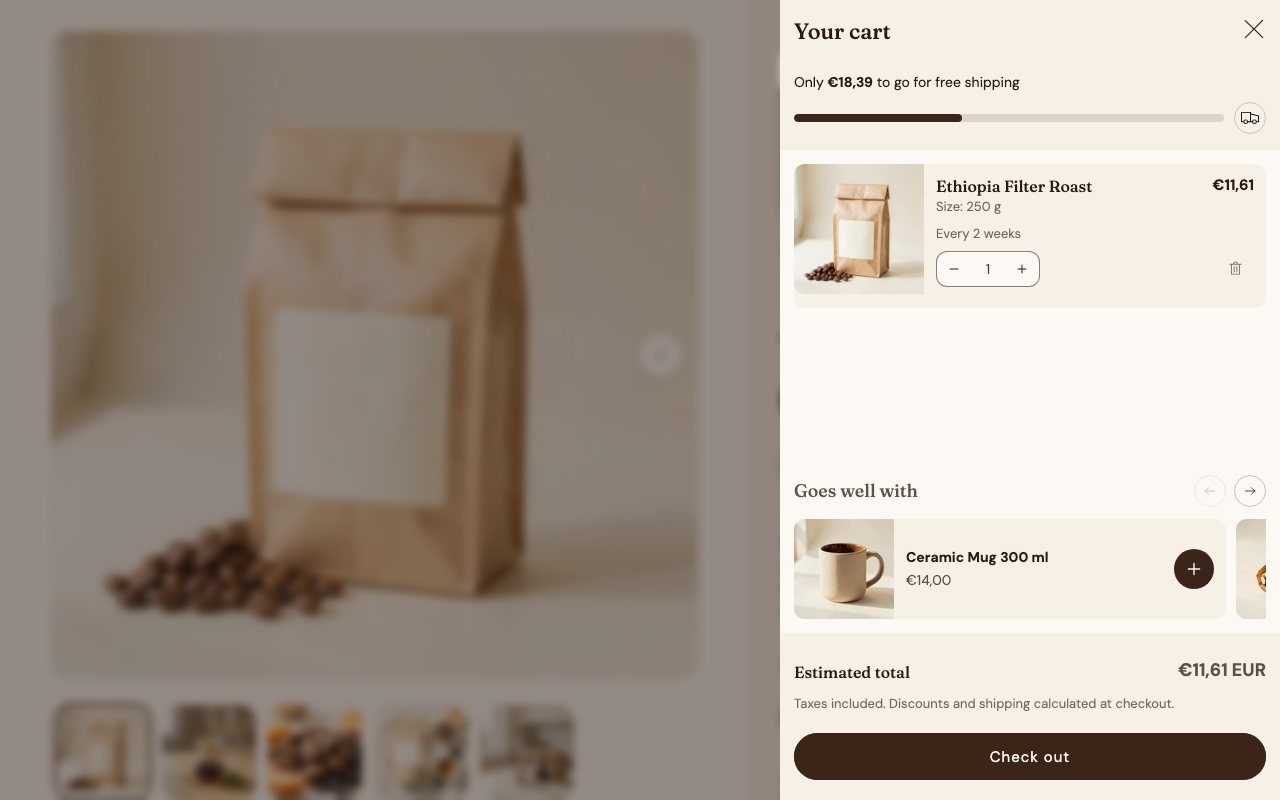
The drawer after adding a coffee: the bar shows how much is left to free shipping
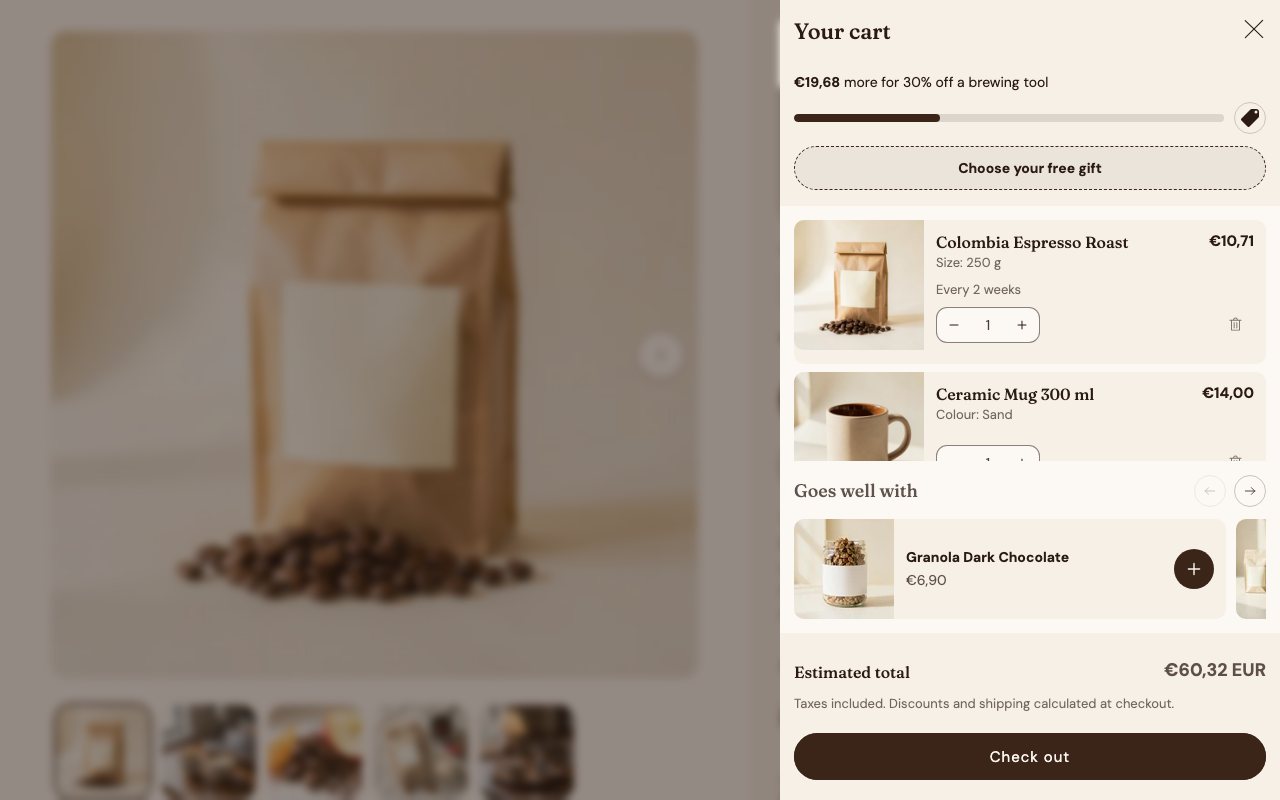
The €50 step reached: the free-gift button appears and the bar counts on to the next reward
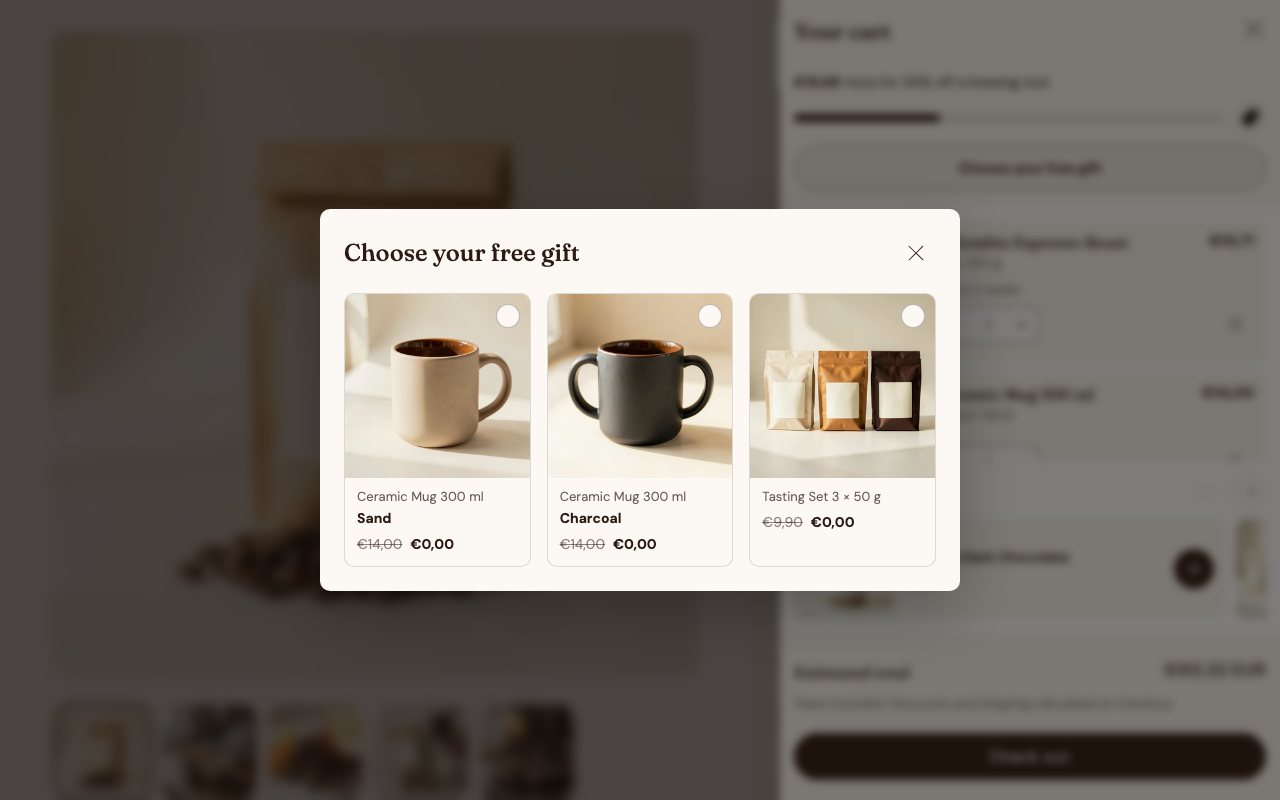
The reward picker: every option at €0,00 with its price struck through
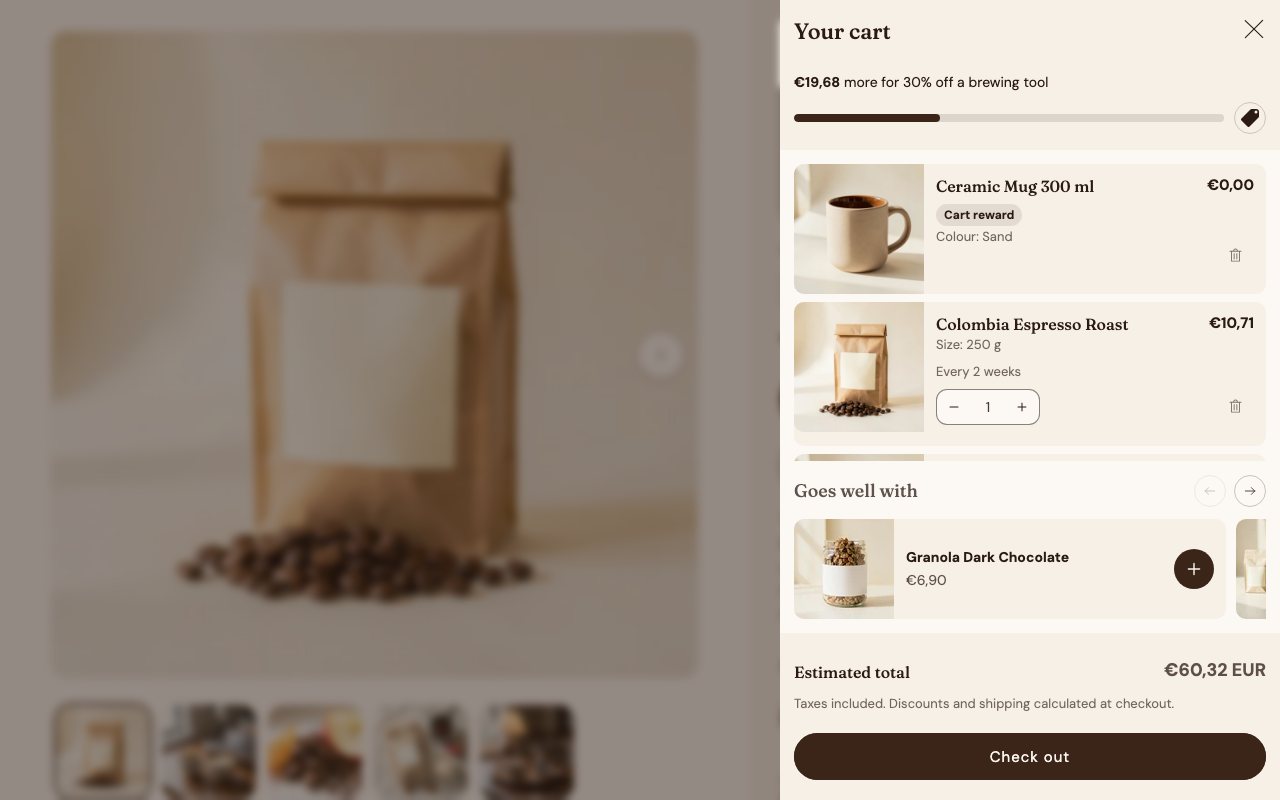
The chosen gift as its own line, marked "Cart reward"
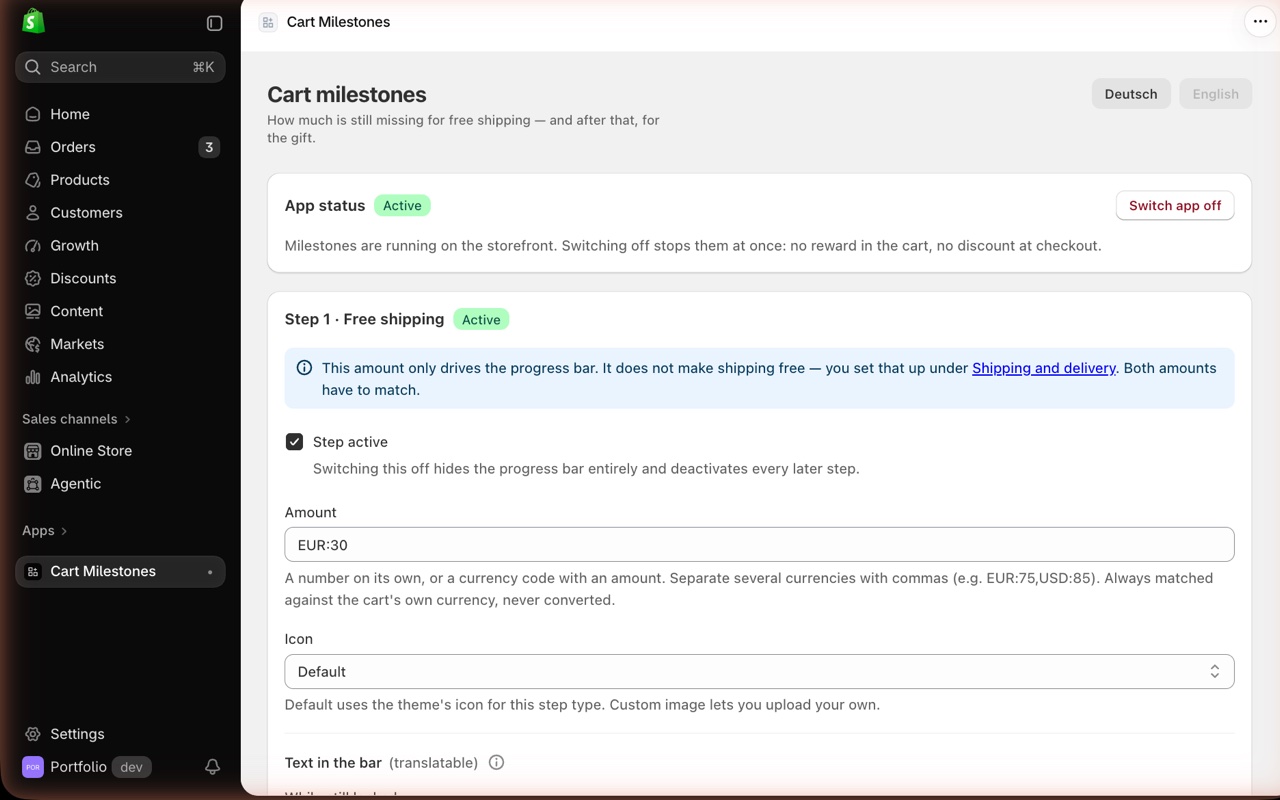
The app's admin: the on/off switch and every step with its amount, icon and translatable bar texts

Subscriptions

A subscribe-and-save widget in the buy box: one-time or every 2, 4 or 6 weeks at −10 %. Checkout is Shopify's own; the app bills the cycles.

Where the data comes from
Plan groups in the app's admin: frequencies with an interval and a discount, attached to products or single variants. The app creates the selling plans in Shopify; the theme block reads them from the product.
How it works
The widget switches between one-time and subscription, keeps the chosen frequency across variants and updates the price and the add-to-cart button. The Worker's daily cron charges every billing cycle that is due, retries failed payments and pauses the contract after the last retry.

The store is behind a password. Enter 12345 to get in.

First built for legona

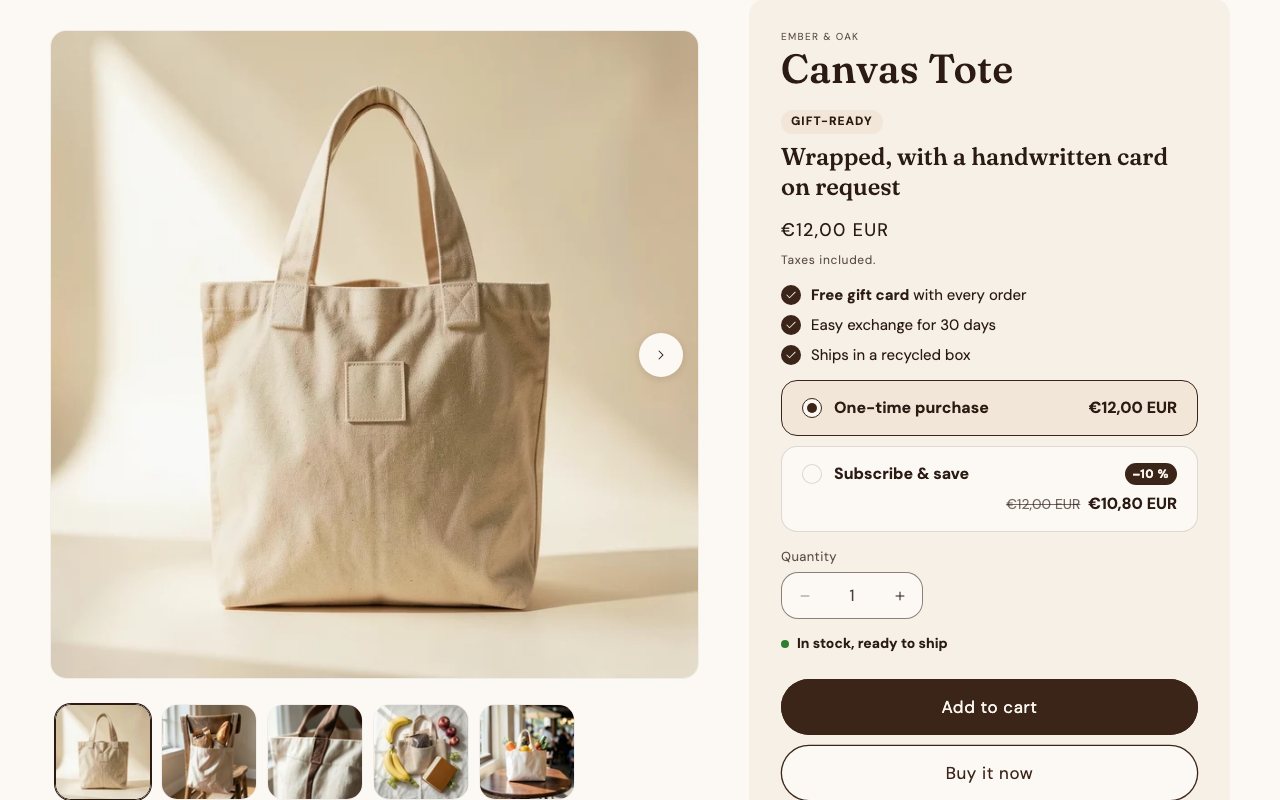
One-time purchase selected: the regular price
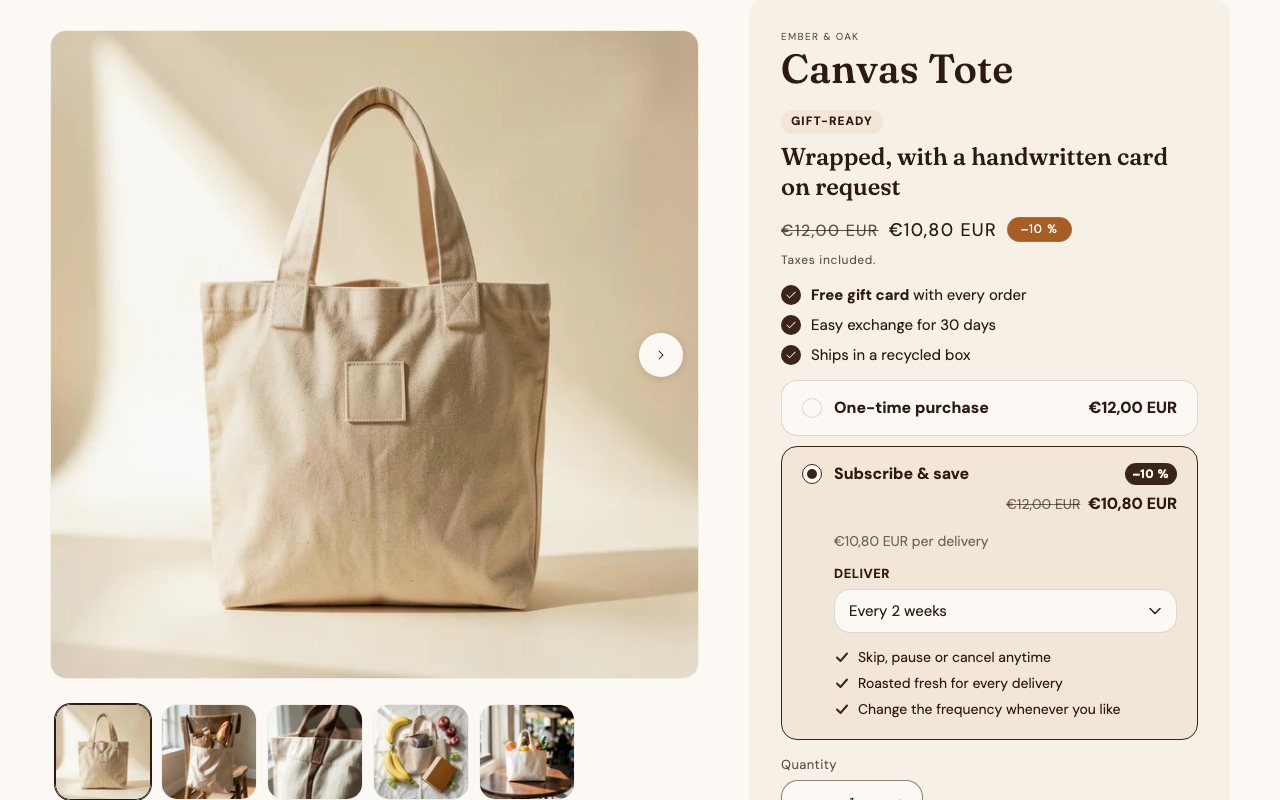
Subscribe & save: the saving, the frequency and what the subscription includes
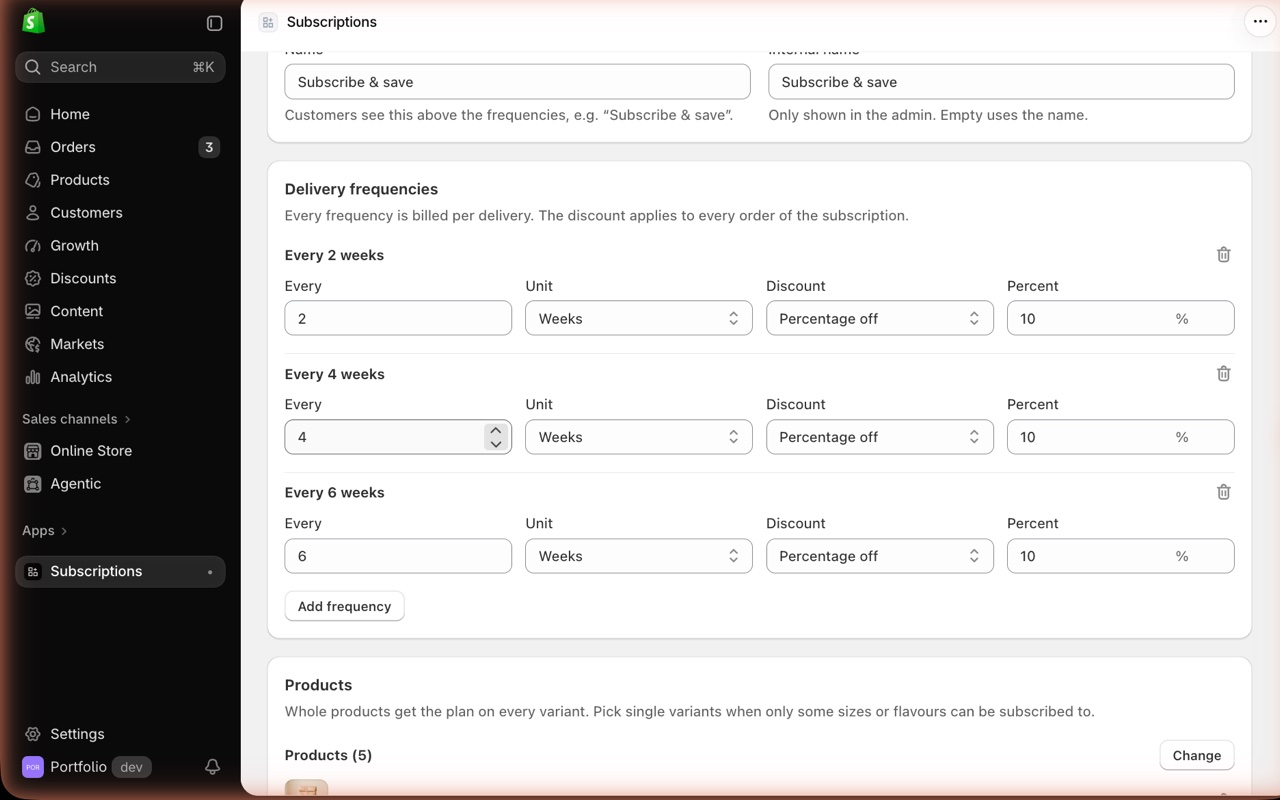
The app's admin: a plan with its delivery frequencies and the discount for each

Store Locator

A map of the shops that stock the brand, built automatically from B2B orders: every company with a fulfilled order in the last six months becomes a pin.

Where the data comes from
Nothing to fill by hand. The Worker reads the companies and their locations from the orders, geocodes the addresses once, and serves a public JSON endpoint the theme section reads. A daily cron keeps it current; website and Instagram can be added per company in Shopify.
How it works
The section renders the map and the list from the endpoint, with search by place. Locations drop off on their own when a company stops ordering.

The store is behind a password. Enter 12345 to get in.

First built for Health-Bar

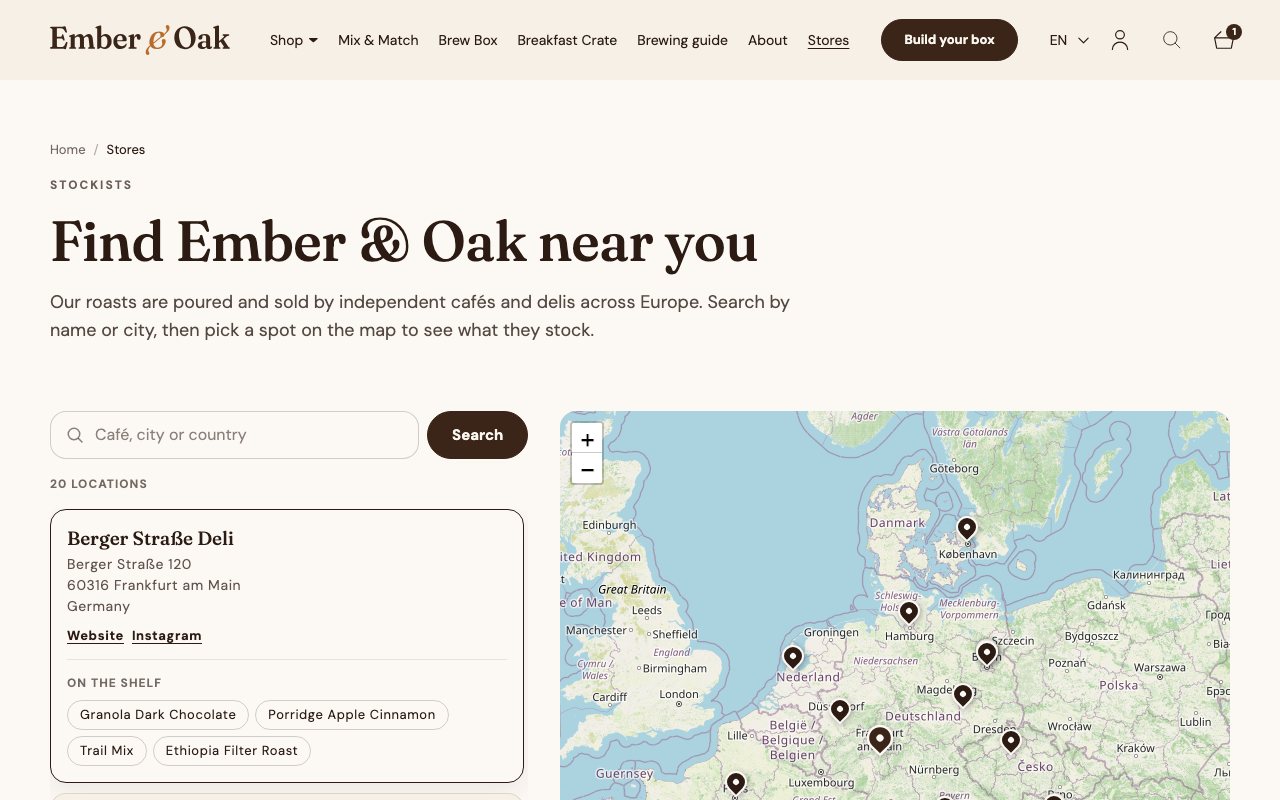
The Stores page with 20 B2B customers on the map
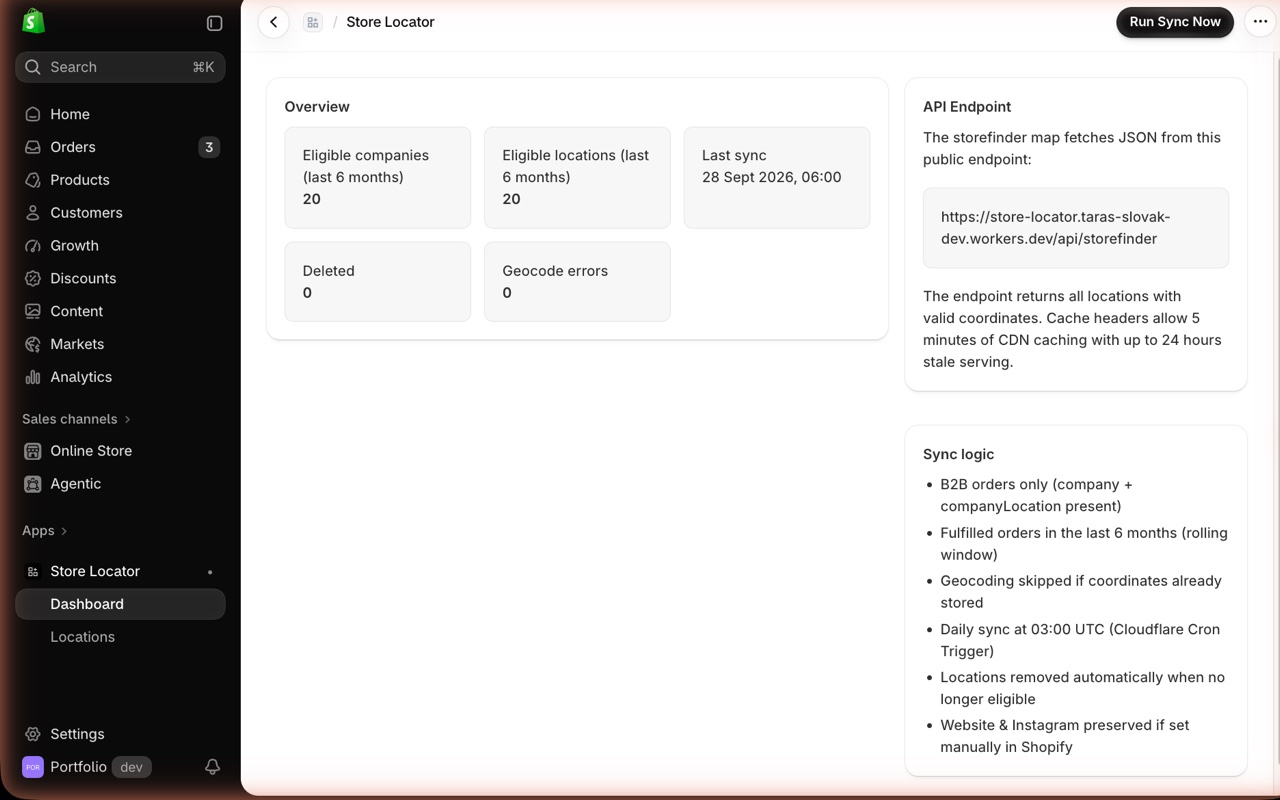
The app's admin: eligible B2B companies, the last sync and the public endpoint the map reads
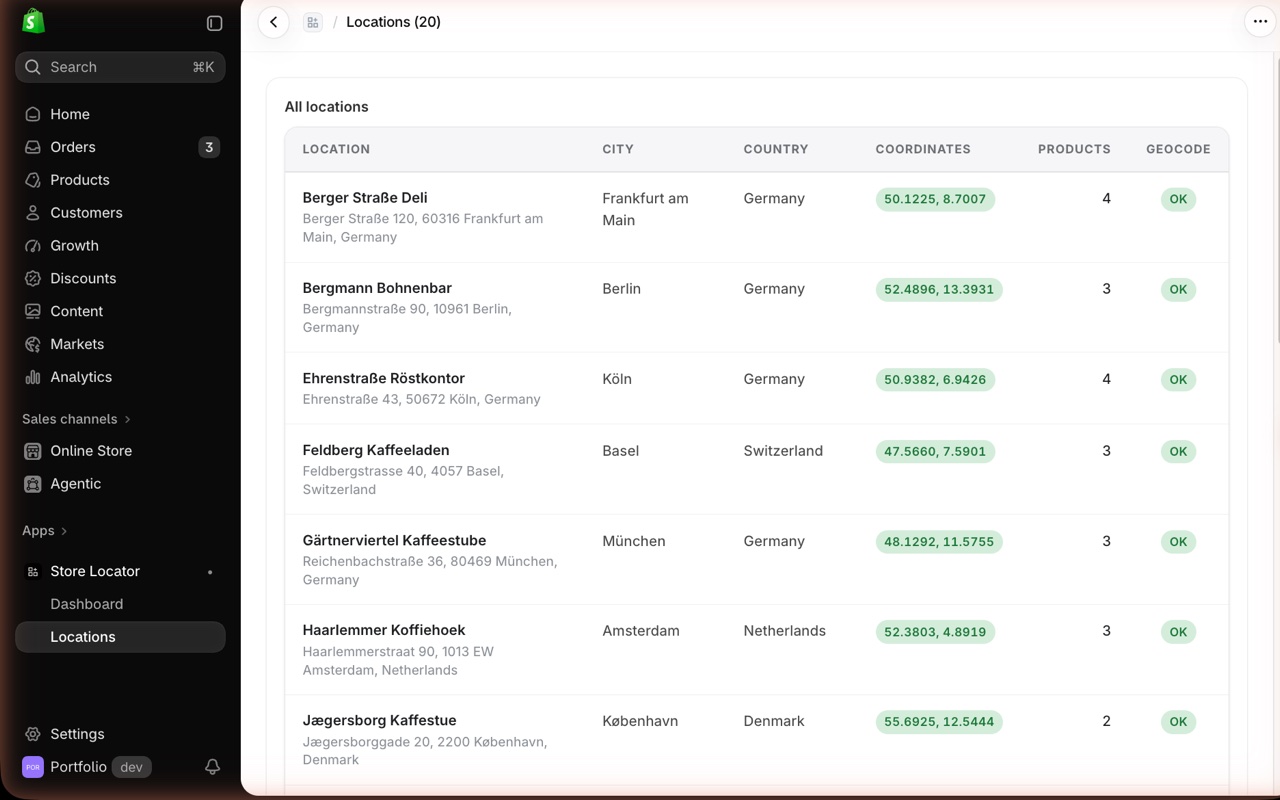
Every location with its geocoded coordinates

Store Translations

The whole store in German under /de/: products, pages, blog posts, menus, metafields and theme texts, translated automatically and kept current.

Where the data comes from
The languages are switched on in Shopify; in the app the merchant keeps a glossary (terms kept as they are, preferred translations) and the form of address (du). The admin shows the coverage per content type and what is missing.
How it works
An hourly cron picks up what is new or changed since the last run and writes the translations through Shopify's Translations API, so nothing edited by hand is touched. Engines in order: Gemini, Workers AI, m2m100. Free tiers only.

The store is behind a password. Enter 12345 to get in.

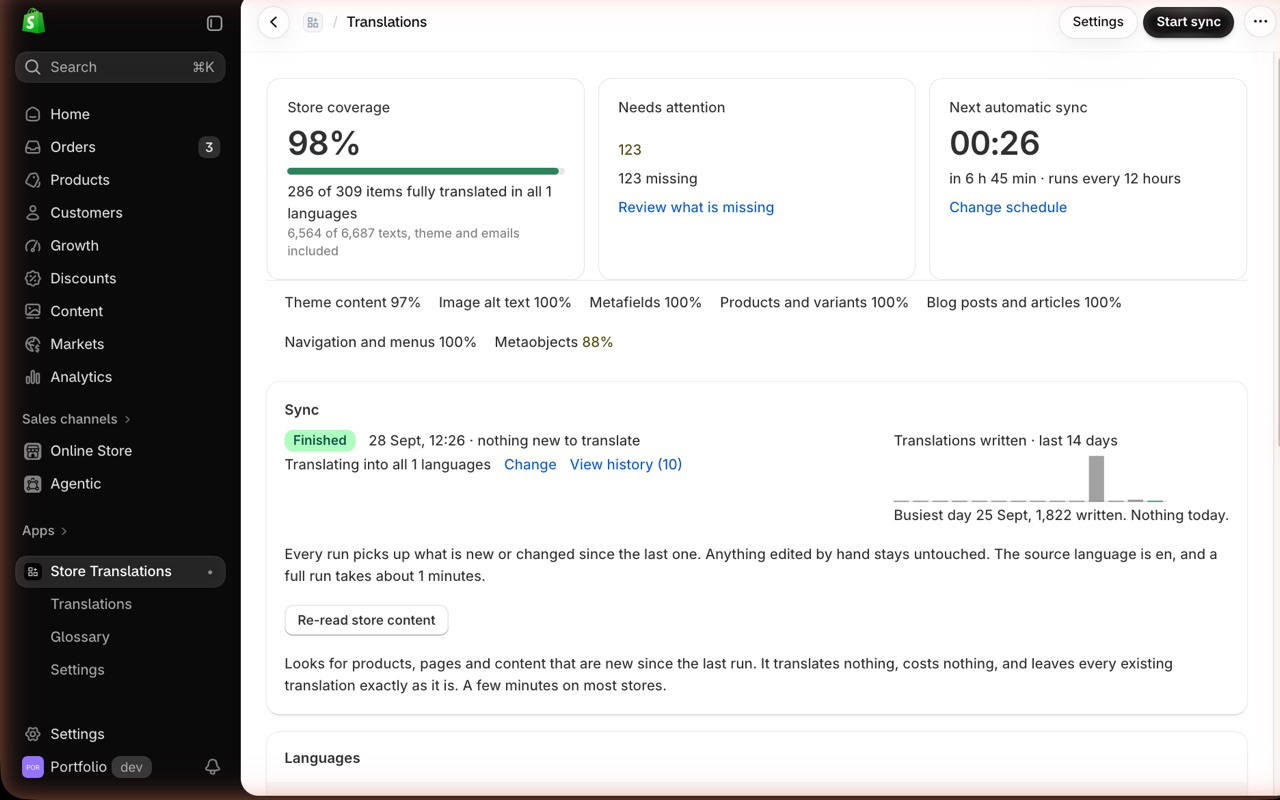
The app's admin: coverage, what needs attention, the sync schedule
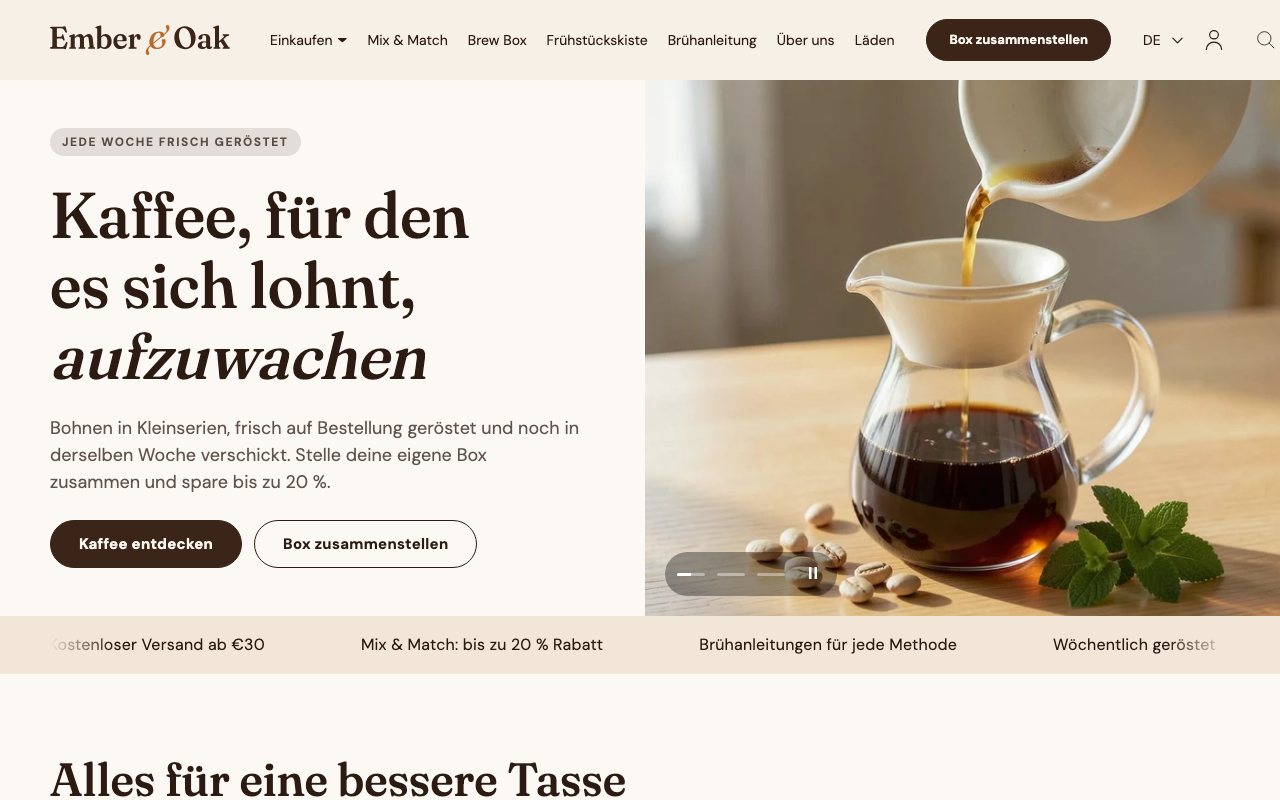
The home page in German
The configurator product in German, including the metafield texts
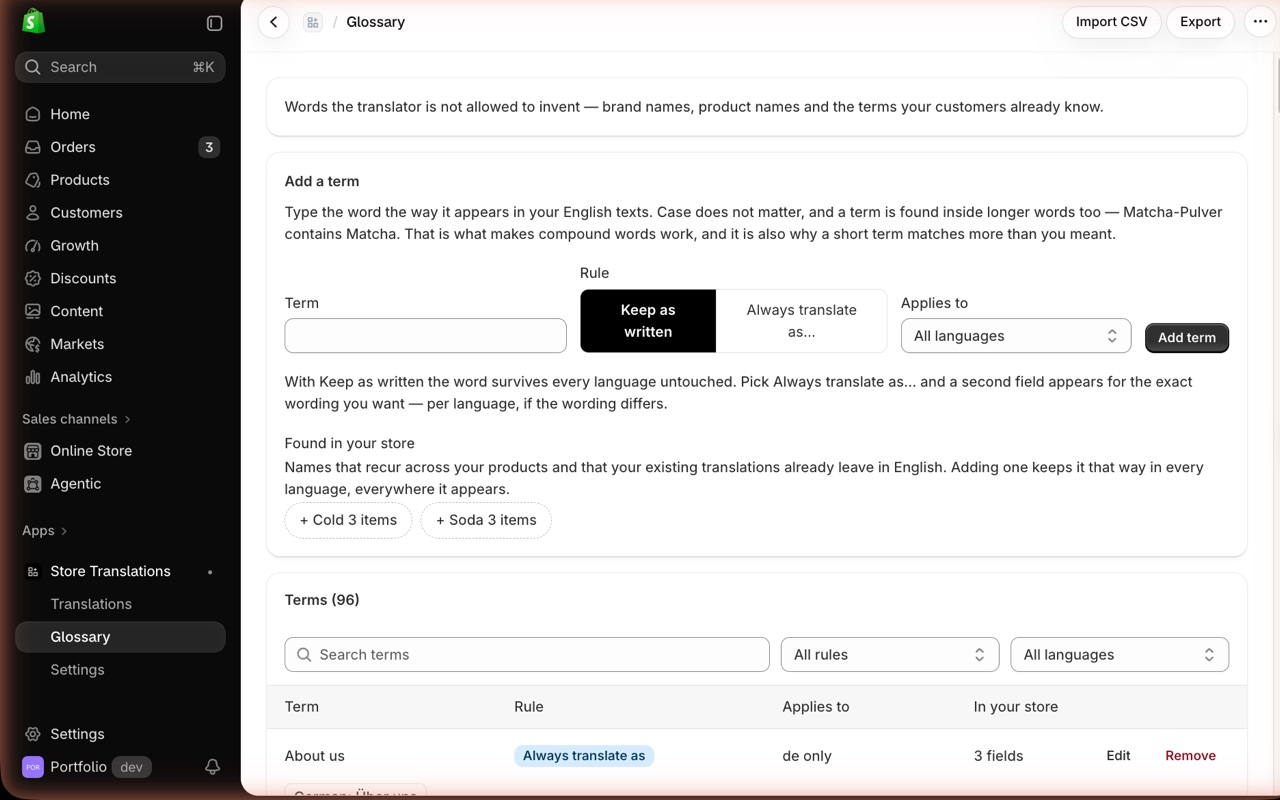
The glossary: terms kept as written or always translated one way, per language

Product Sync

A one-way mirror of the store into a second, Spanish-only shop: products, collections, files, metaobjects, pages, menus and blog posts, translated on the way.

Where the data comes from
One app installed on both stores. A glossary lives in the Worker's config; the embedded admin shows which store you are on, the synced counts and the last fifty syncs, and can start a content sweep.
How it works
Webhooks on the master queue every change; a queue consumer writes it to the replica, remapping every id, file and metaobject reference. A price change reaches the replica in about ten seconds. A daily cron covers what has no webhook: pages, menus, posts.

The store is behind a password. Enter 12345 to get in.

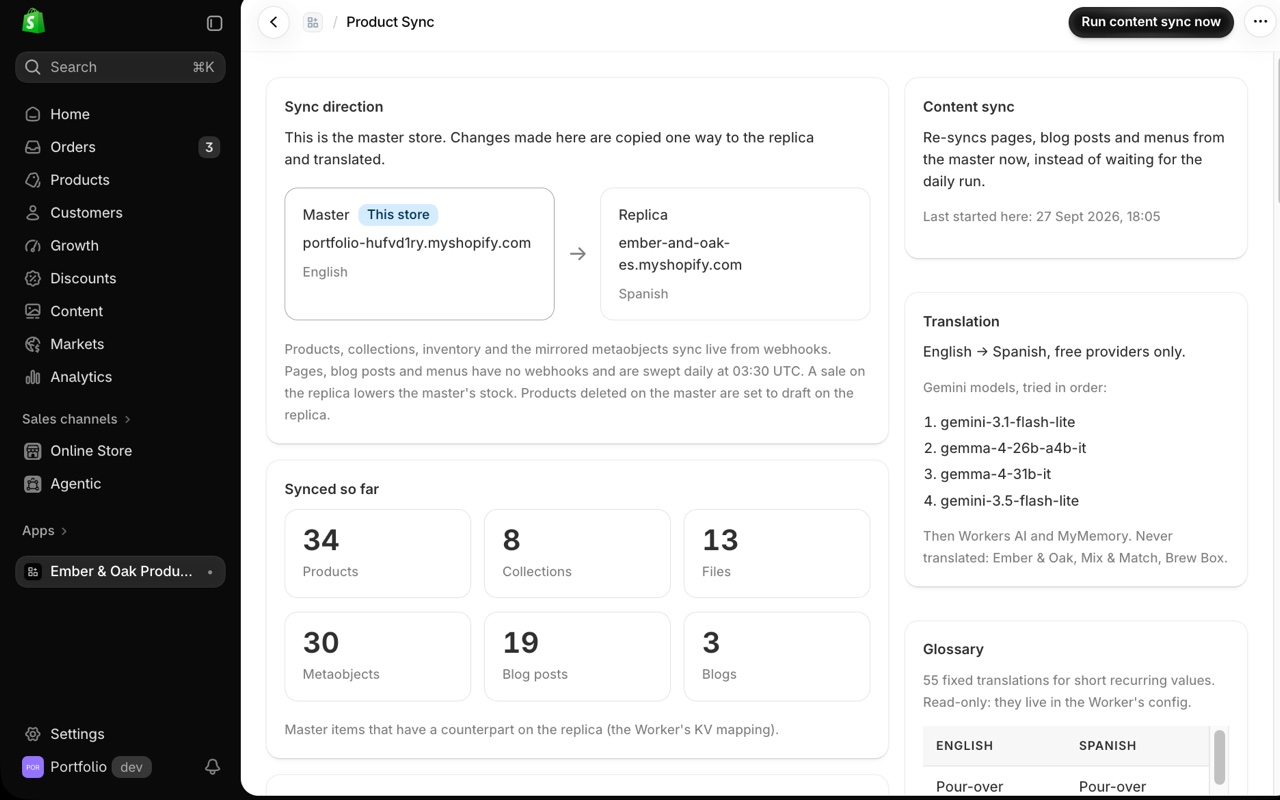
The app's admin: master and replica, what has been synced, the translation engines and the glossary

Post-Purchase Offers

One extra offer right after payment, chosen by what was bought: a coffee order gets filters at −15 %, a decline gets a downsell. Accepting adds the product to the same order.

Where the data comes from
Funnels in the app's admin: trigger (a tag or a product), the offer product with its discount, the headline, bullets, badge and countdown, an optional downsell. A live preview in the editor shows the page exactly as the checkout renders it.
How it works
A checkout post-purchase extension asks the Worker for the offer for the order; the same code builds the preview in the admin, so the two never drift. Needs a real order on the demo store, so the demo shows it in the admin.

The store is behind a password. Enter 12345 to get in.

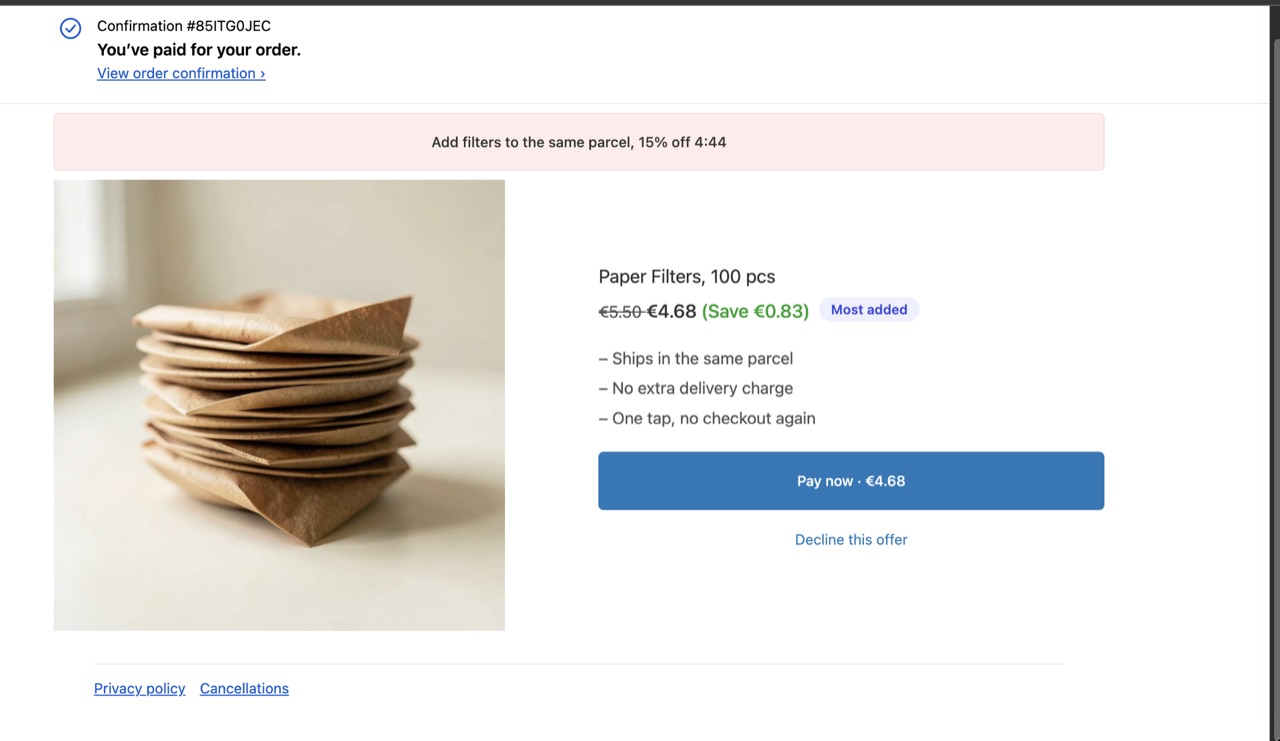
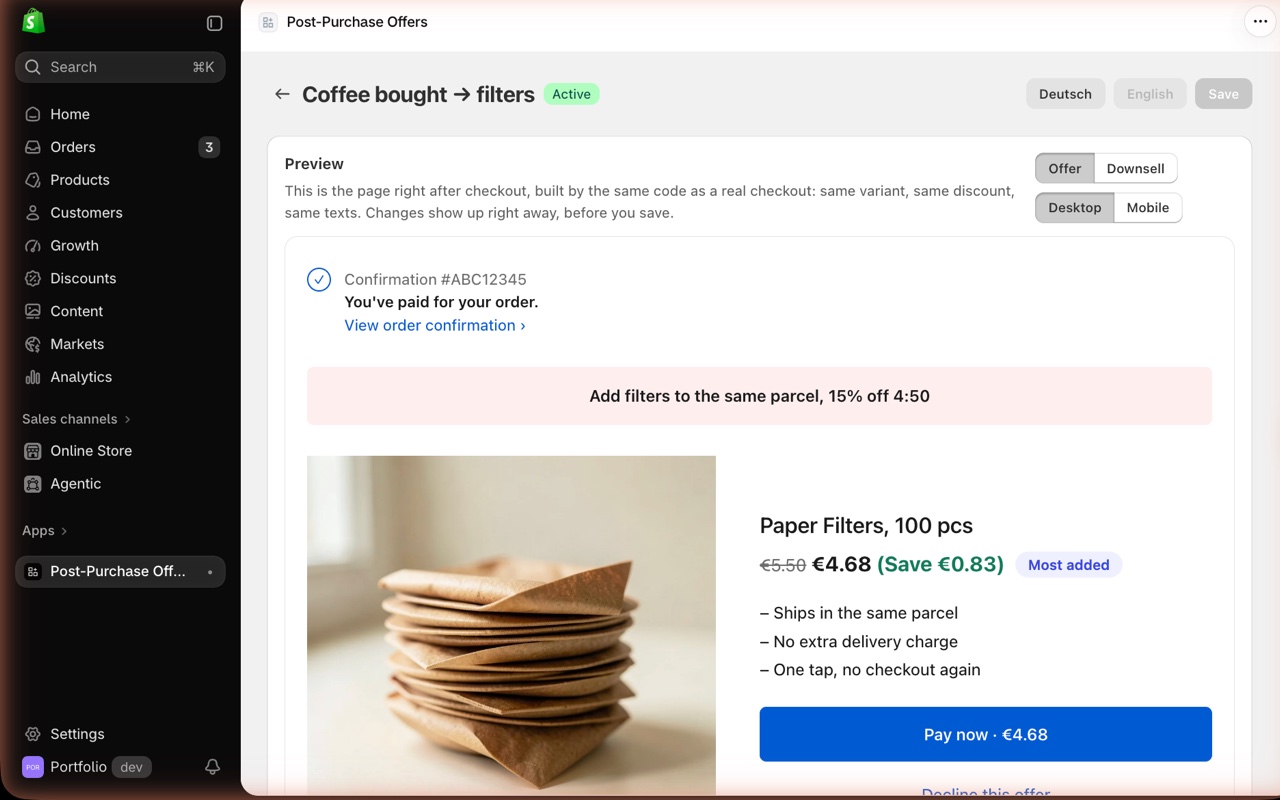
After paying for a coffee: filters at −15 % with a countdown, added to the same order in one tap
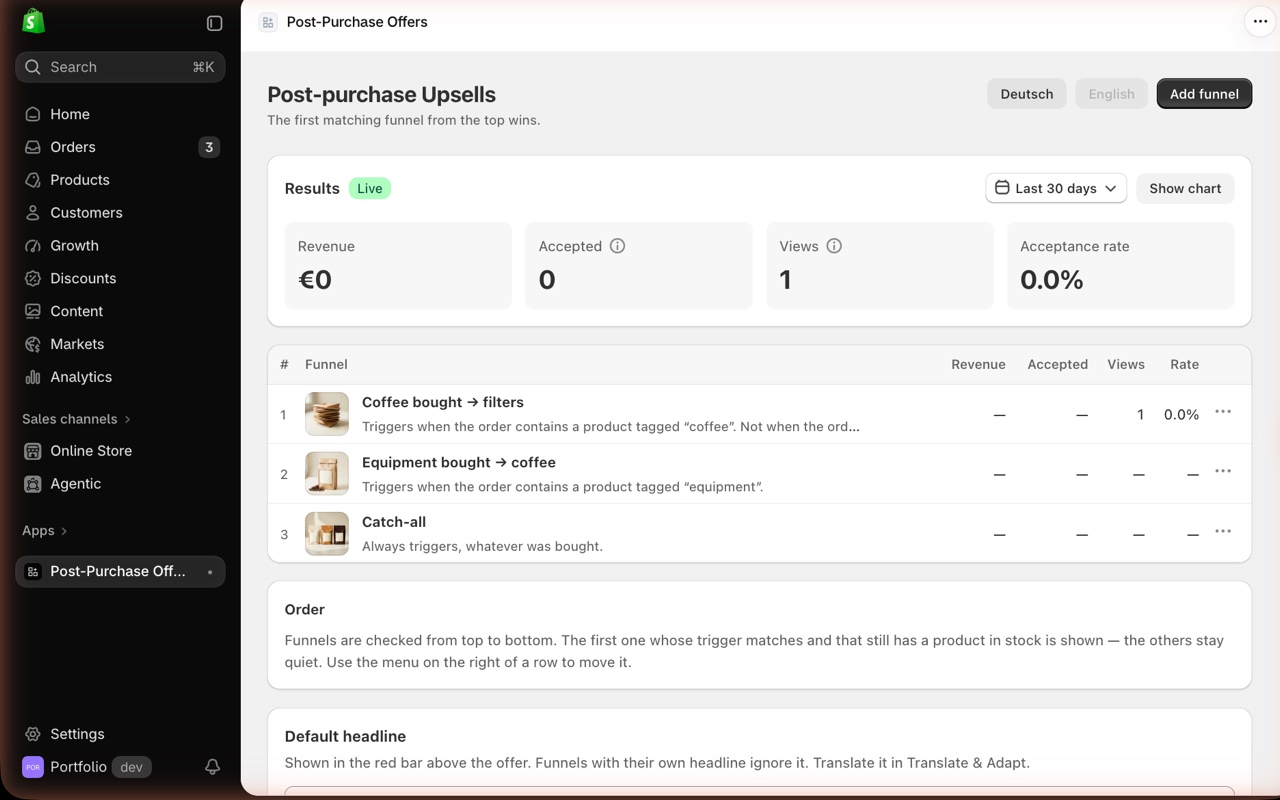
The app's admin: results and the funnels, checked from the top; the first match wins
A funnel with a live preview of the offer page, rendered by the same code as the real one
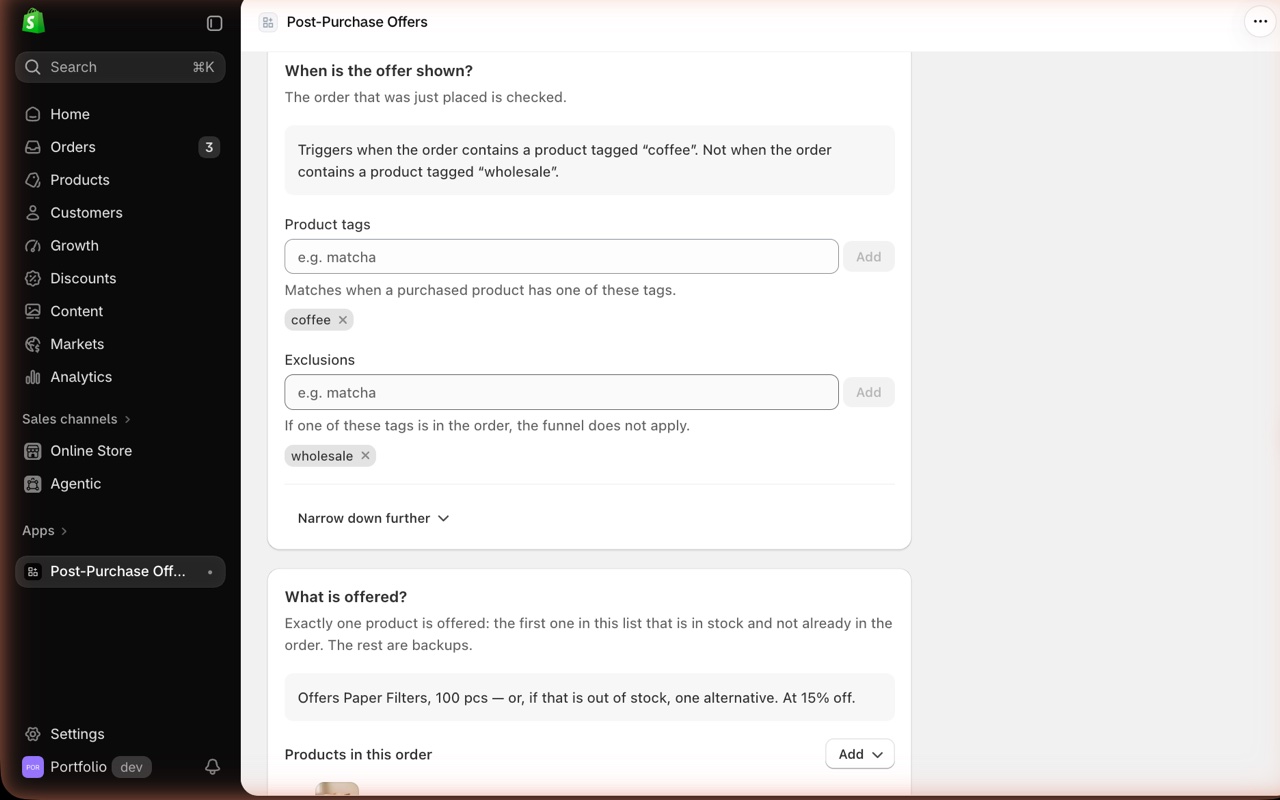
When the offer is shown: product tags and exclusions

Checkout Blocks

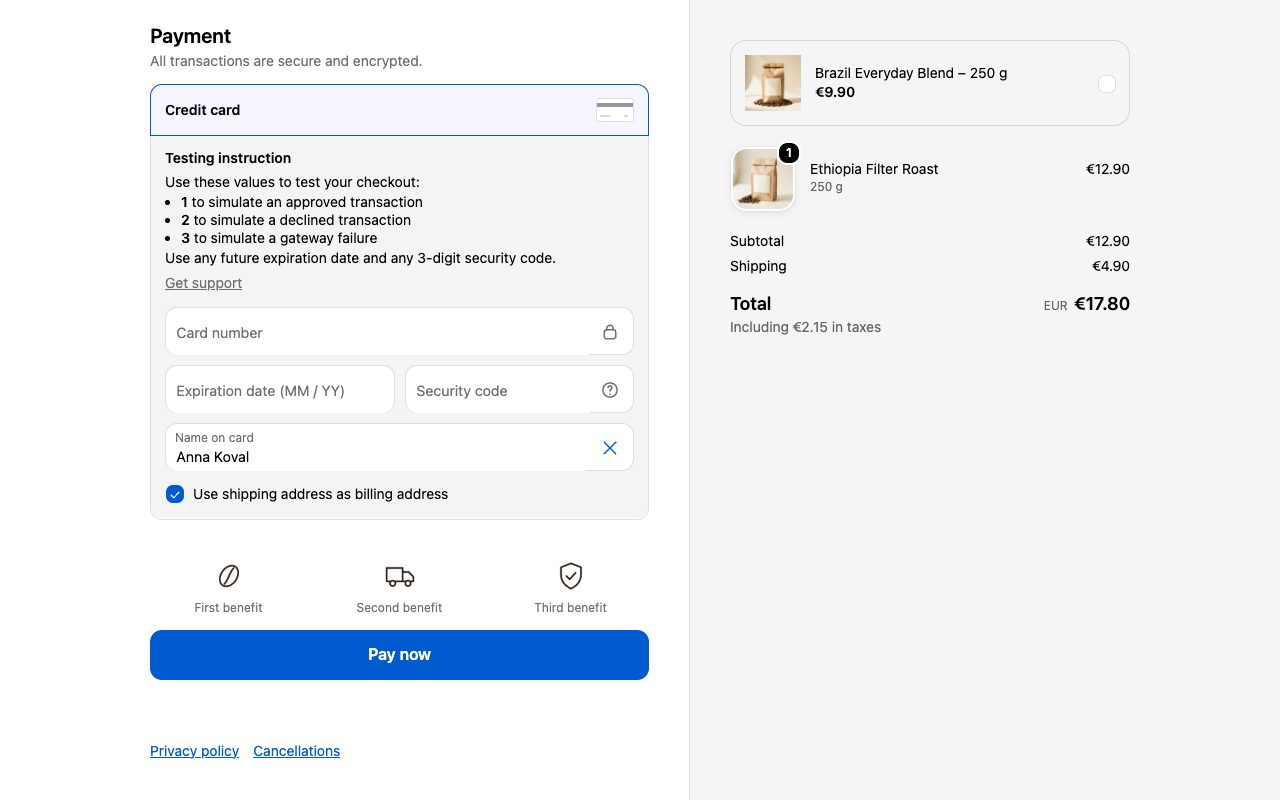
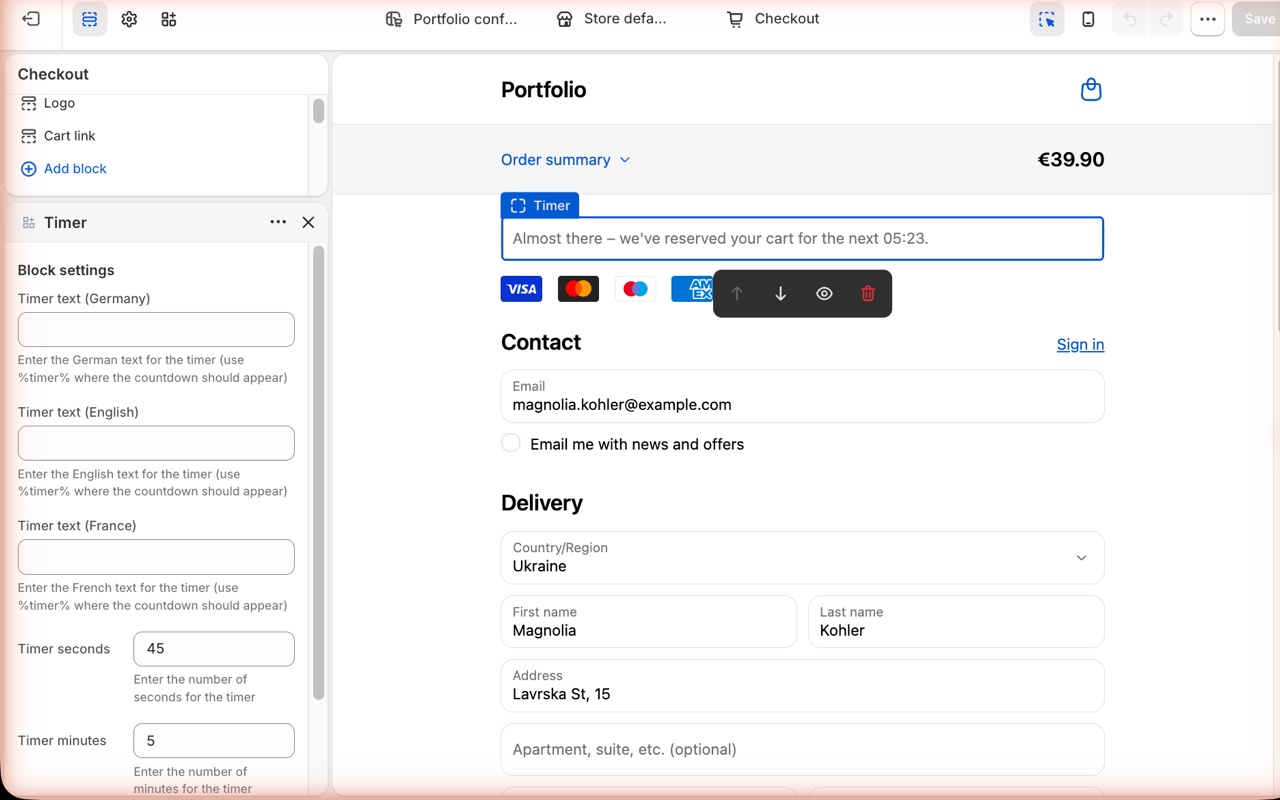
Four checkout UI extensions placed in Shopify's checkout editor: a cart-reservation timer, payment logos from Shopify's own icon set, a row of trust points and a one-tap upsell card.

Where the data comes from
Each block is placed and configured in Shopify's checkout editor; the texts are the block's settings. No server behind it.
How it works
The blocks render inside Shopify's checkout and follow its branding. Default texts ship in English, German, French and Spanish and follow the checkout language; the upsell card reads the picked variant's title, image and price through the Storefront API and adds or removes it with a tick.

The store is behind a password. Enter 12345 to get in.

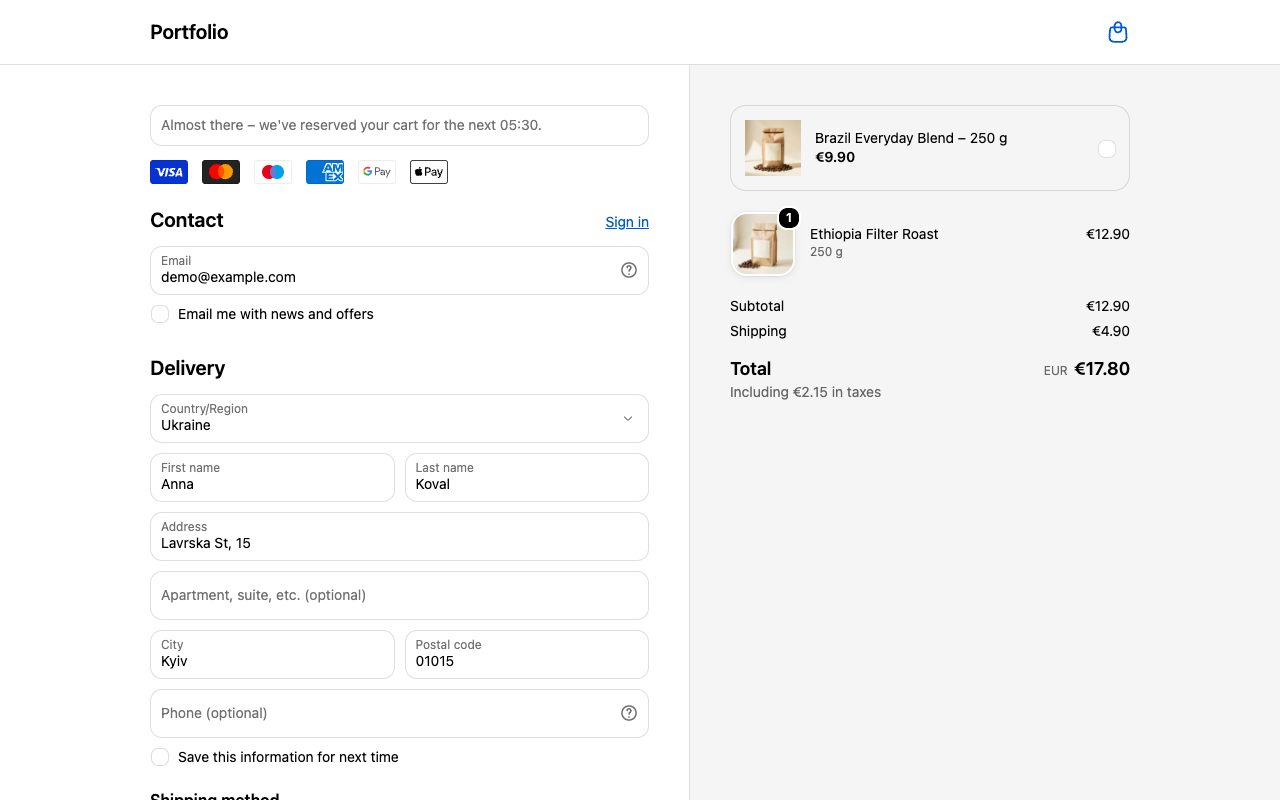
Timer and payment logos above the contact form; the upsell card on top of the order summary
Three trust points in a row above Pay now
Shopify's checkout editor: the Timer block and its settings in three languages

Product page and cart

Built on Dawn, but the buy box, the gallery and the cart drawer are custom blocks driven by metafields and metaobjects the merchant fills in the Shopify admin.

Product configurator

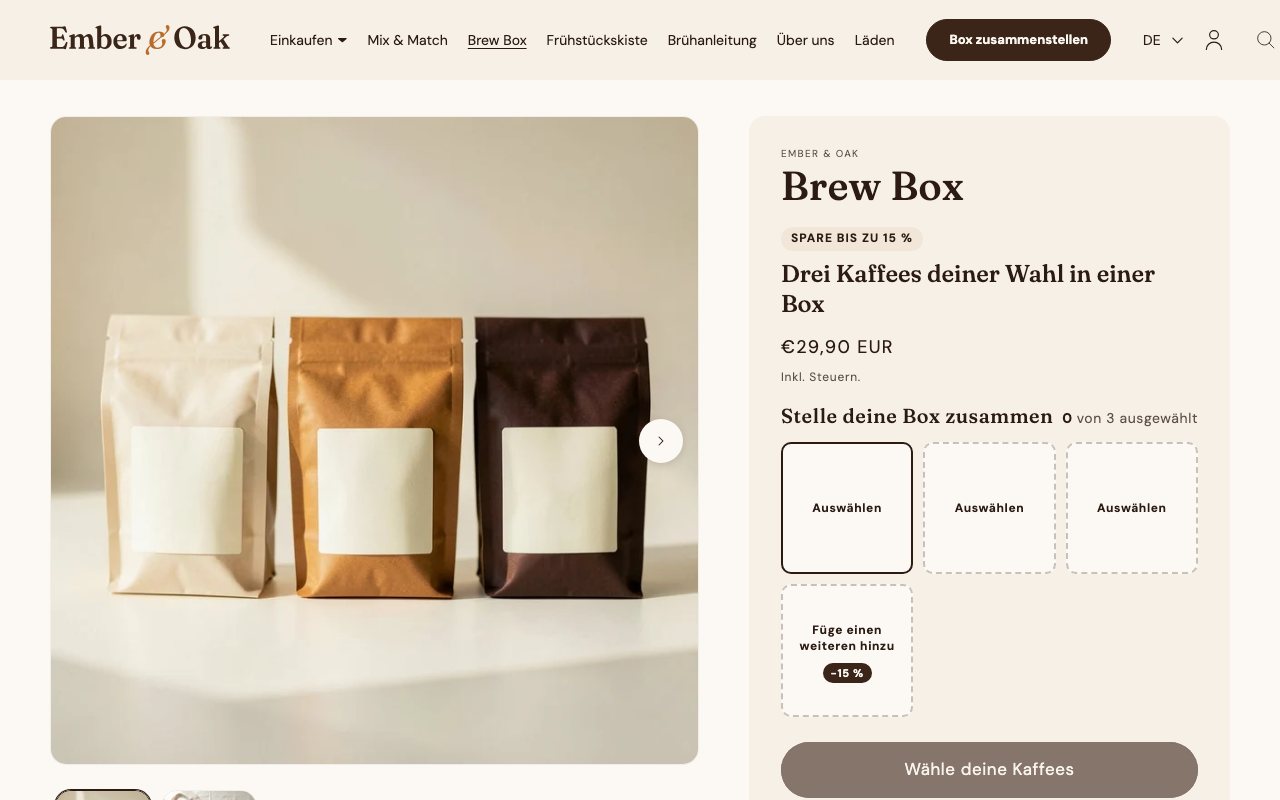
A "pick N" set built in the buy box: the customer fills the base slots from a side panel, may add optional picks at a bigger discount, and the set goes into the cart as one line. Three sets run on the same block: Cold Drinks Duo (2 + 2), Brew Box (3 + 3) and Breakfast Crate (4 + 4).

Where the data comes from
One metaobject "Custom set" on the product (custom.custom_set): how many base and optional picks, a discount for each kind (10 % and 15 % here), free gift products, whether the panel's button adds to the cart directly, and the categories, each a "Products bundle" entry listing the products or single variants on offer. Titles and button texts are block settings, so each set has its own wording.
How it works
The app is the backend only: a Cart Transform function, no server. The theme block does the picking and the pricing and hands the result to the function in line properties. The same function serves the Mix & Match page.

The store is behind a password. Enter 12345 to get in.

First built for BrekkyBowl

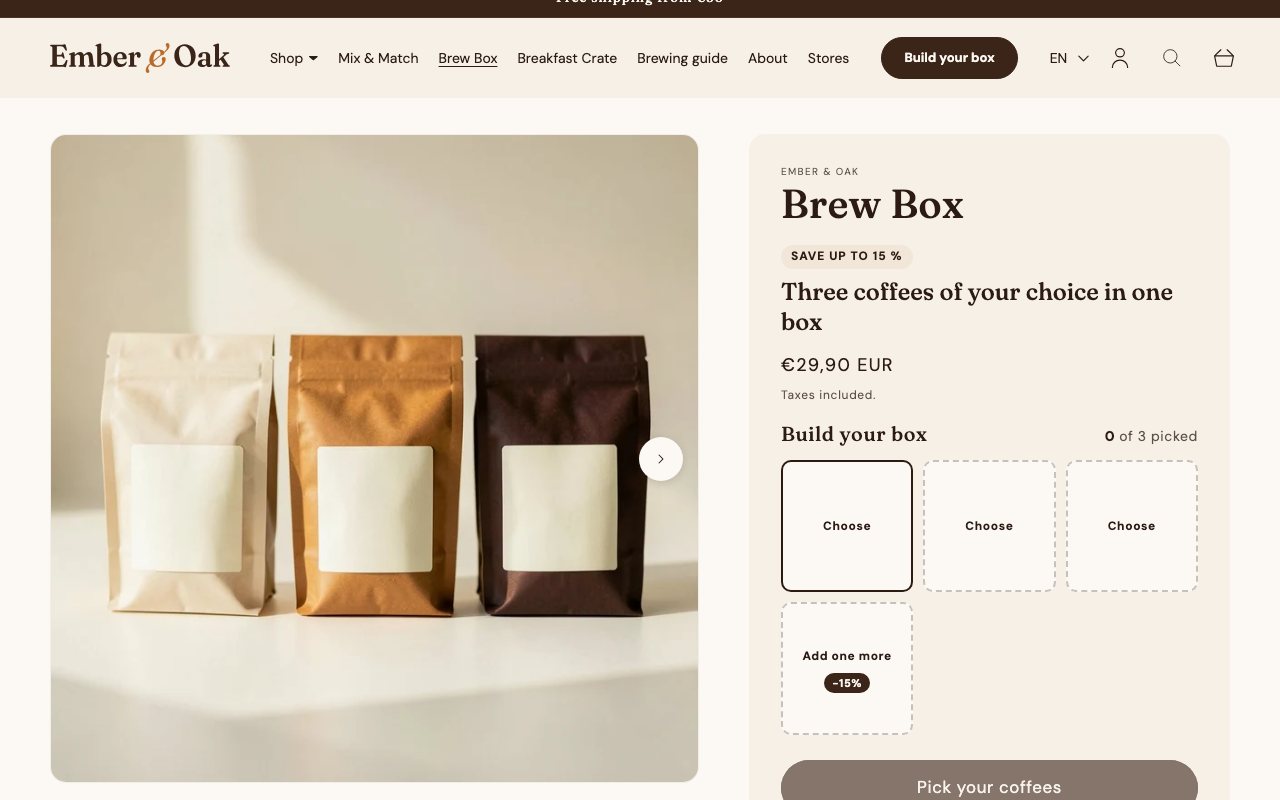
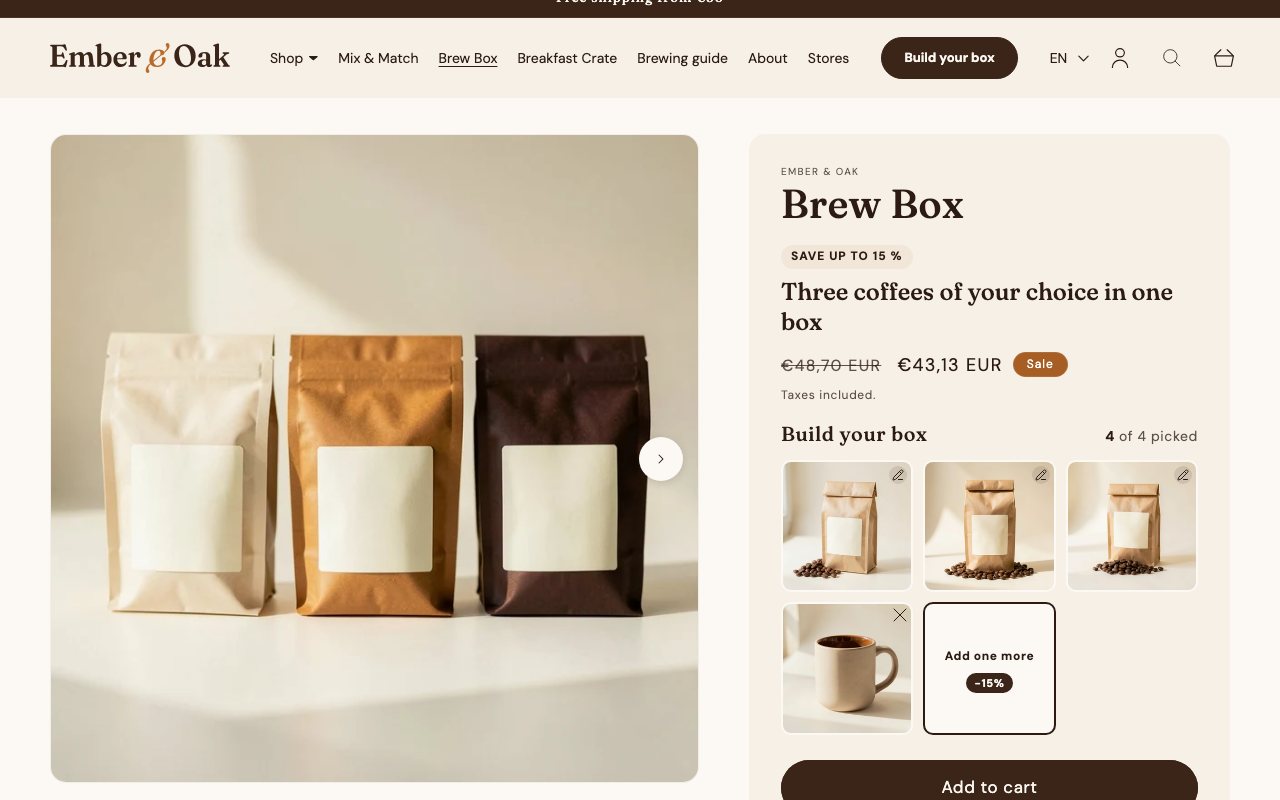
Brew Box: three base slots and the first optional one, the button waits for the picks
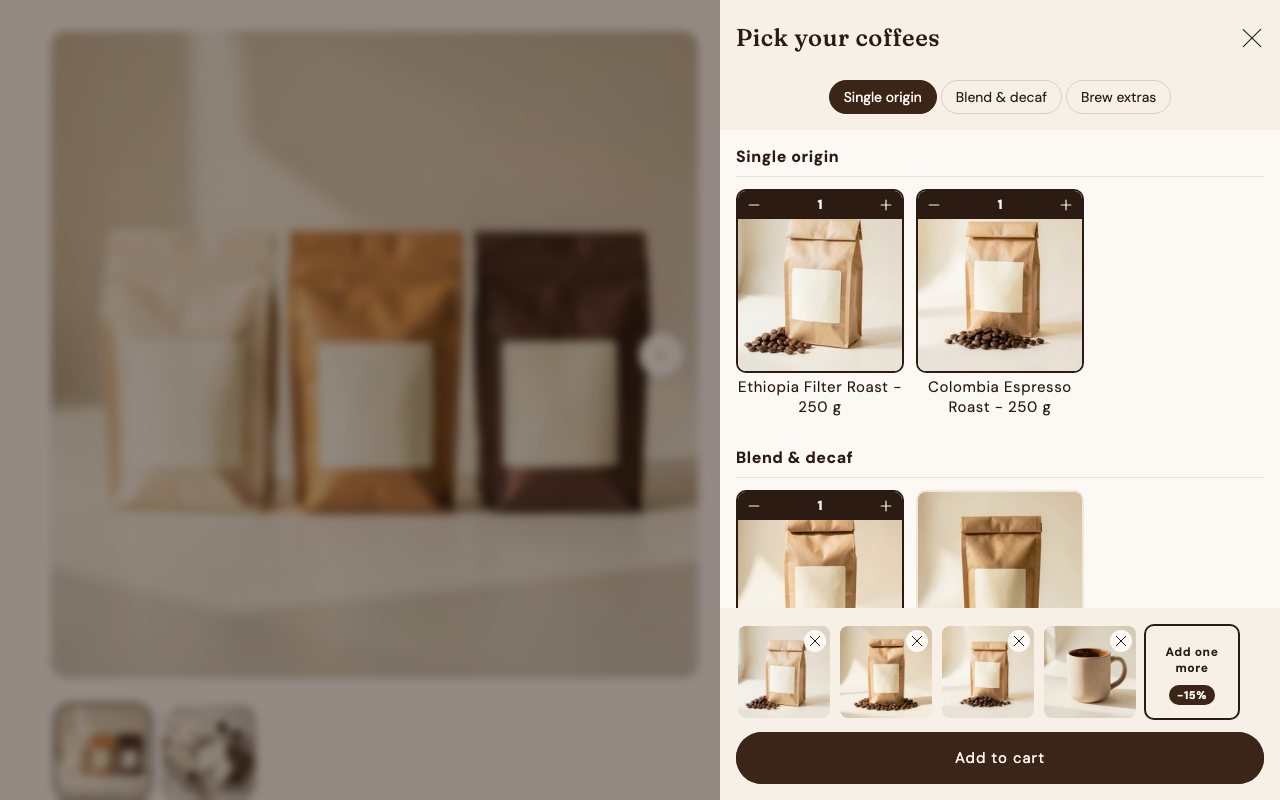
The side panel: category filters, picked cards with a −/+ bar, the slot strip and the add button
Four picks made: the price block shows €43,13 with €48,70 struck through
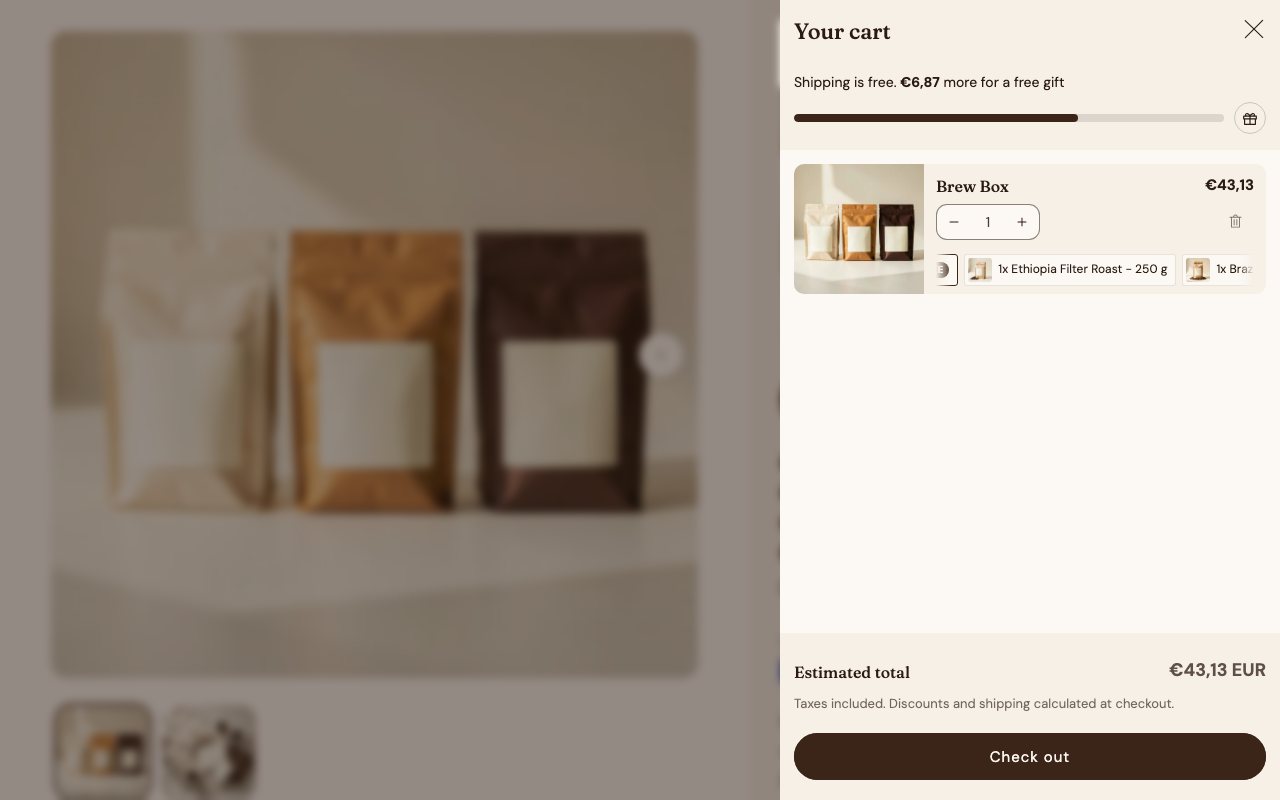
In the cart drawer: one line at the set price, the picks as chips
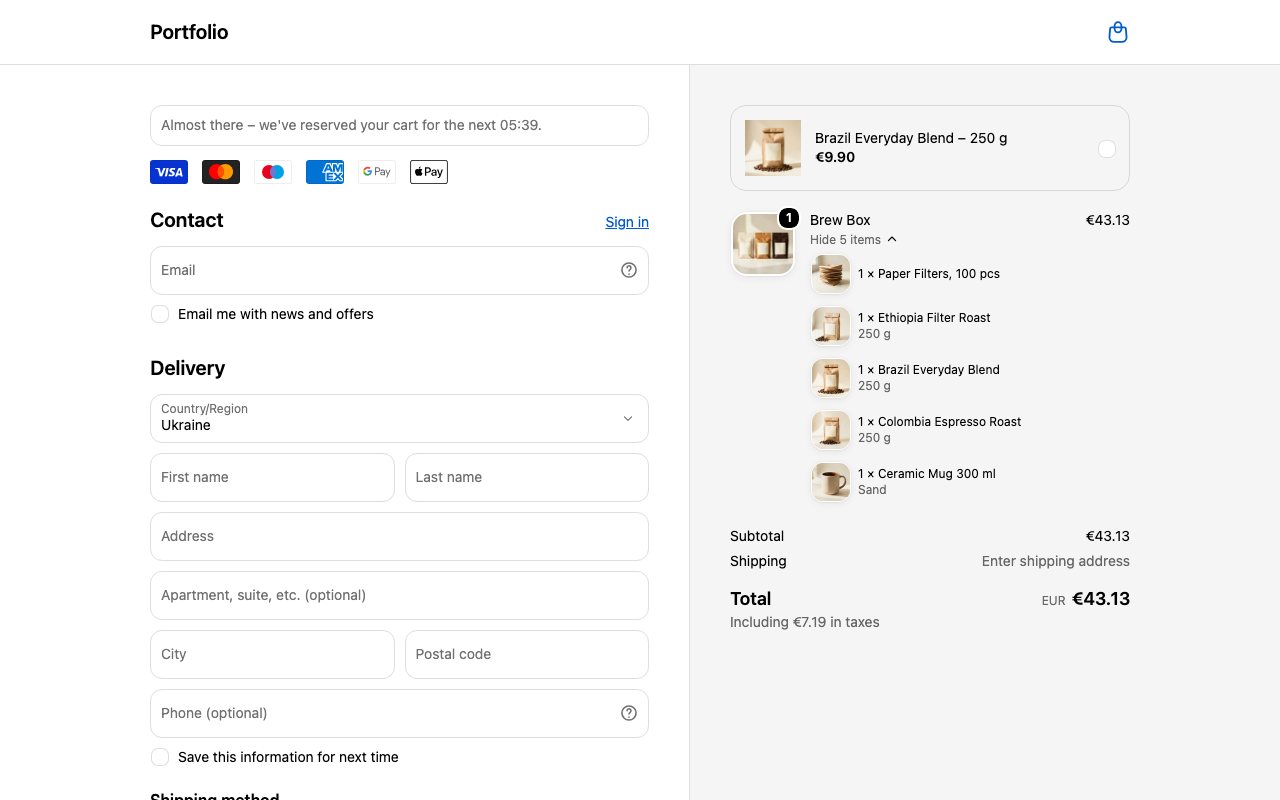
At checkout the set is expanded into its products, the free filters included
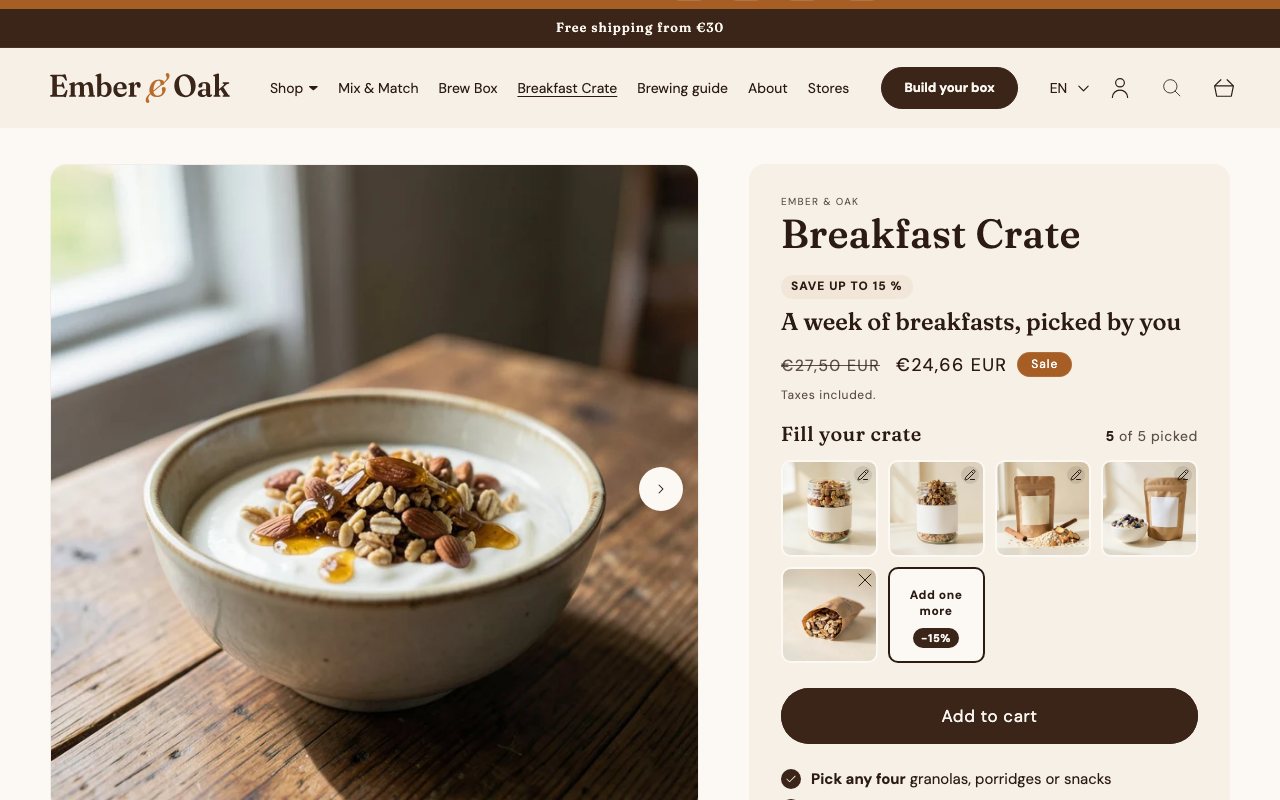
Breakfast Crate, 4 + 4: four base picks in a row and an optional fifth
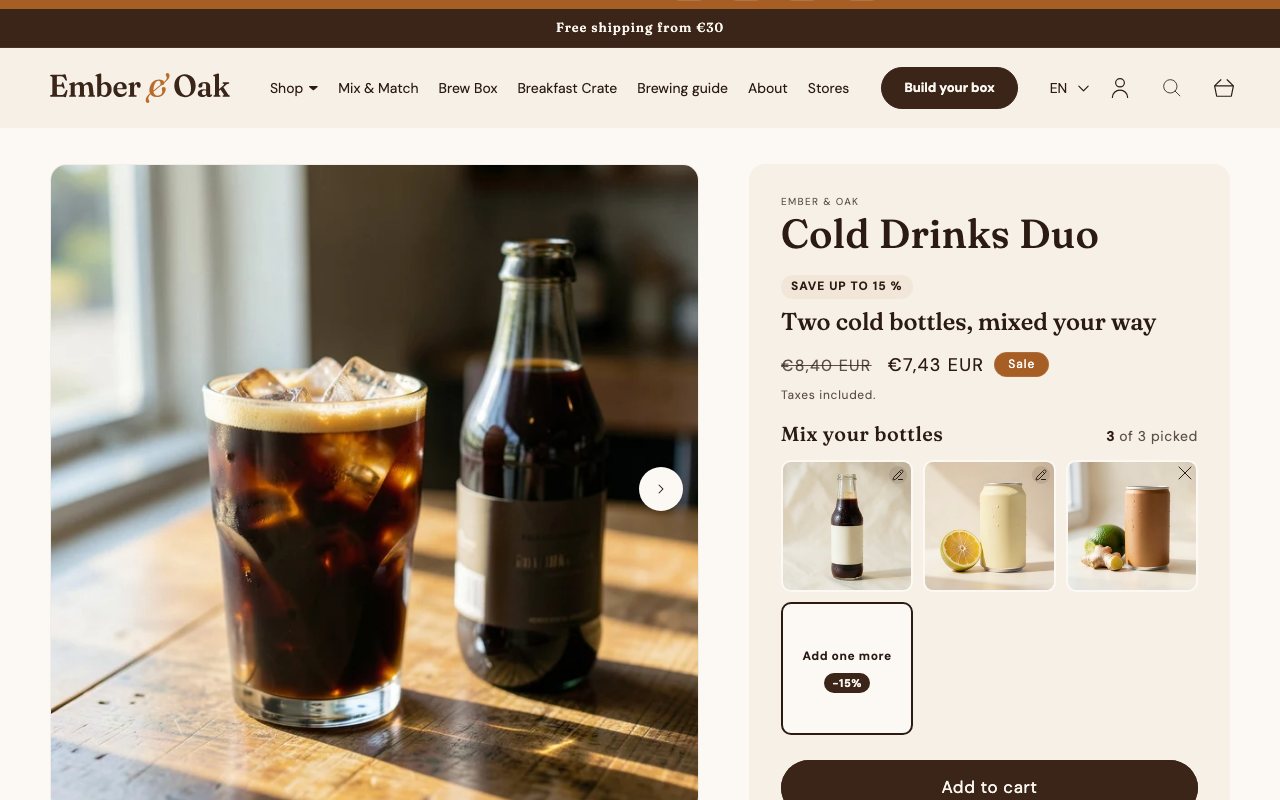
Cold Drinks Duo, 2 + 2: two bottles and a third at −15 %

Step by step

  1. Slots in the buy boxThe block draws one slot per base pick and a counter ("0 of 3 picked"). The grid has as many columns as there are base picks, so the optional picks form a second row. The next optional slot shows its discount (−15 %). Until every base slot is filled the add-to-cart button is dimmed and opens the panel instead.
  2. The side panelAny slot opens a panel with a filter button per category, the product cards and a strip of slots at the bottom. A click on a card puts one unit into the next free slot; a picked card gets a −/+ bar with its count; a click on a filled slot removes it. Base slots fill first, and removing a base pick pulls an optional one forward.
  3. Live priceEach pick is priced at its own variant price minus the discount of its slot: 10 % in a base slot, 15 % in an optional one. The sum is written into the theme's own price block as the sale price, with the undiscounted sum struck through, so the buy box always shows what the set costs right now.
  4. One line in the cartThe set is added with a single request as the wrapper product, quantity 1. The picks travel in hidden line properties: _cb_selections holds the variant ids (free gifts first), _cb_prices the discounted price of each in cents (0 for a gift) and _cb_compare_total the undiscounted sum. Ticked add-ons from the buy box go in the same request.
  5. Cart drawerThe drawer shows one line at the set's price with the picks as chips under it, a thumbnail and a name each; a free product carries a "Free" label. More than three chips become a slow marquee that can be dragged.
  6. CheckoutAt checkout the Cart Transform expands the line into the real products at the prices from _cb_prices, the gift at €0. The order therefore contains the actual variants, so stock, fulfilment and reports work per product, while the customer still sees one set with its items listed under it.
  7. Three sets, one blockCold Drinks Duo is 2 + 2, Brew Box 3 + 3 with a free pack of filters, Breakfast Crate 4 + 4, where the panel's button only saves the selection. All of that is data in the metaobject; the three templates differ in three texts.

Buy box and gallery

Variant cards with badges, a promise line, USPs, stock and delivery notes, add-ons that go into the cart with the product, a sticky add-to-cart bar on mobile, and a gallery with thumbnails and mobile dots.

Where the data comes from
Product metafields: promise headline and badge, USPs, delivery time, subtitle, gallery badge, cross-sell and upsell product lists. Variant metafields: picker badge, price badge, label. Each block is a Dawn product block with its own settings, so the merchant switches them on per template.
How it works
Ticked add-on cards join the product form's own request as extra items, so one click adds everything. After adding, the drawer shows an upsell slider for the newest line. On mobile the sticky bar appears once the main button scrolls out of view and submits the same form.

The store is behind a password. Enter 12345 to get in.

First built for legona

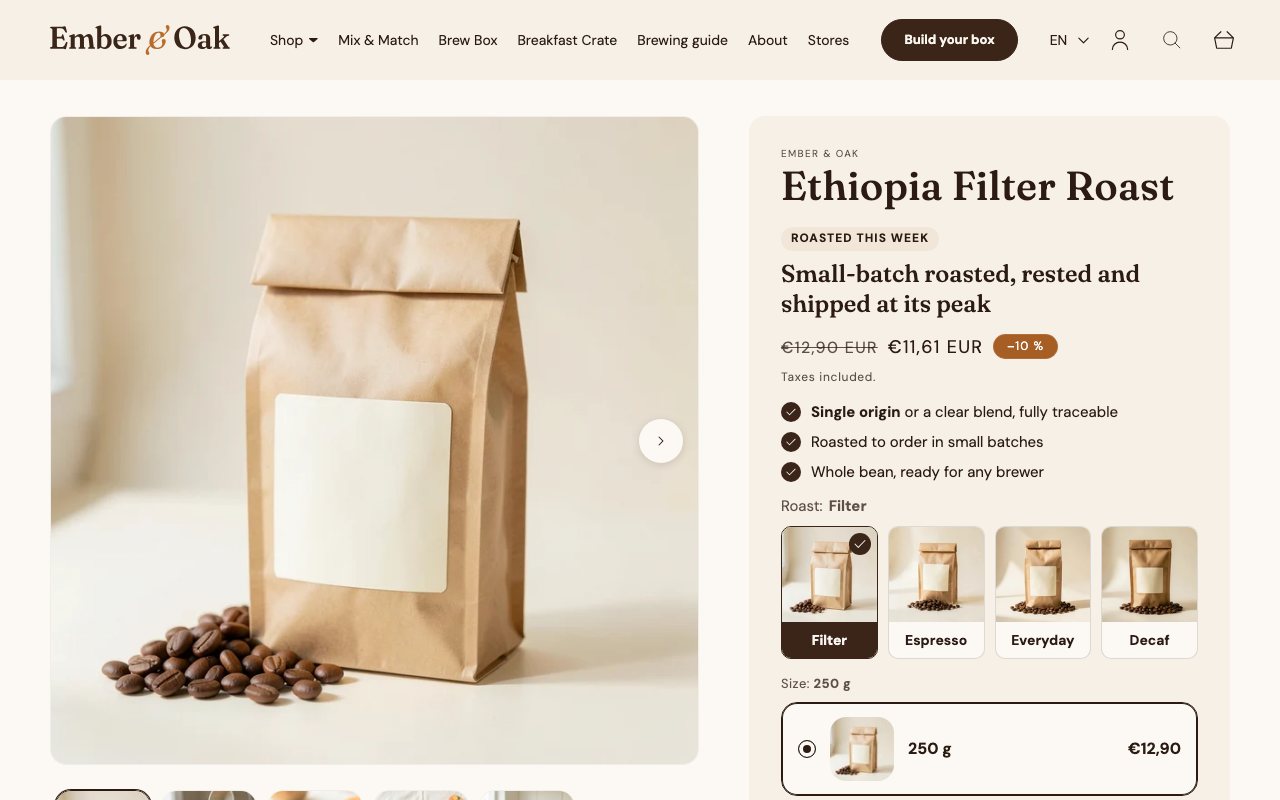
Promise badge, the price with the subscription saving, USPs and variant cards
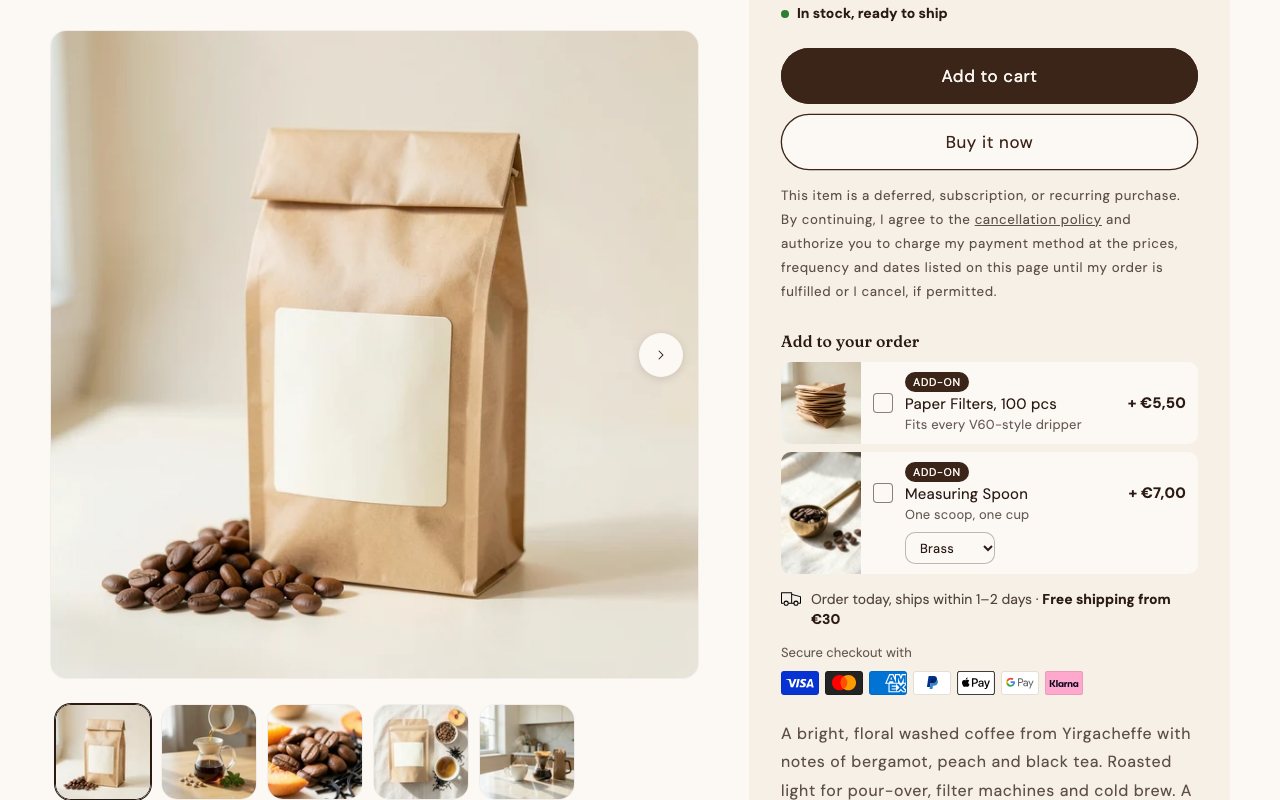
Add-ons under the buttons with their own variant select, the delivery note and payment icons

Cart drawer

The cart as a side drawer: lines as cards with a square photo, the rewards bar on top, bundle contents as chips, and an upsell slider for the product added last.

Where the data comes from
Upsell products come from the product metafield custom.upsell_products of the line added last; the rewards bar from the Cart Milestones app's metaobjects; the chips from the bundle's line properties. The delay before the chip marquee starts is a theme setting.
How it works
Every change re-renders the drawer through Shopify's section rendering, so the bar, the lines and the upsell stay in step. While the drawer is open the page is held without a sideways jump: the scrollbar's room is kept.

The store is behind a password. Enter 12345 to get in.

First built for BrekkyBowl, Health-Bar

A coffee in the cart: the rewards bar, the line card and the "Goes well with" slider
A bundle line with its discount and the chip marquee
A reward in the cart: a €0 line marked "Cart reward"

Catalogue and pages

Collection filters, finders and the content pages are theme sections ported from client stores and restyled into one brand; every text is editable in the customizer.

Collection page

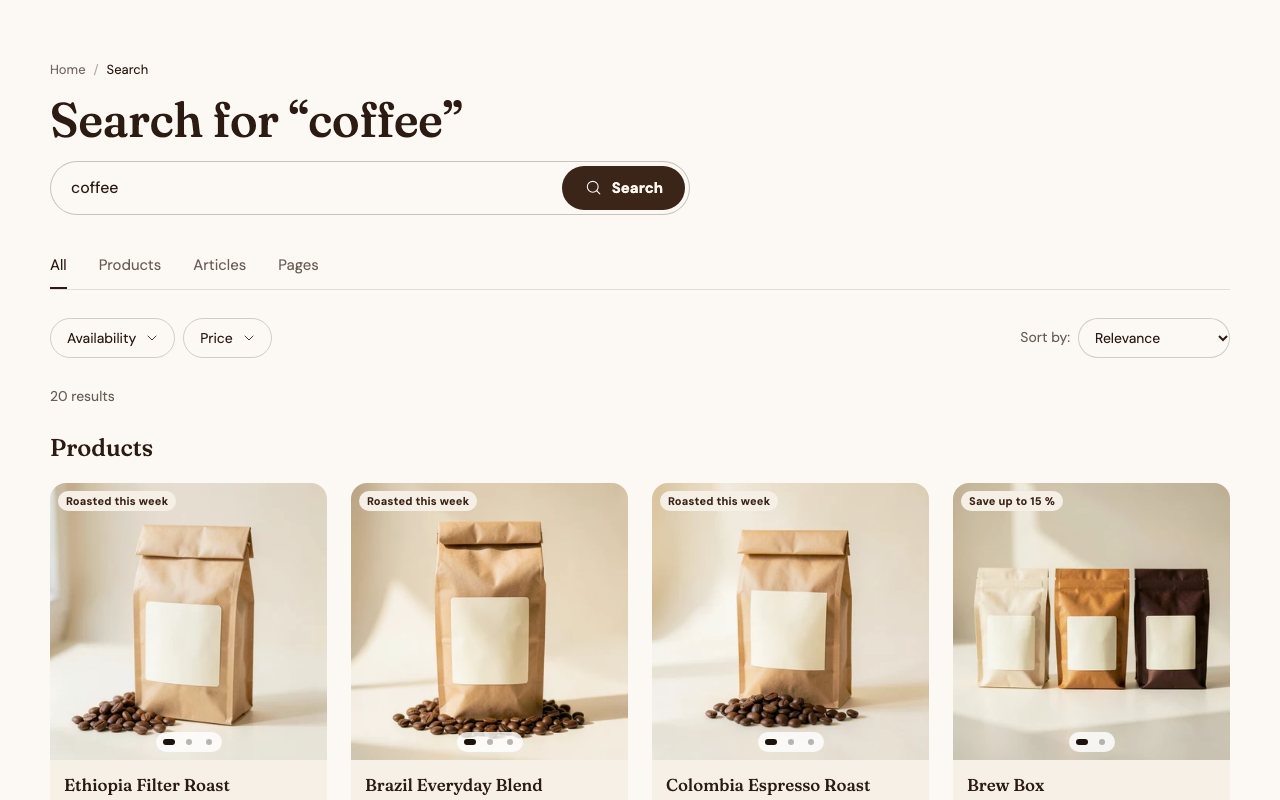
Filter pills from the collection's own tags, a sort dropdown, a price range and a sticky bar; /collections/all shows the whole catalogue grouped by category with an intro card per group.

Where the data comes from
Tags on the products drive the pills; a "Promo tile" metaobject on the collection (custom.promo_tile) drops a promotional card into the grid. Card badges come from the product metafields.
How it works
Filtering is done in the browser, the state is synced to the URL so a filtered view can be shared; the price range is a two-handle slider.

The store is behind a password. Enter 12345 to get in.

First built for beneganic, Beautify

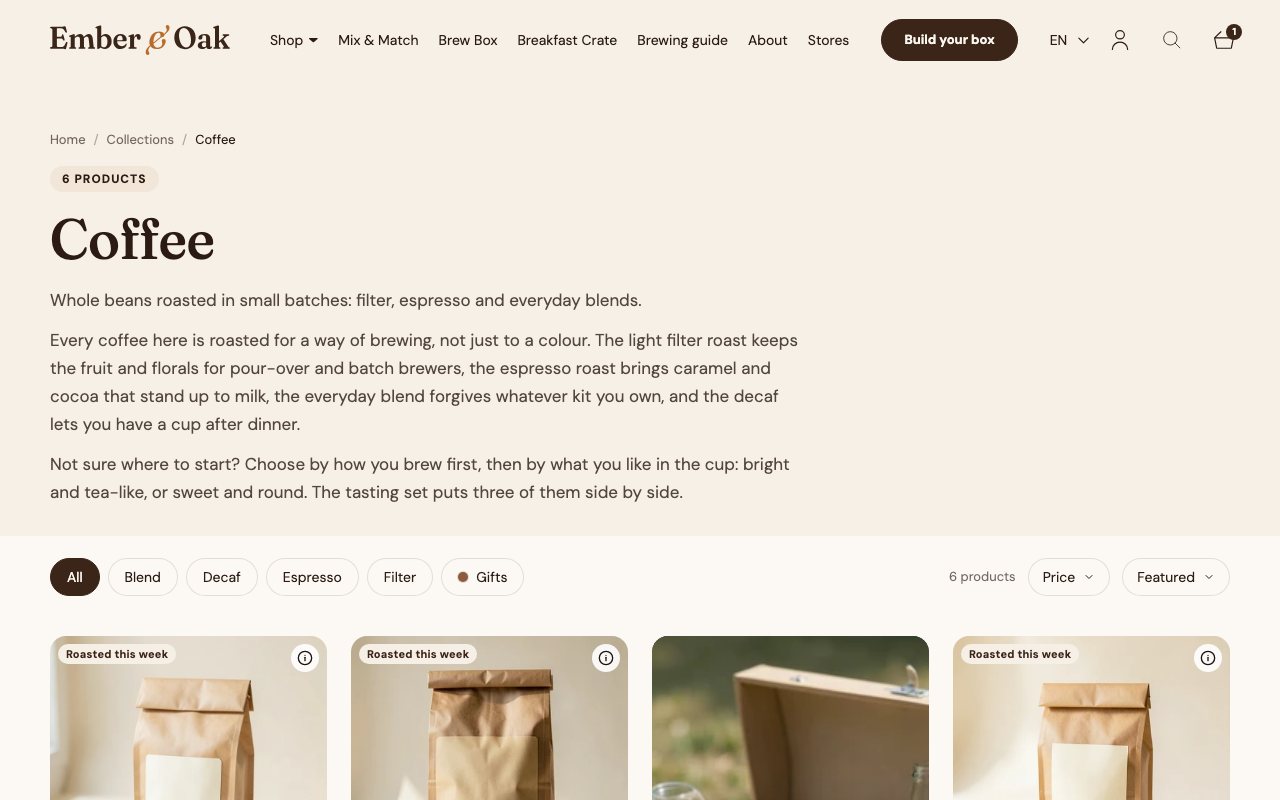
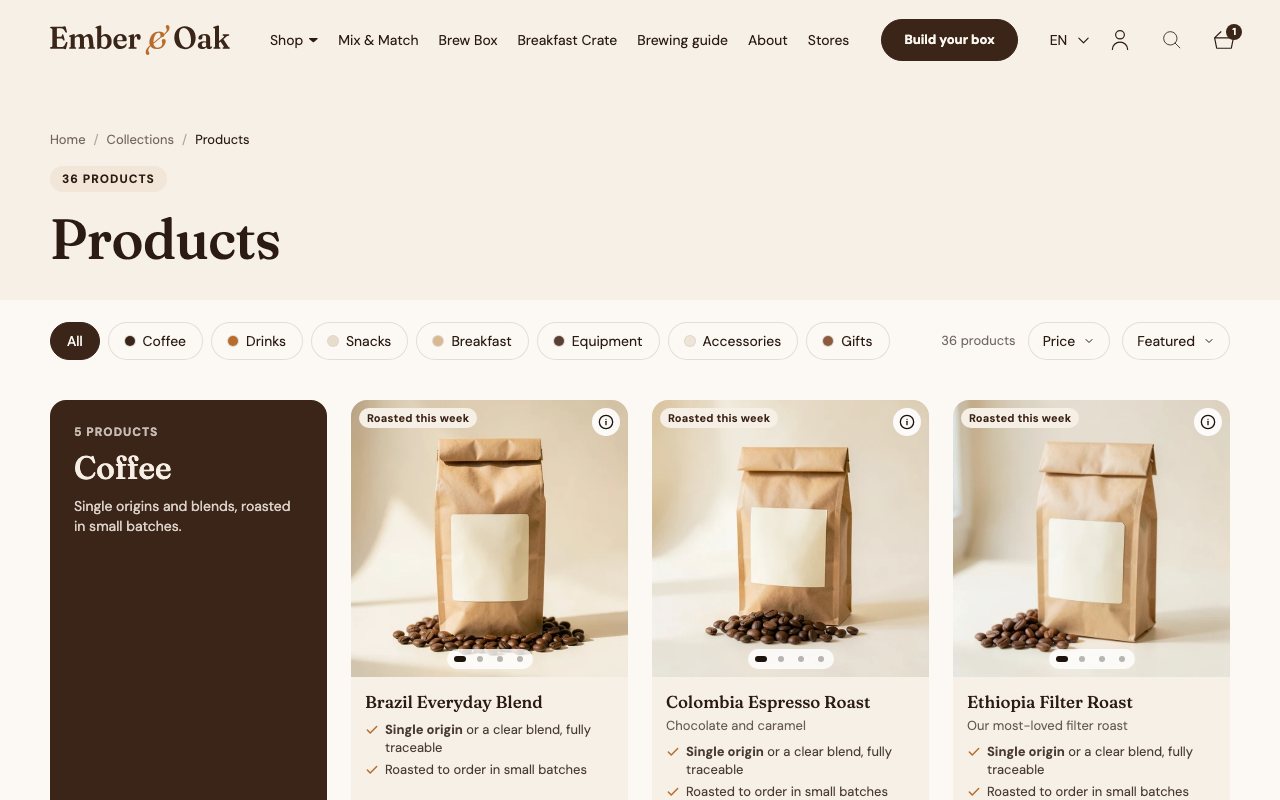
The Coffee collection with tag pills and the sort
All products, grouped by category
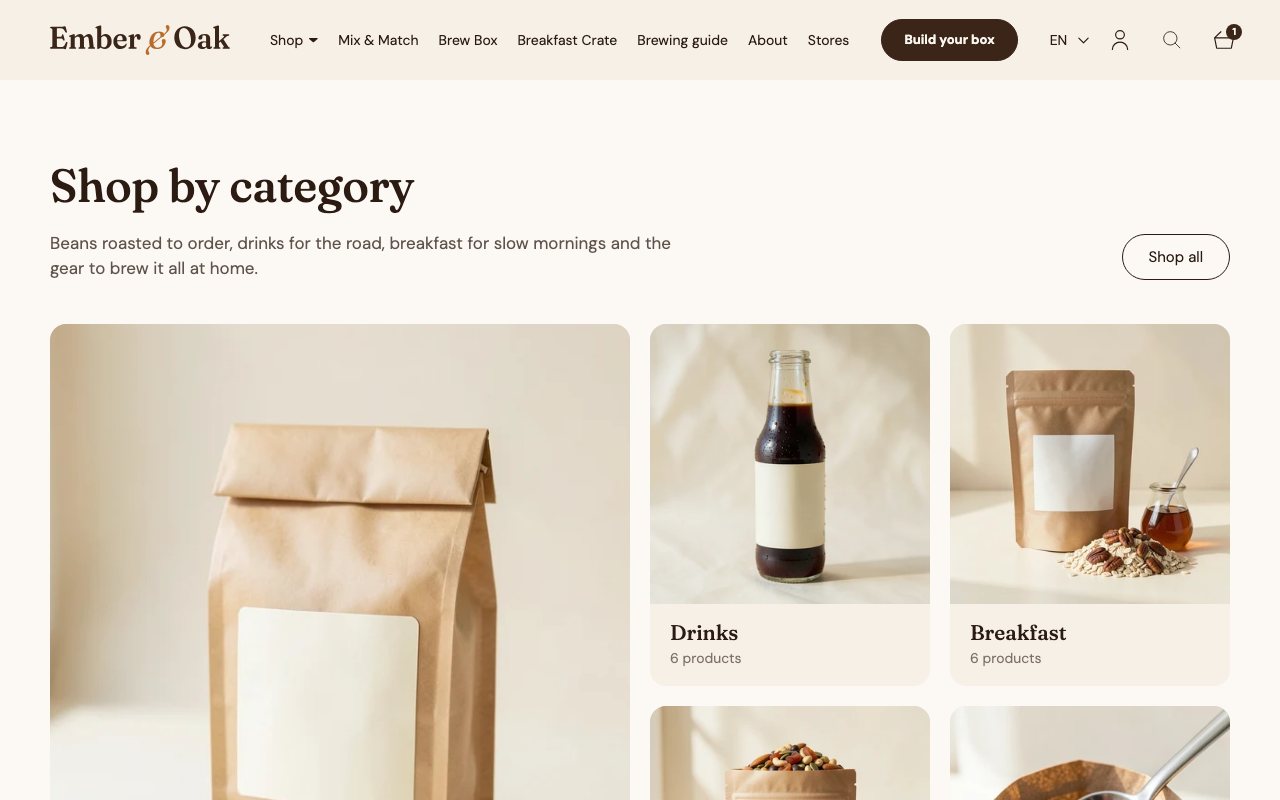
The category overview

Coffee finder

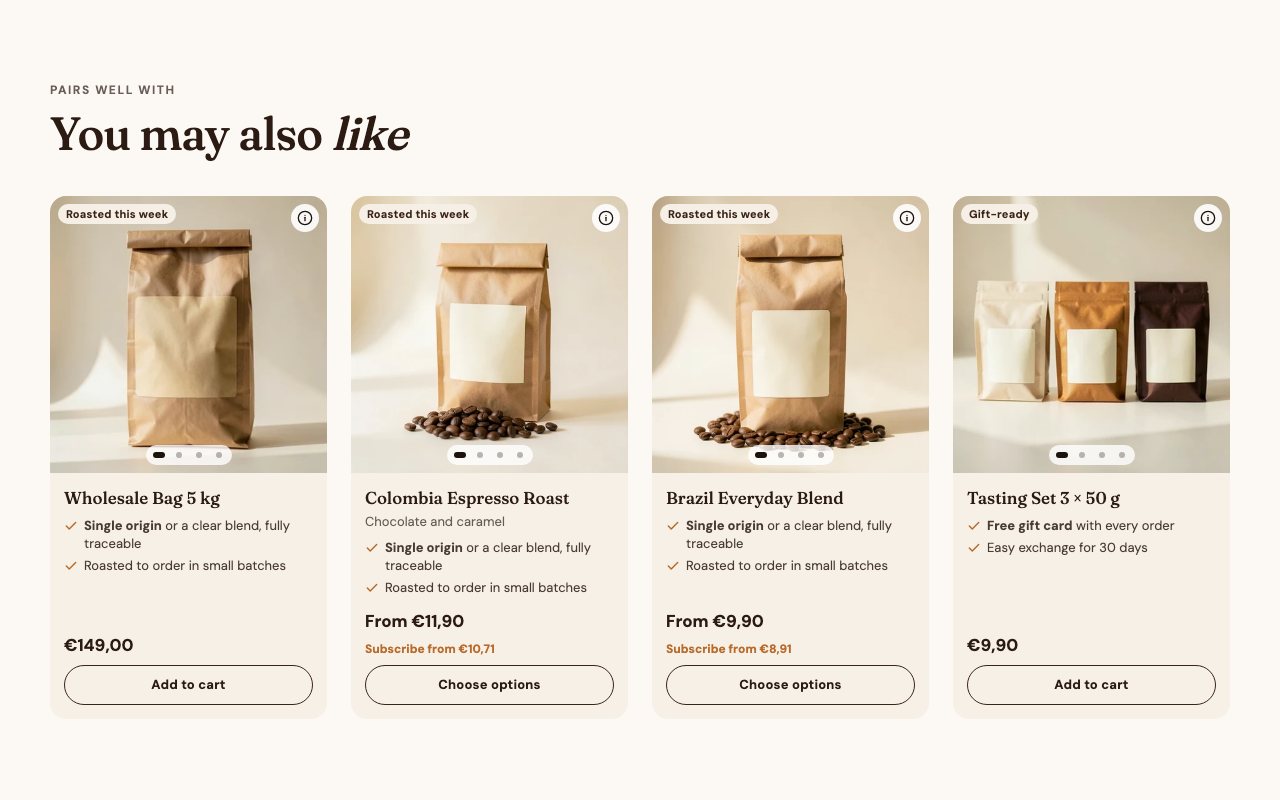
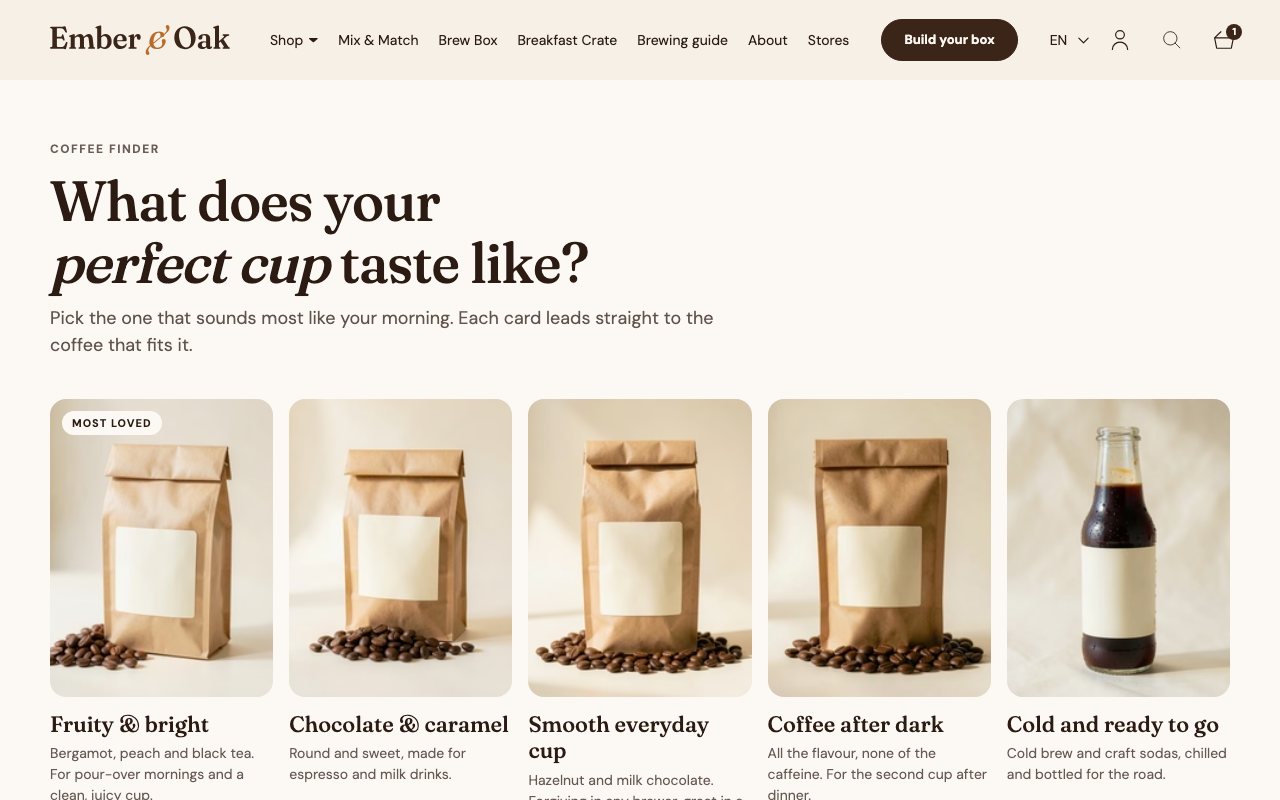
A taste page instead of a filter: five cards, one per way of drinking coffee (fruity and bright, chocolate and caramel, smooth everyday, after dark, cold and ready), each leading straight to the coffee that fits.

Where the data comes from
Each card is a block of the section: a product or a collection to link to, a title, a line of text, an optional badge and an image; the heading, intro, columns and card ratio are section settings.
How it works
Plain server-rendered links, no script: the merchant rewrites the cards in the customizer whenever the range changes.

The store is behind a password. Enter 12345 to get in.

First built for DrJuliaHeinrich

Five taste cards, each leading to the coffee that fits

Recipes with used products

A recipe blog whose articles carry the products they use and the recipe facts, so the page can filter recipes by product and every recipe links to what to buy.

Where the data comes from
Article metafields: used products (a product list) and recipe meta (time, servings, difficulty). The filters are blocks of the section, each a label plus the products it stands for.
How it works
The recipes page lists the articles with their meta and filters them by the products they use; the article shows the used products as cards under the text.

The store is behind a password. Enter 12345 to get in.

First built for BrekkyBowl

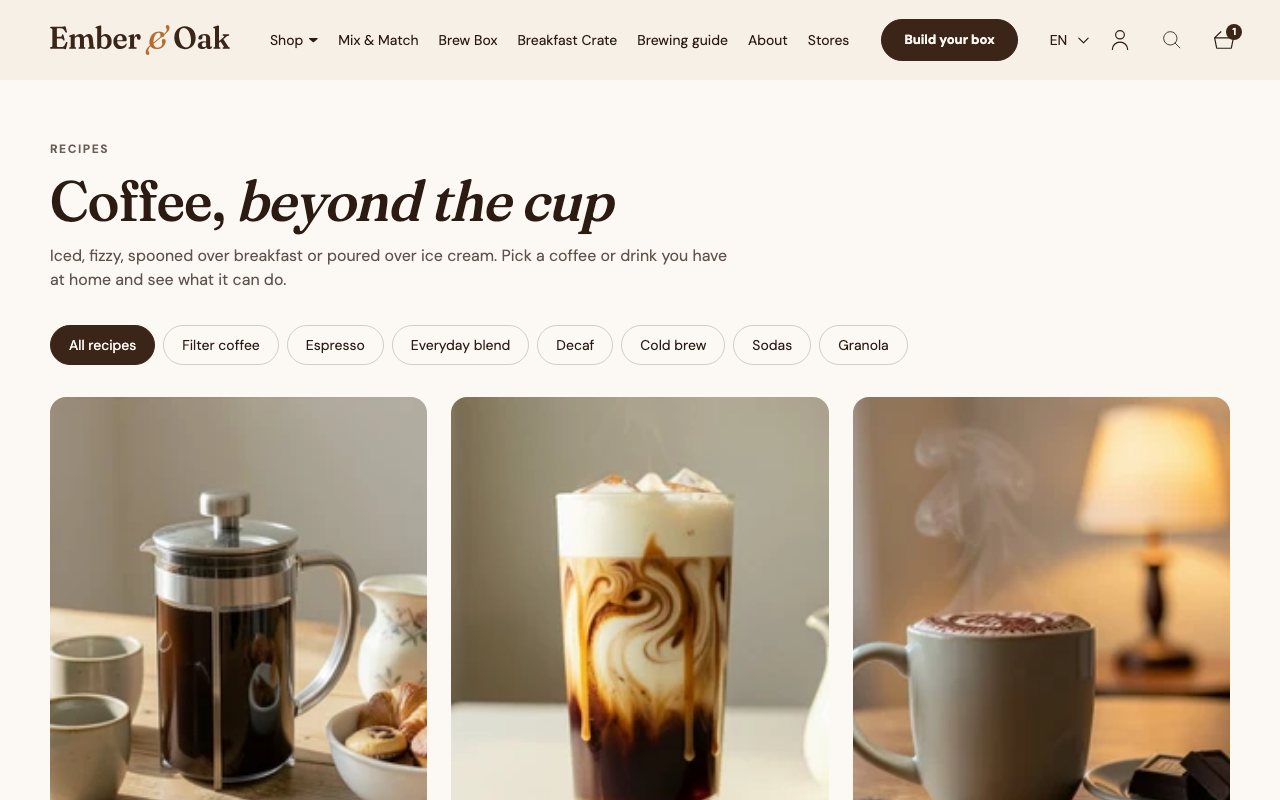
The recipes page with the product filters
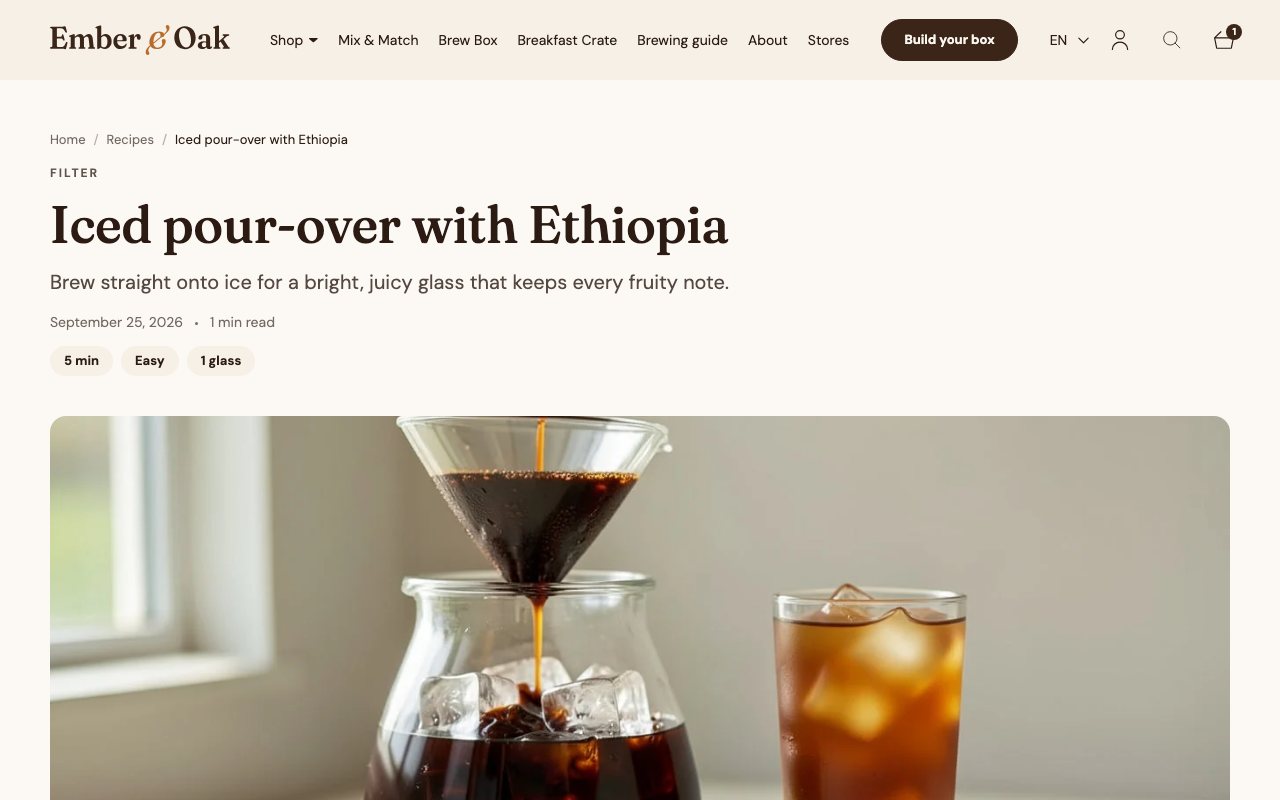
A recipe with its time, difficulty and servings

Home page

Hero slider, marquee line, category grid, taste slider, bundle teaser, how-it-works steps, feature rows, FAQ and newsletter: nine custom sections, every one editable in the customizer.

Where the data comes from
Sections and blocks with the theme's colour schemes; images from the store's Files, products and collections picked in the settings.
How it works
Sliders are one shared web component; videos load on click; everything is server-rendered Liquid with small scripts for state only.

The store is behind a password. Enter 12345 to get in.

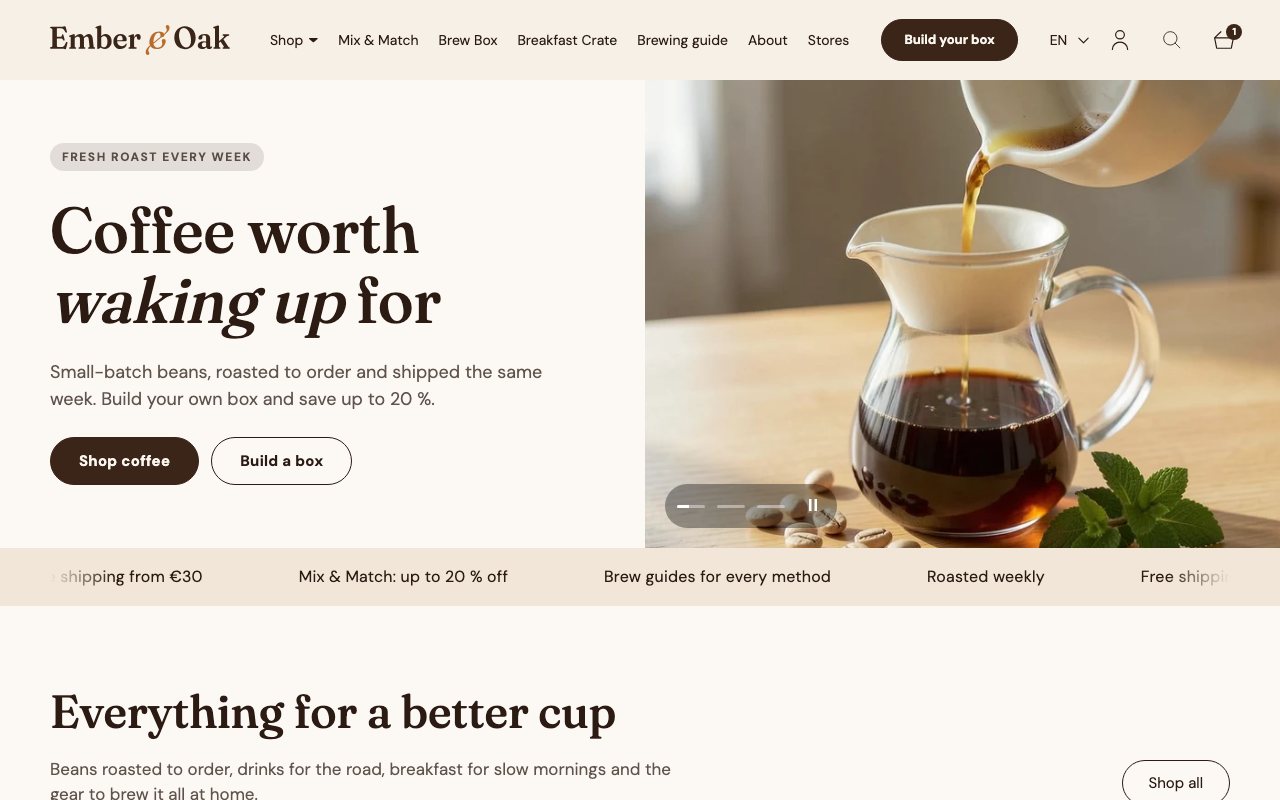
The hero slider and the marquee line
Categories: one featured card over two rows
The taste slider runs to the screen edge
The bundle teaser
The bundle teaser
The brewing steps
The brewing steps
Feature rows
Feature rows
FAQ
FAQ
Newsletter
Newsletter

Content pages

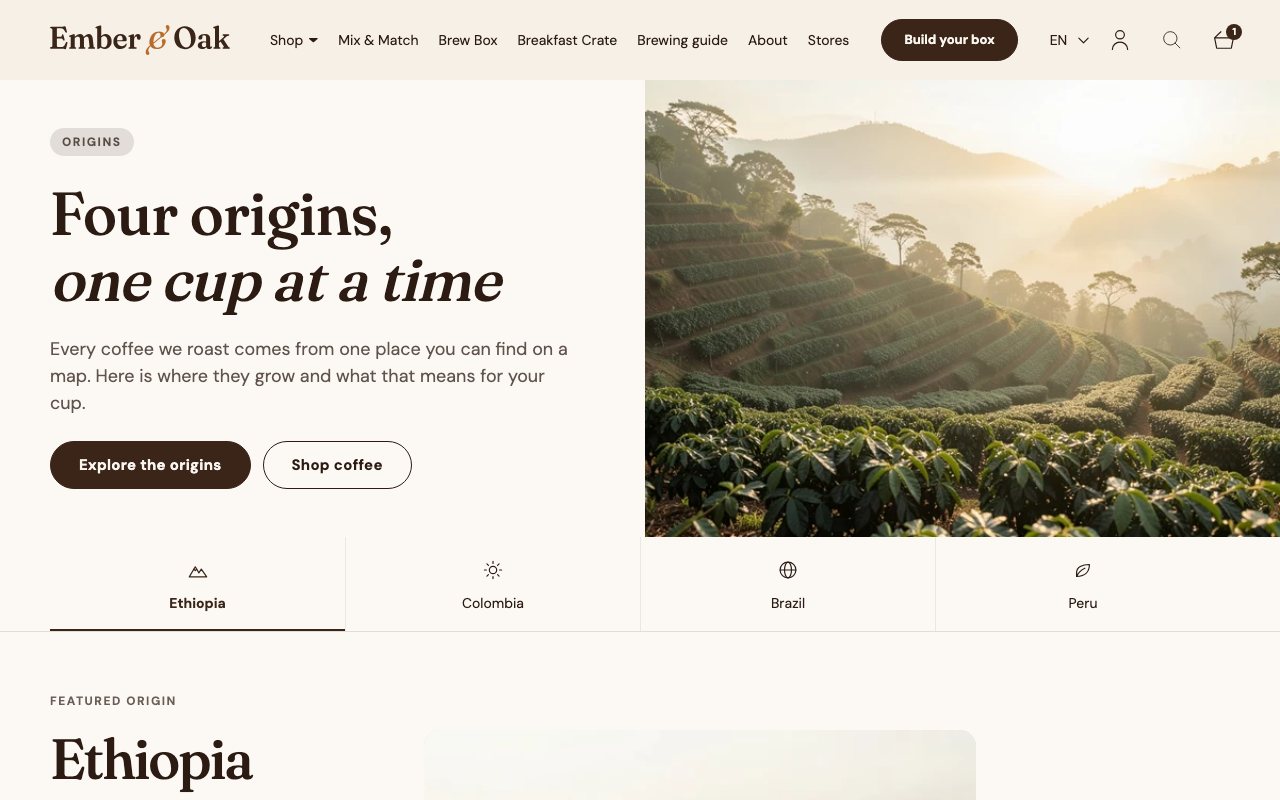
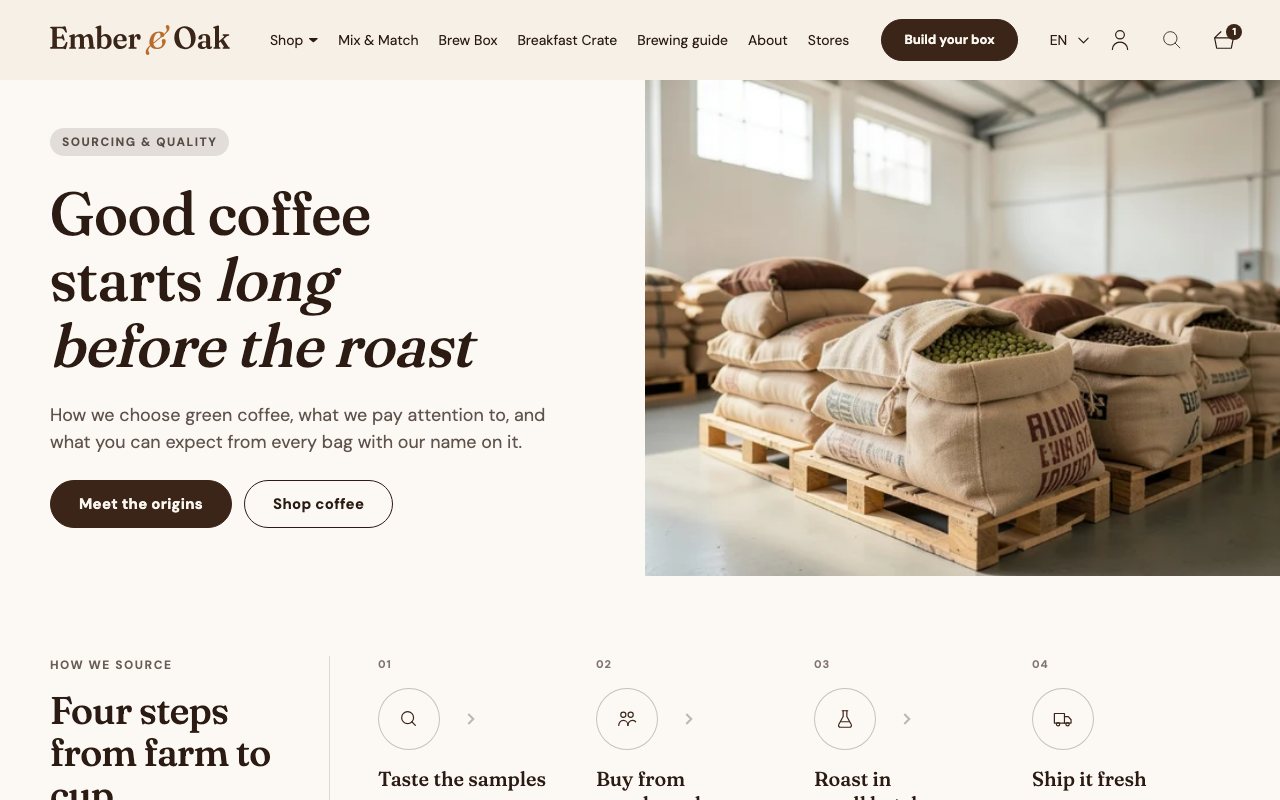
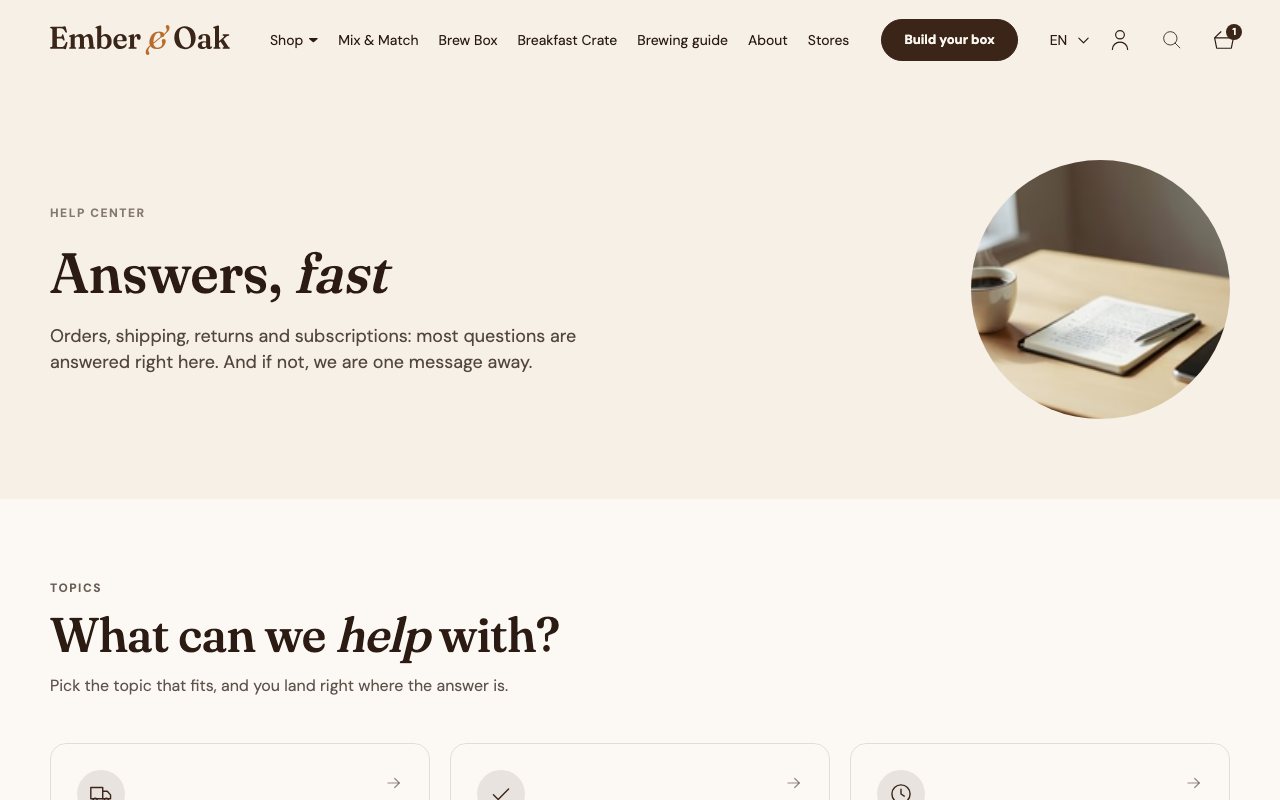
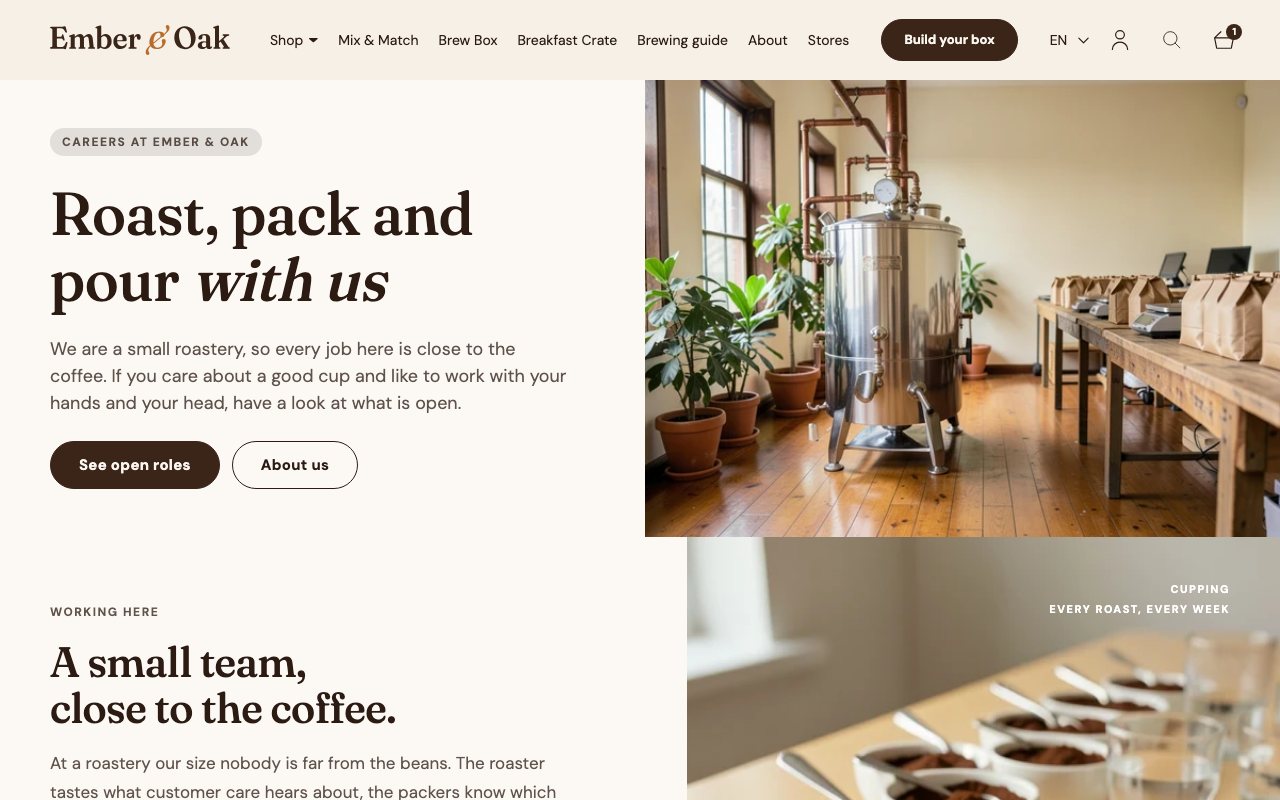
Fourteen pages built from sections ported from client stores: a timeline, an origins map with a filter bar, a sourcing process with a scale, a help centre with anchored FAQ, careers with open positions, video stories, a launch page, an ambassador programme, wholesale and contact forms.

Where the data comes from
Each page is a JSON template of sections; texts, images and products are block settings. The forms post to Shopify's contact form, so submissions land in the store's inbox.
How it works
Every section follows one set of rules (BEM, data-attribute state, no !important, mobile first) so they combine on any page without fighting each other.

The store is behind a password. Enter 12345 to get in.

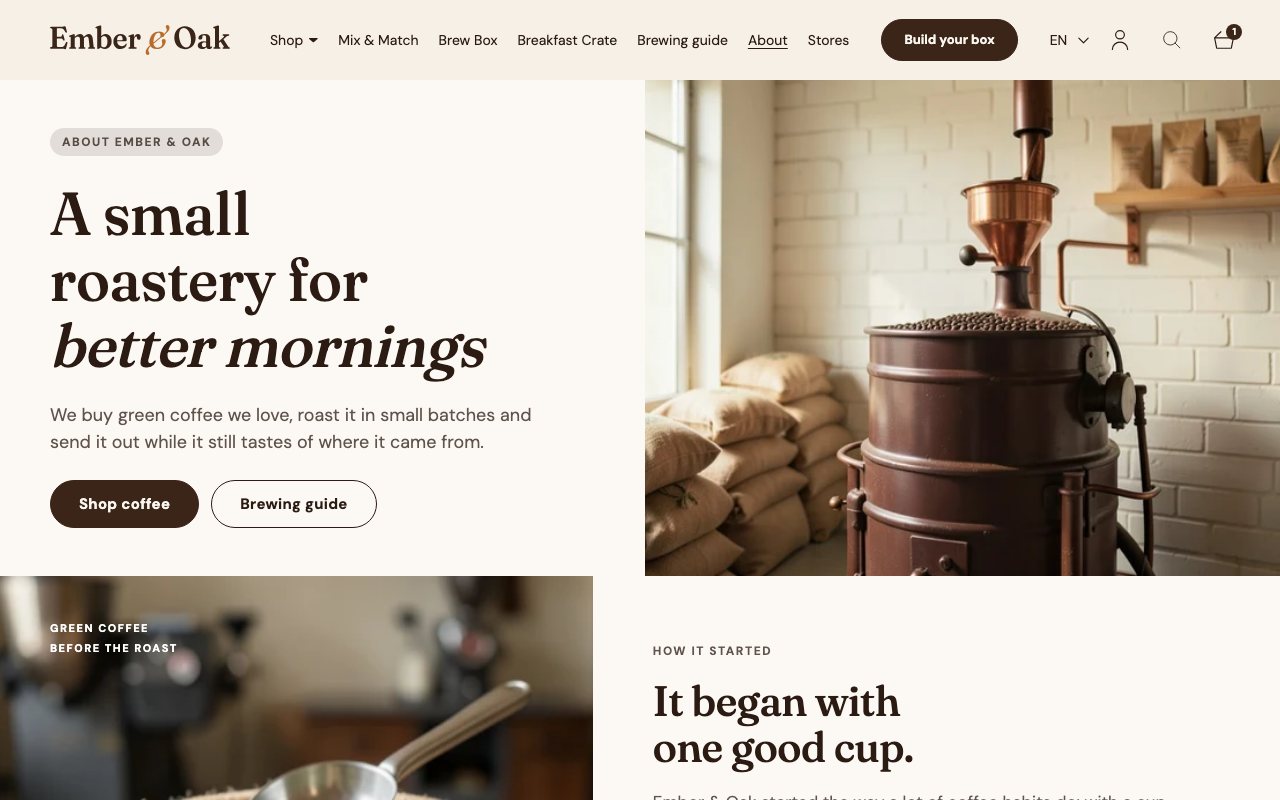
About
About
The story timeline
The story timeline
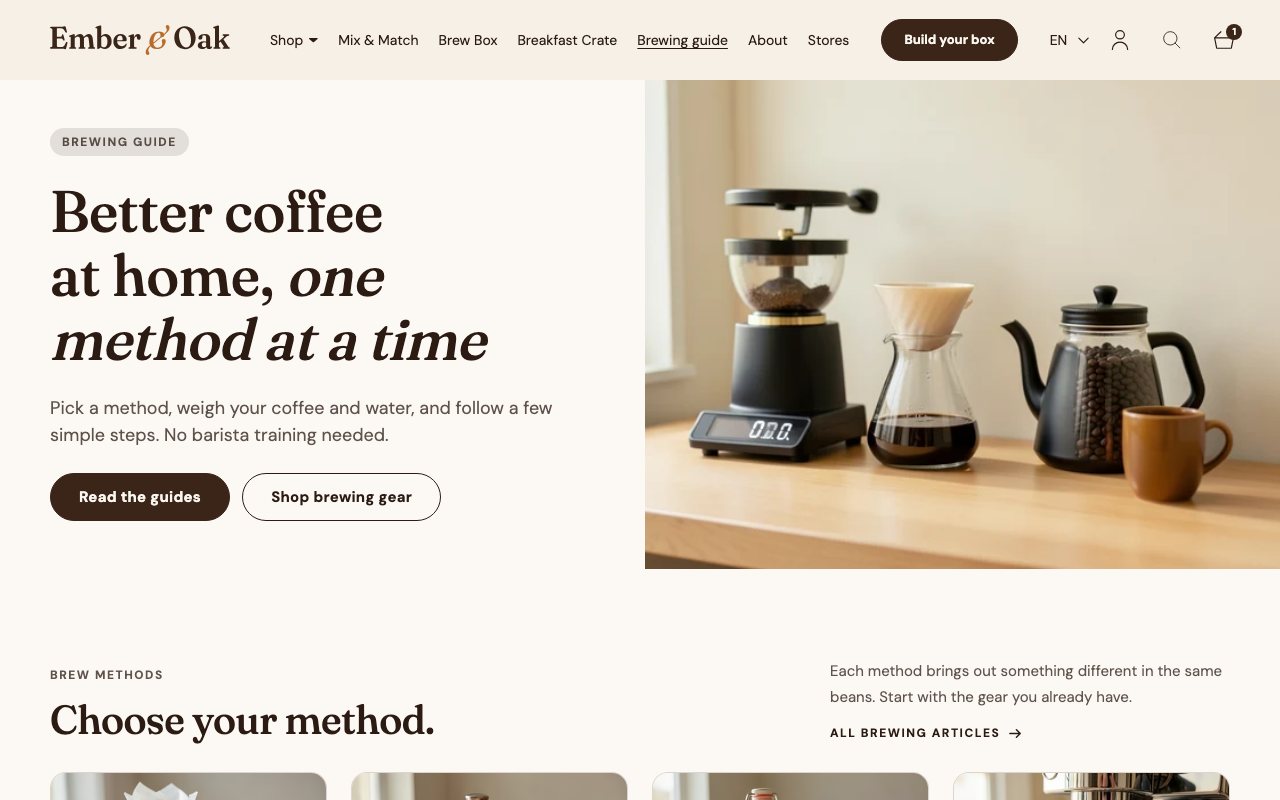
Brewing guide
Brewing guide
Origins with the filter bar
Sourcing & quality
Sourcing & quality
Help centre
Help centre
Careers
Careers
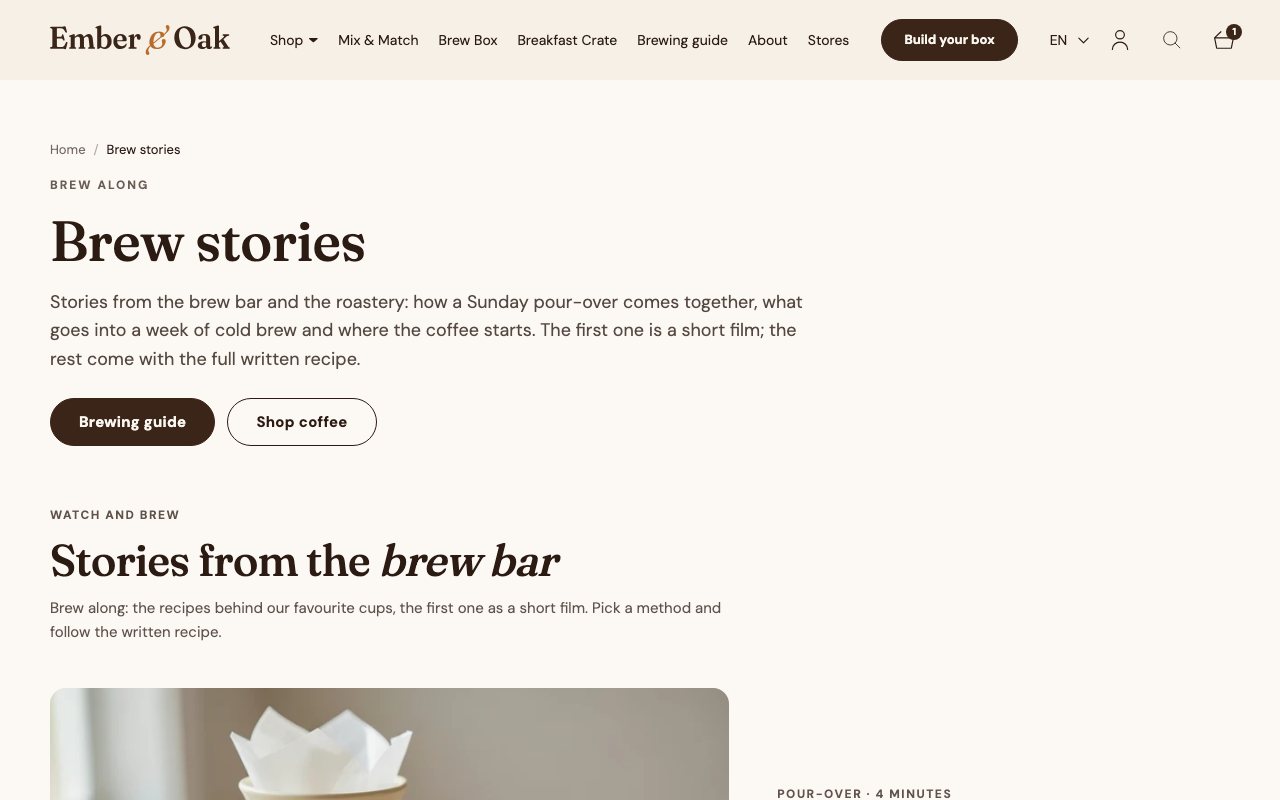
Brew stories
Brew stories
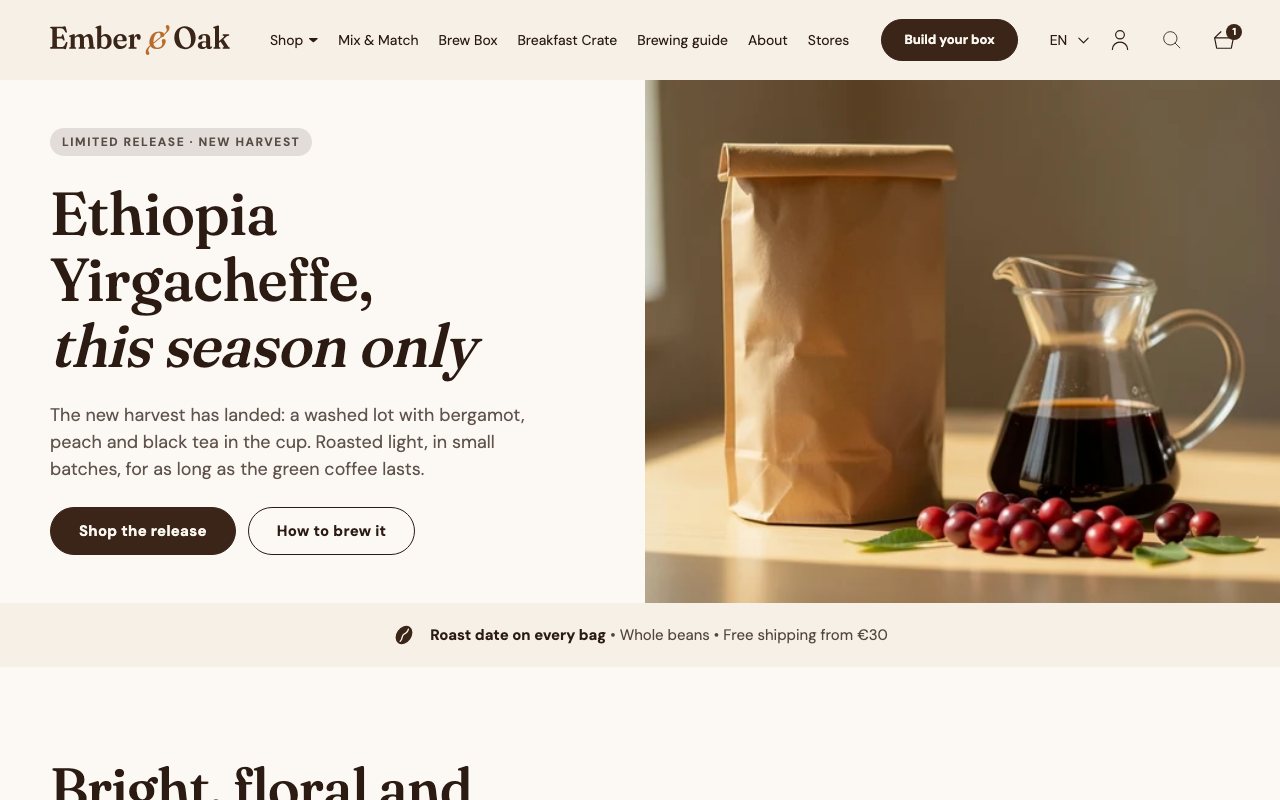
Limited release
Limited release
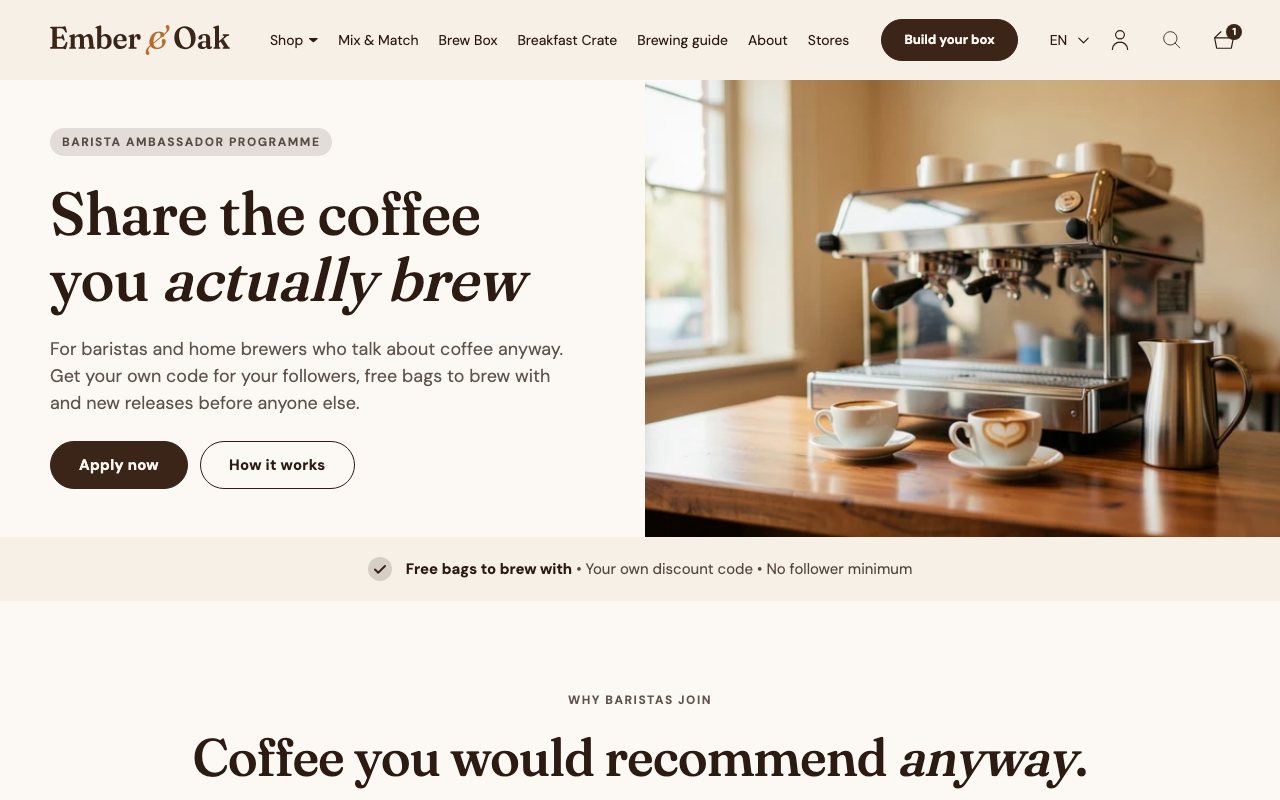
Ambassador programme
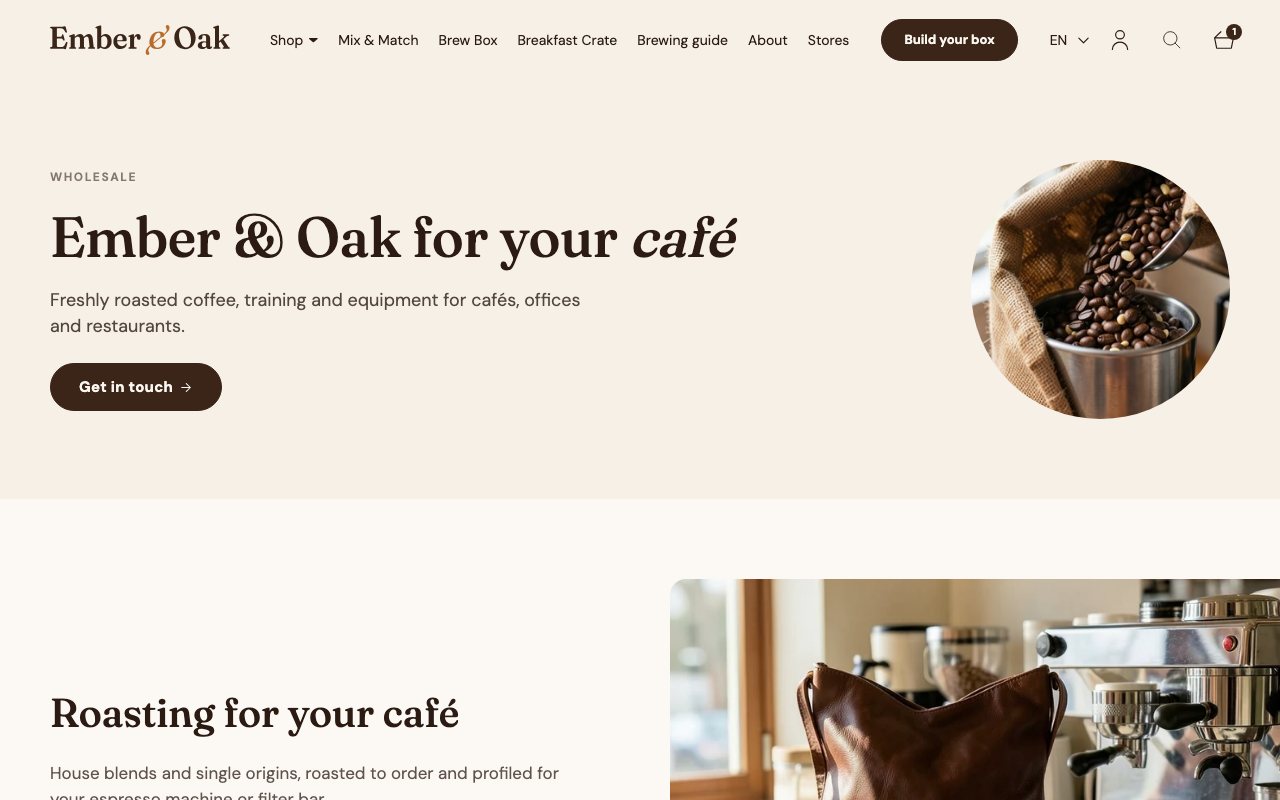
Wholesale enquiry form
Contact
Contact
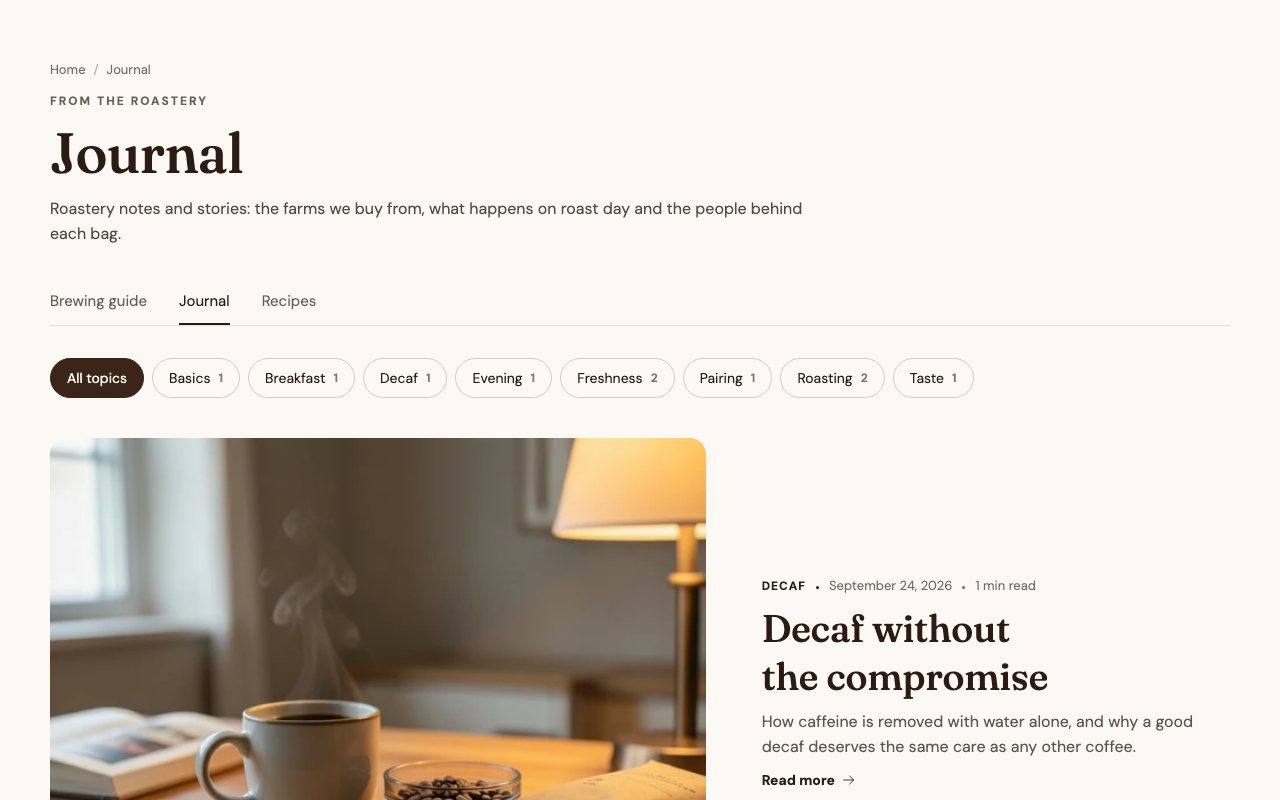
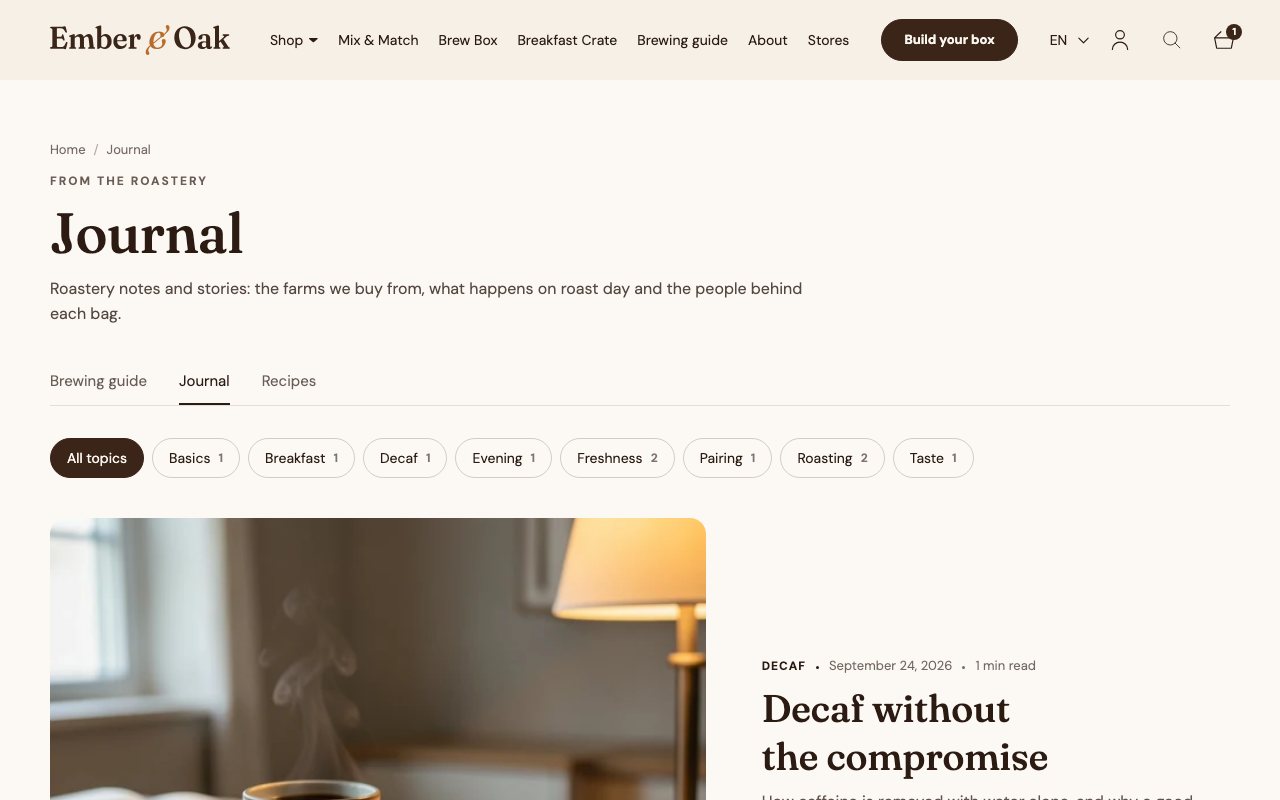
The journal
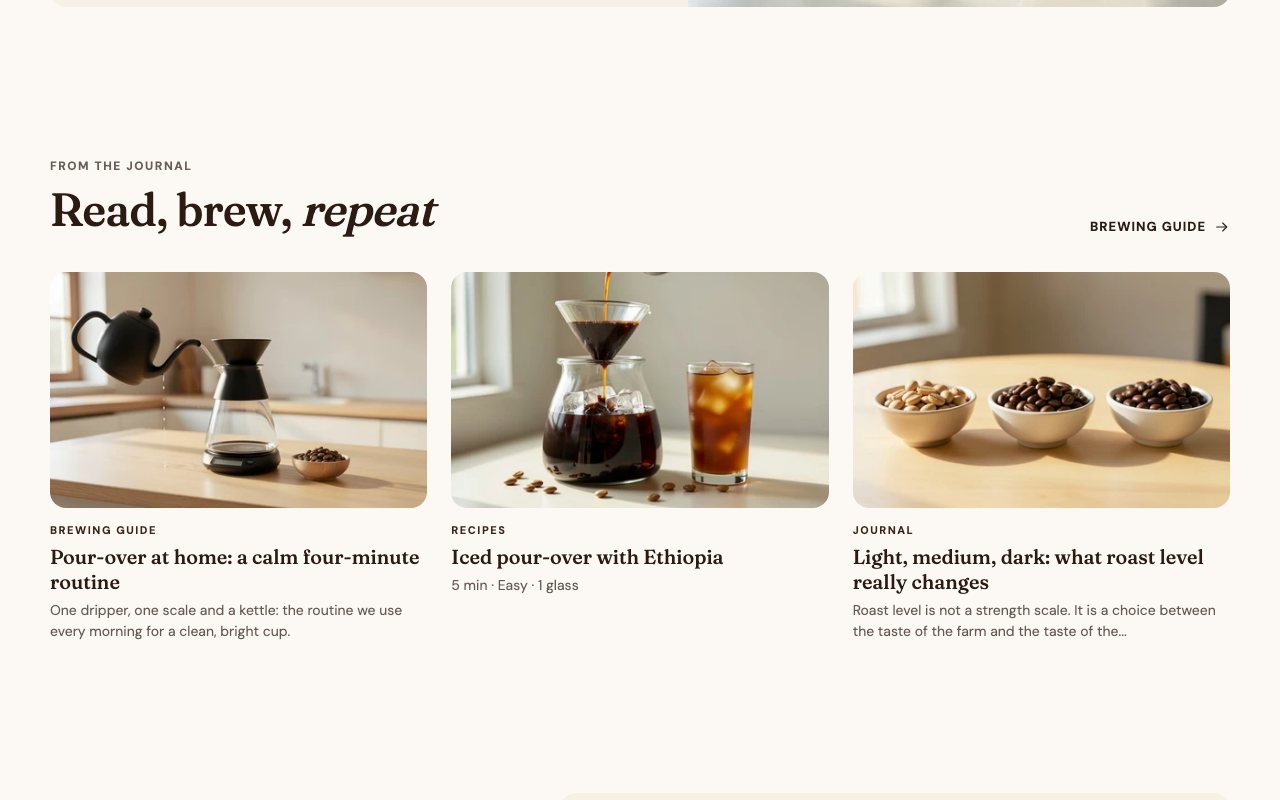
The journal

Theme sections

Every custom section of the theme, 53 of them, ported from client stores and rebuilt to one set of rules and one look. Each has its own settings and blocks in the theme editor; the picture opens the page that uses it.

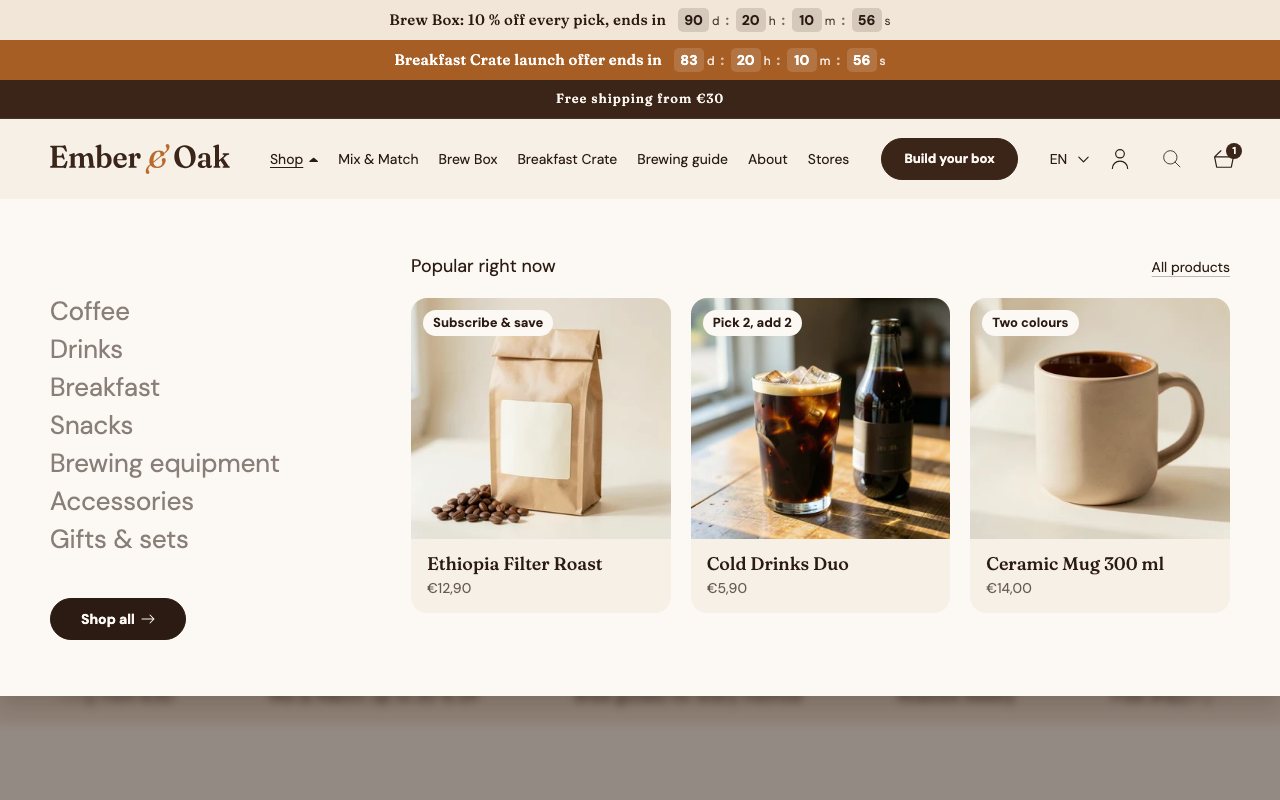
Countdown barCountdown bar

Bands above the header, one per countdown: its own text, link, colour scheme and start and end date. A web component counts down and the band leaves when the time is up.
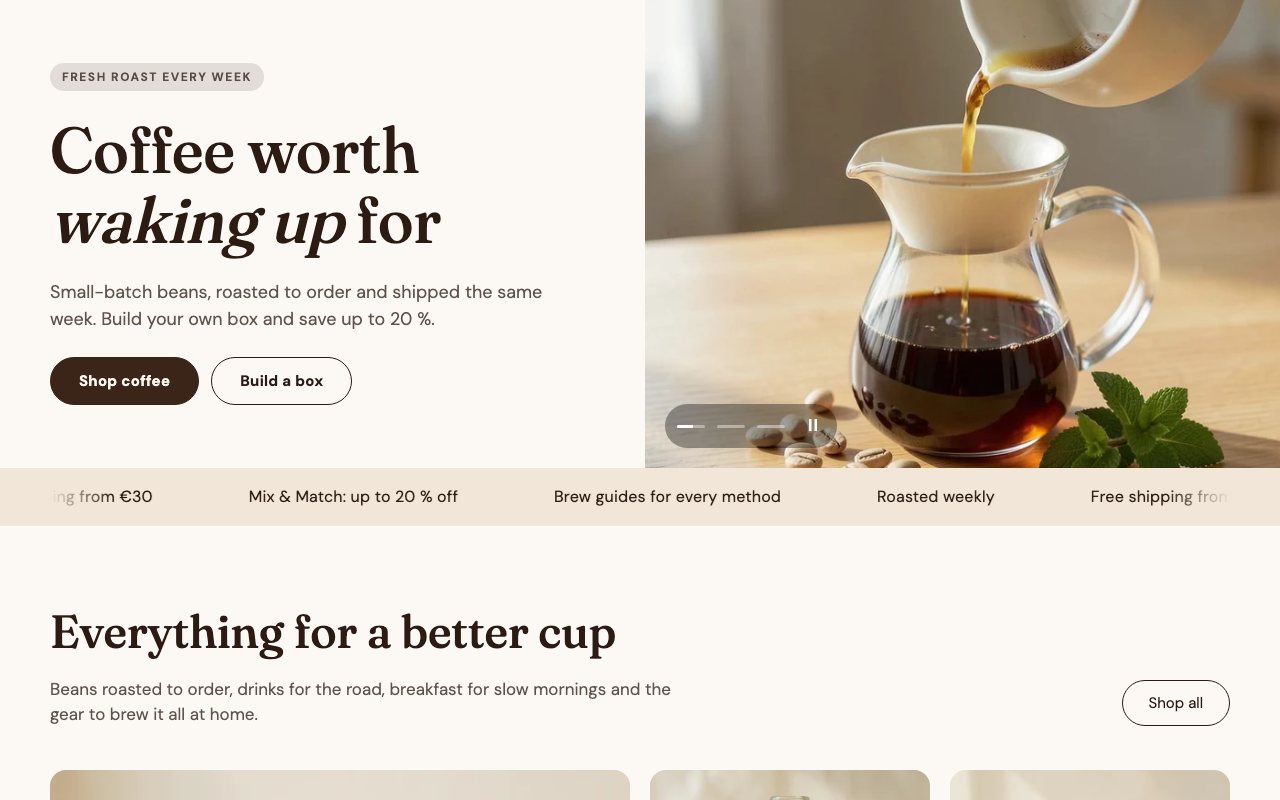
Header with mega menuHeader with mega menu

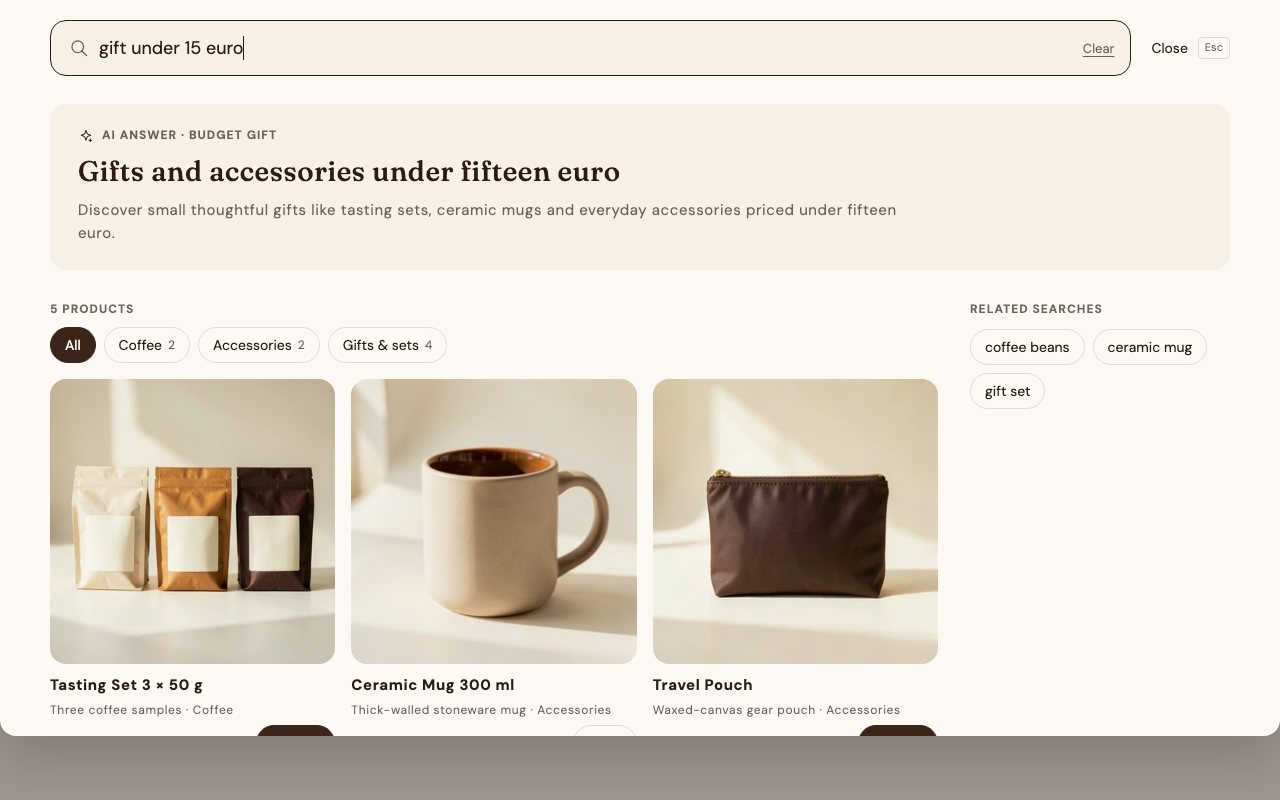
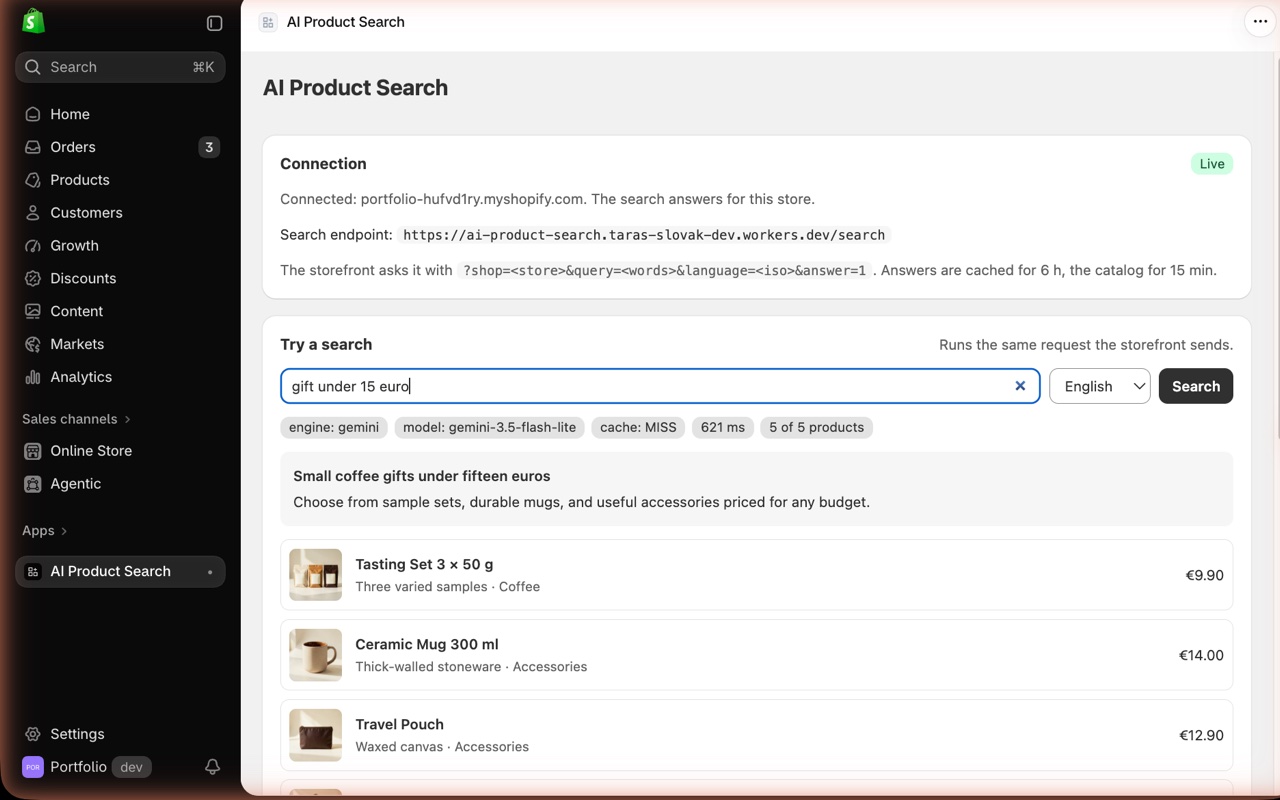
Logo, menu, language switcher, AI search and cart. "Shop" opens a panel with the collections and three feature products; the page under it is dimmed and blurred.

First built for HomeVital, beneganic

HeroHero

A slider of image or video slides beside or behind the text: eyebrow, headline, text and two buttons as blocks, with progress dots and a pause button.
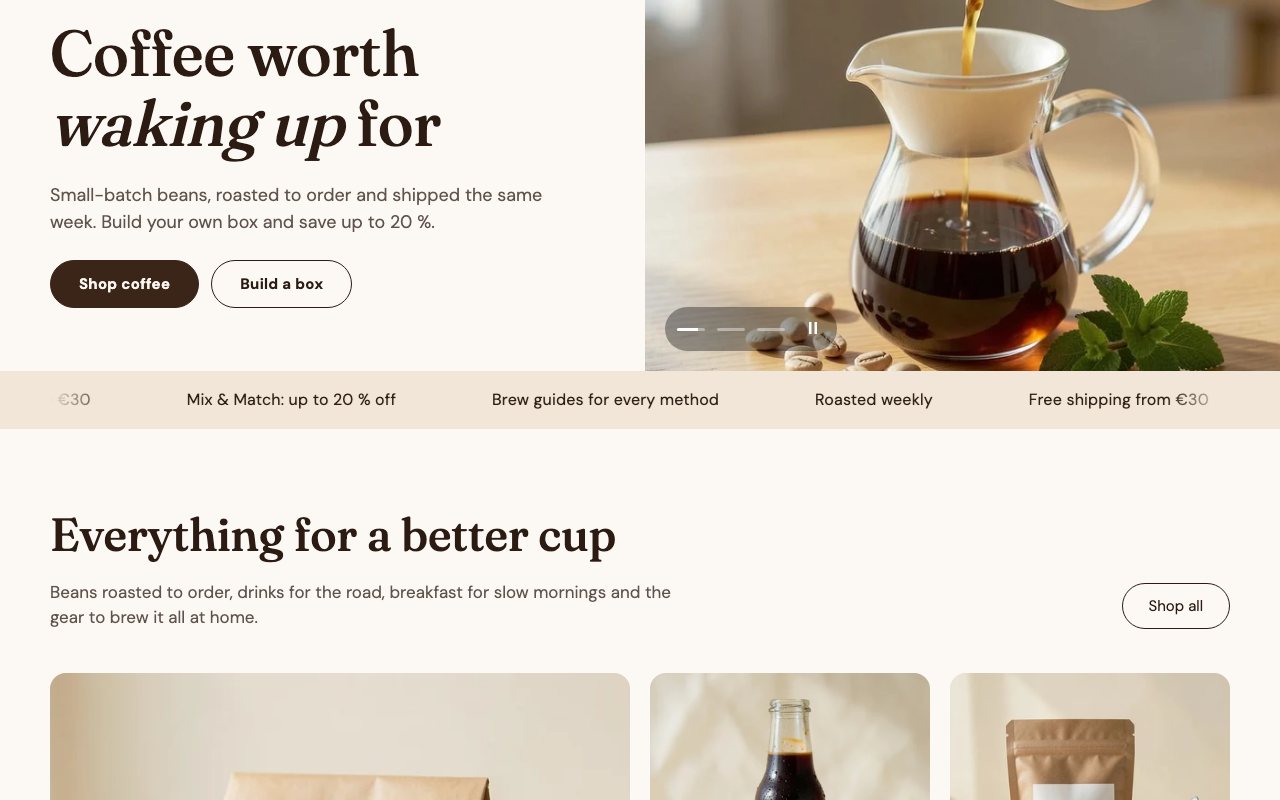
Marquee lineMarquee line

An endless line of short messages, each a block with optional link and image; the speed is set per breakpoint.

First built for HomeVital
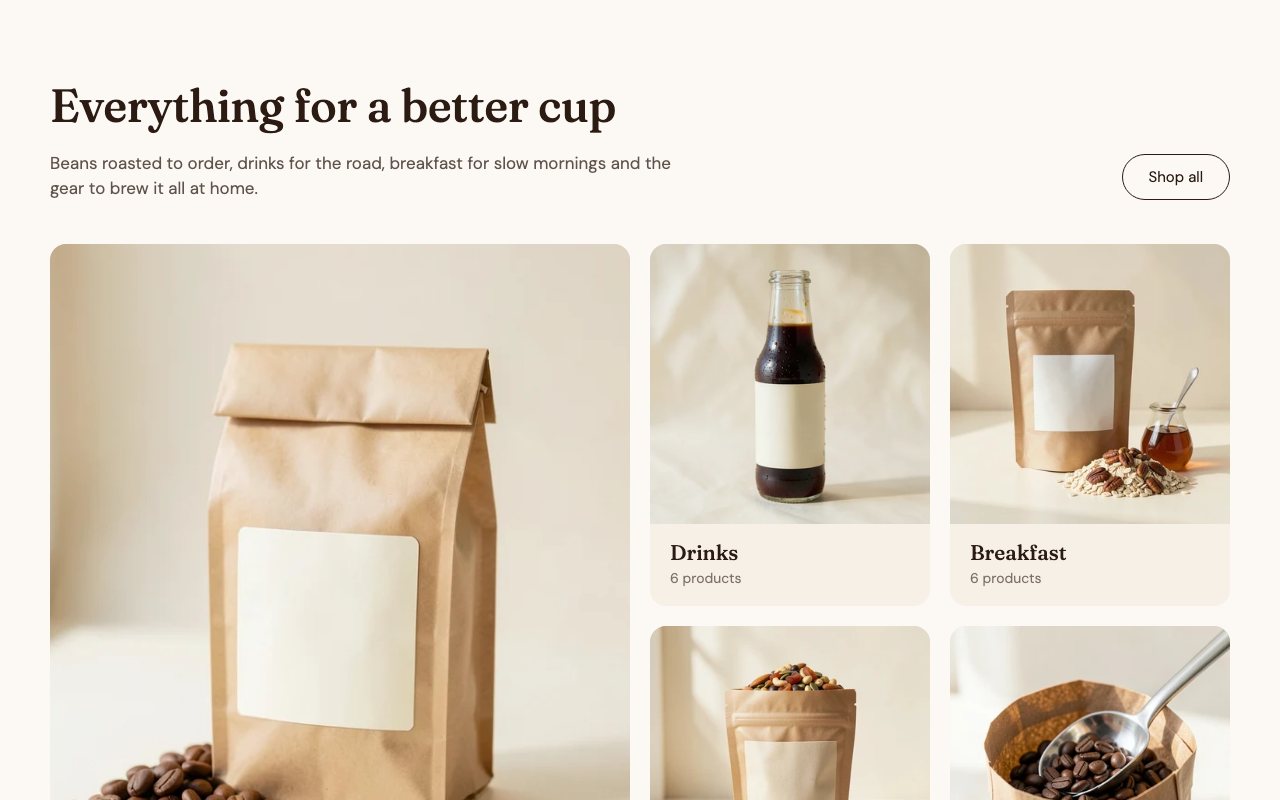
CategoriesCategories

Collections as photo cards with the name and product count; one card can be featured over two rows, and a promo card joins the grid.

First built for HomeVital
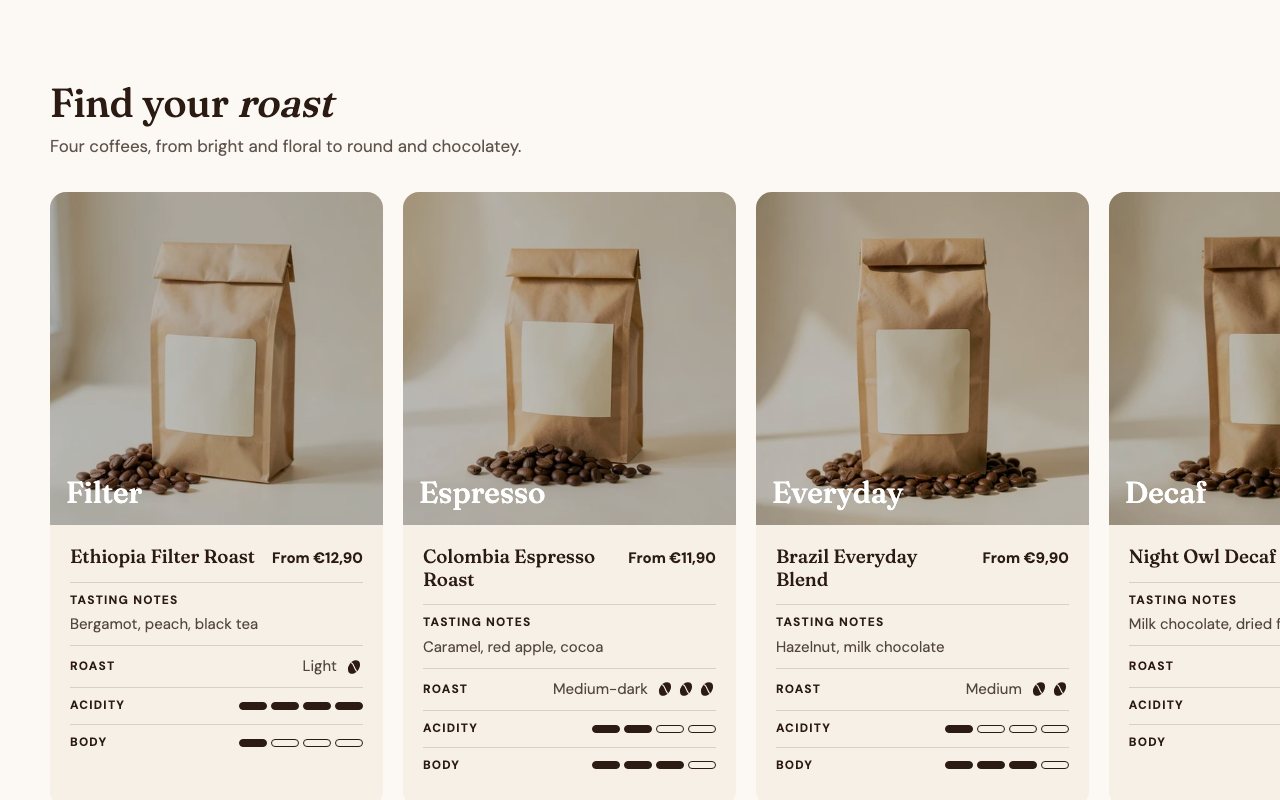
Taste sliderTaste slider

Product cards with tasting notes and scales for roast, acidity and body. The list runs to the screen edge while the first card stays on the content edge.

First built for Calmont2.0
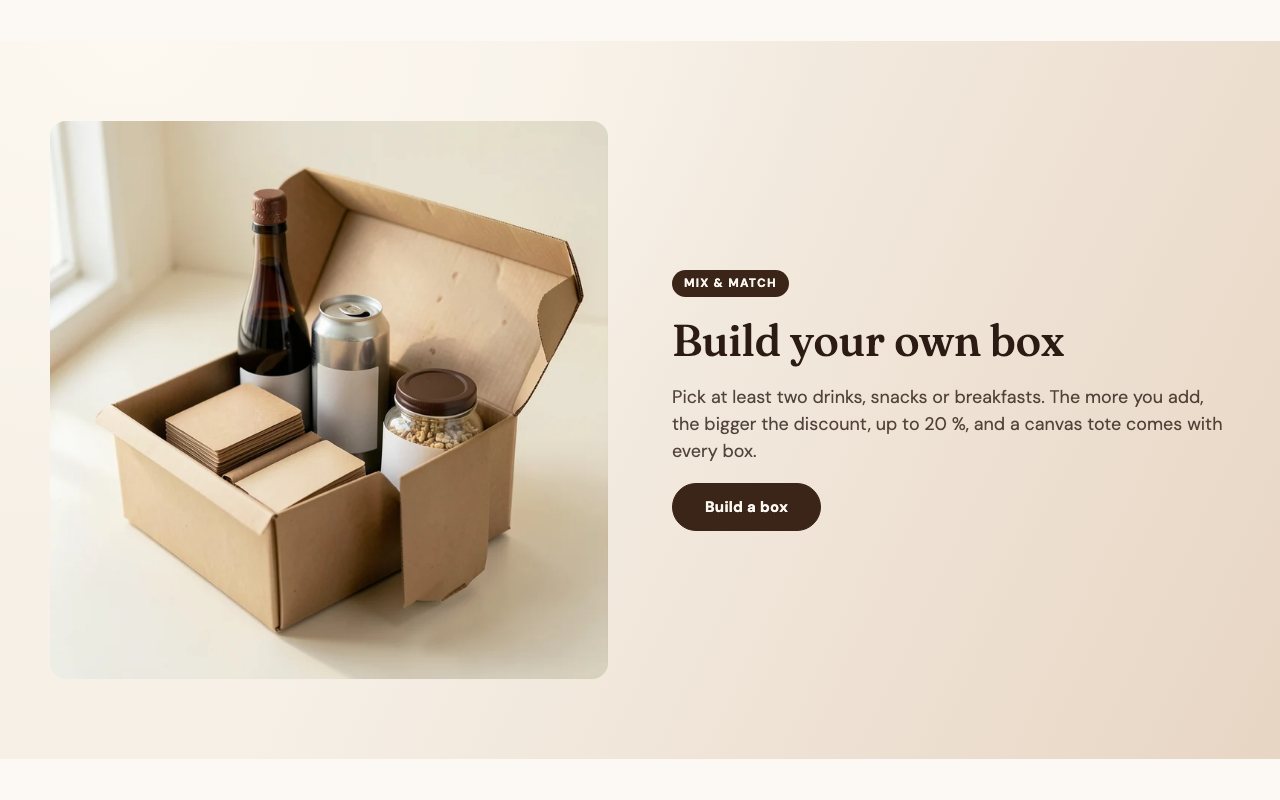
Bundle teaserBundle teaser

An image, a badge, a headline and a button that lead to the Mix & Match box, on a milk-to-caramel gradient.

First built for BrekkyBowl
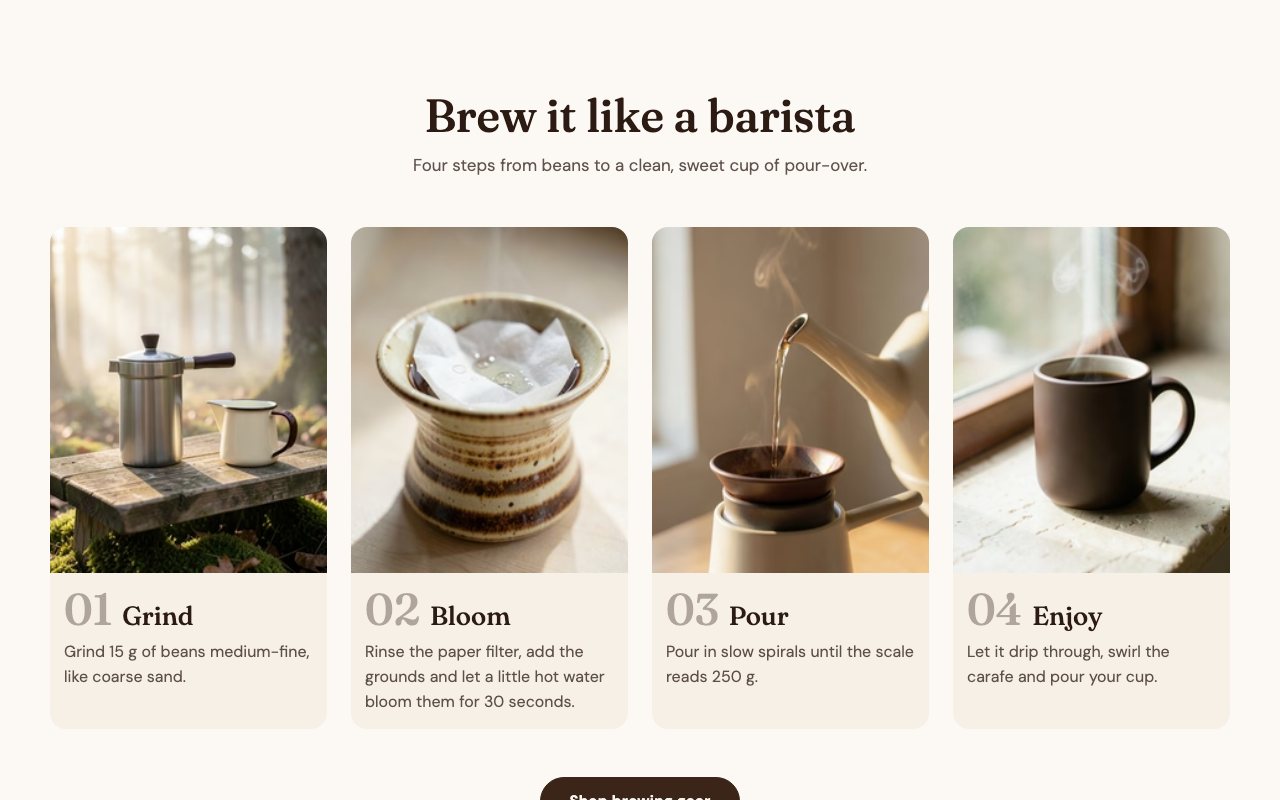
StepsSteps

Numbered cards with a photo or a video, a title and a line of text; a row on desktop, a slider on mobile.

First built for HomeVital
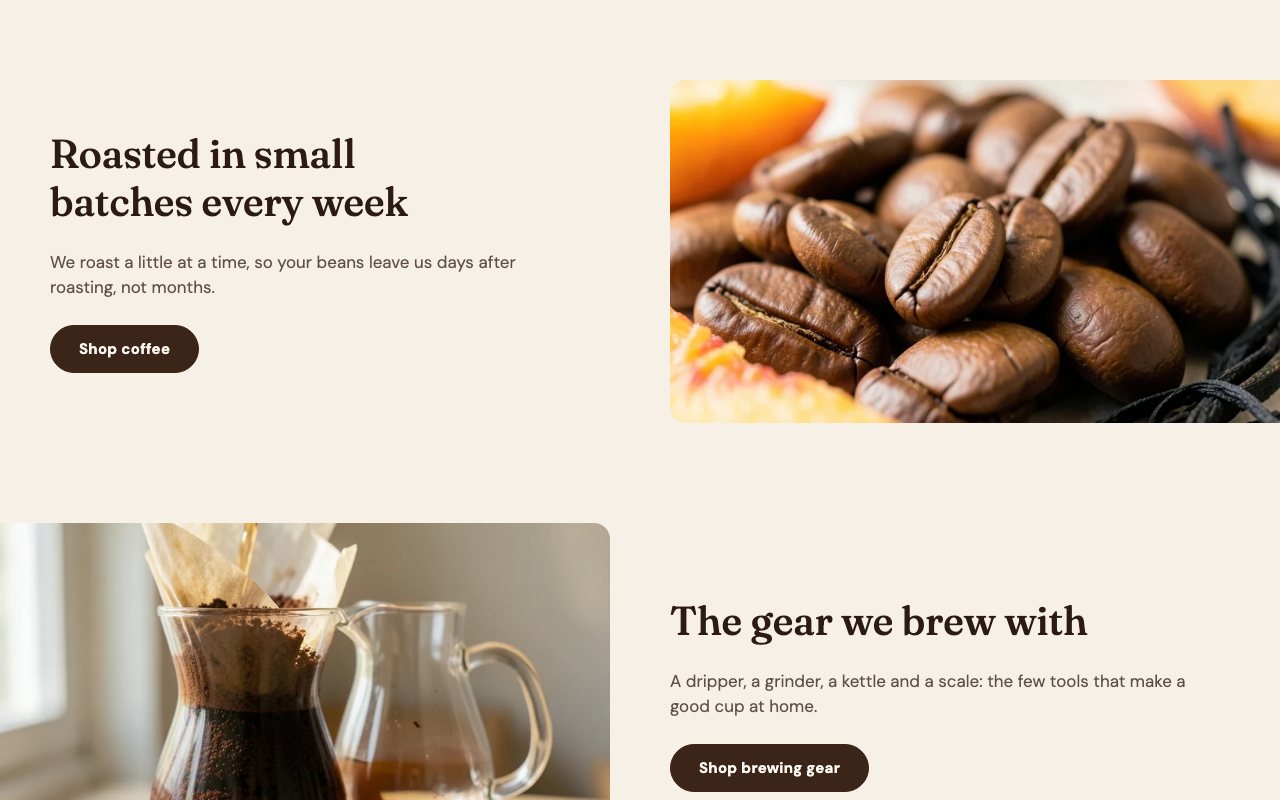
Feature rowsFeature rows

Alternating rows of image and text with a button; the full-width images run to the screen edge on any screen.

First built for HomeVital
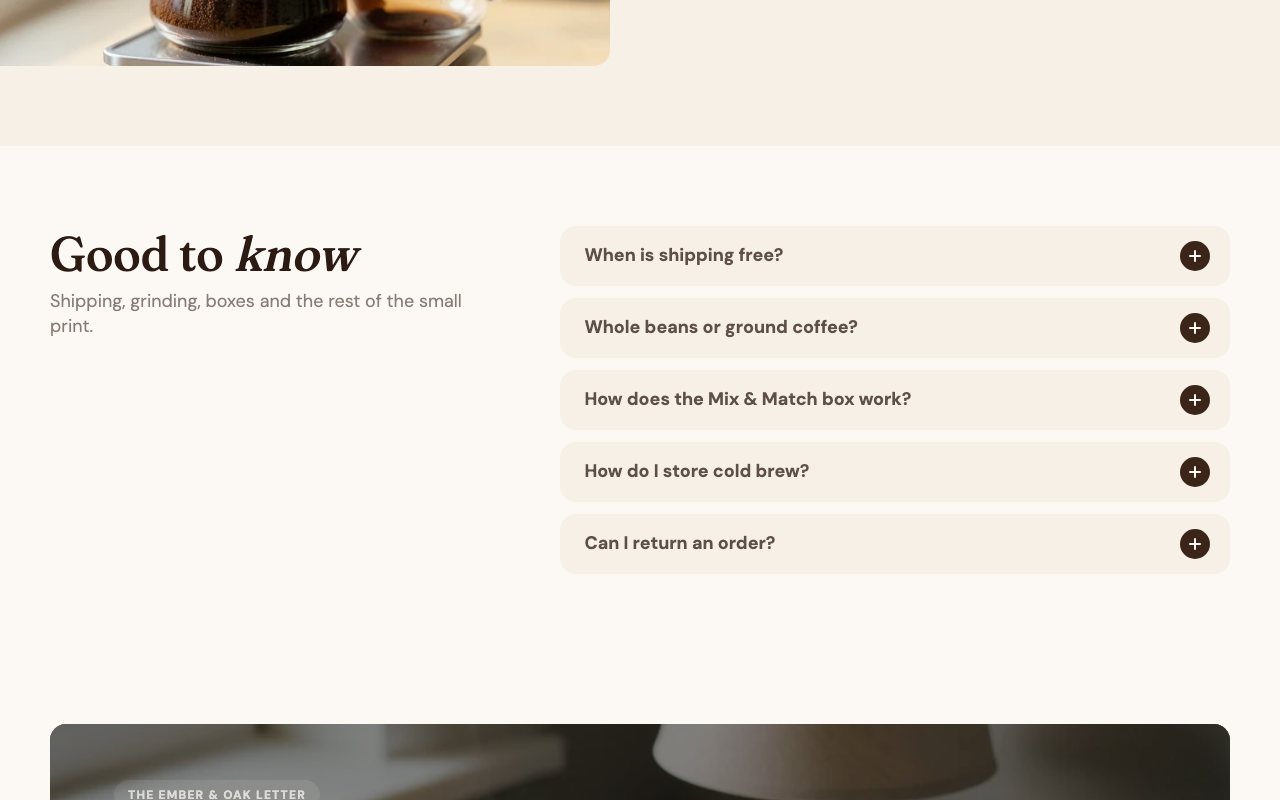
FAQFAQ

An accordion beside its heading. Each instance has an anchor, so the help page links straight to a group of questions.

First built for HomeVital
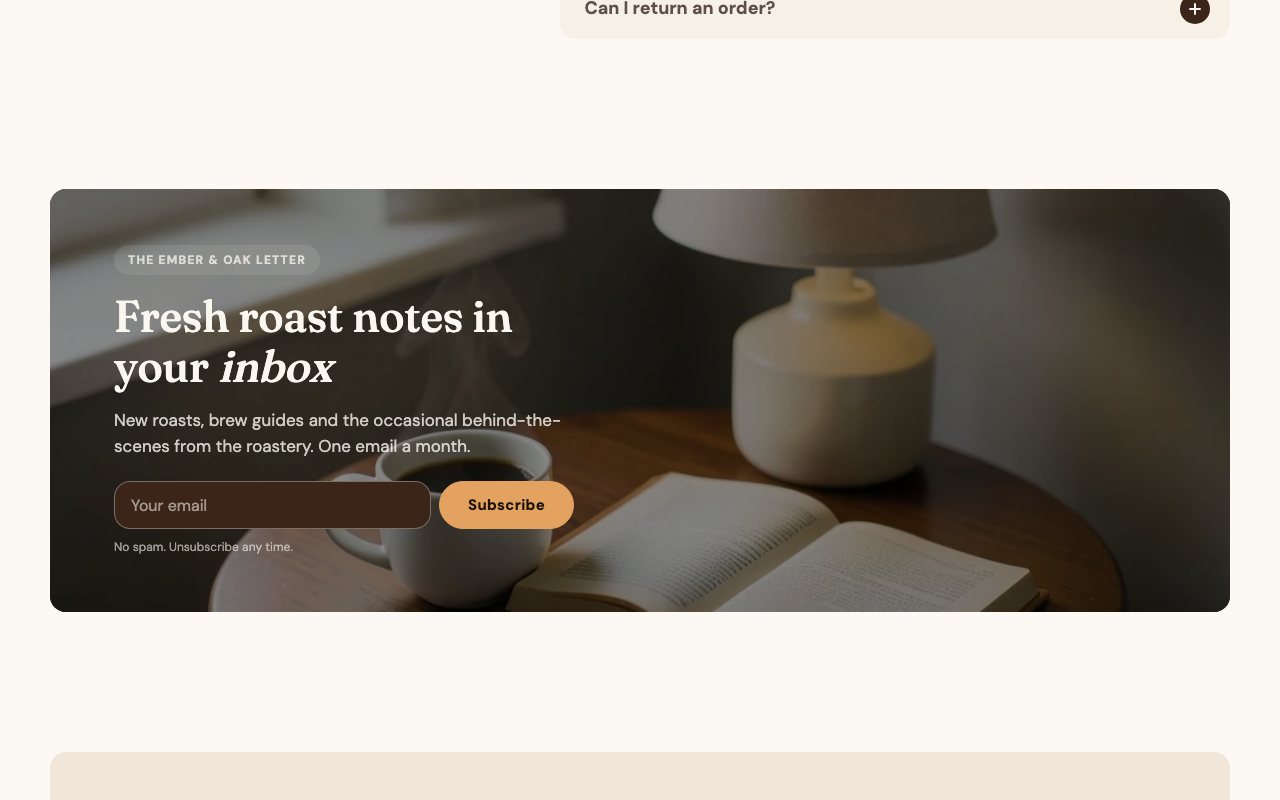
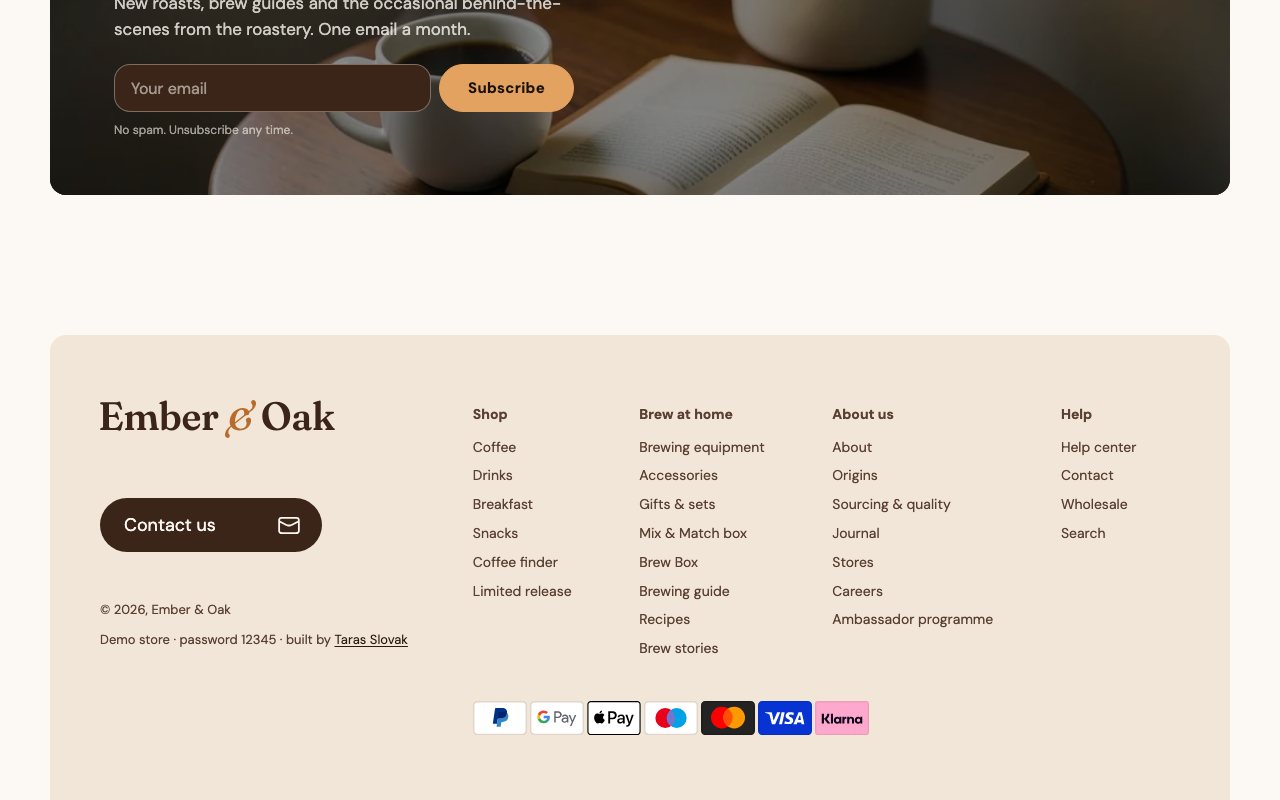
NewsletterNewsletter

A dark card over a photo with a badge, a headline and an email form that signs up through Shopify's customer form.

First built for BrekkyBowl
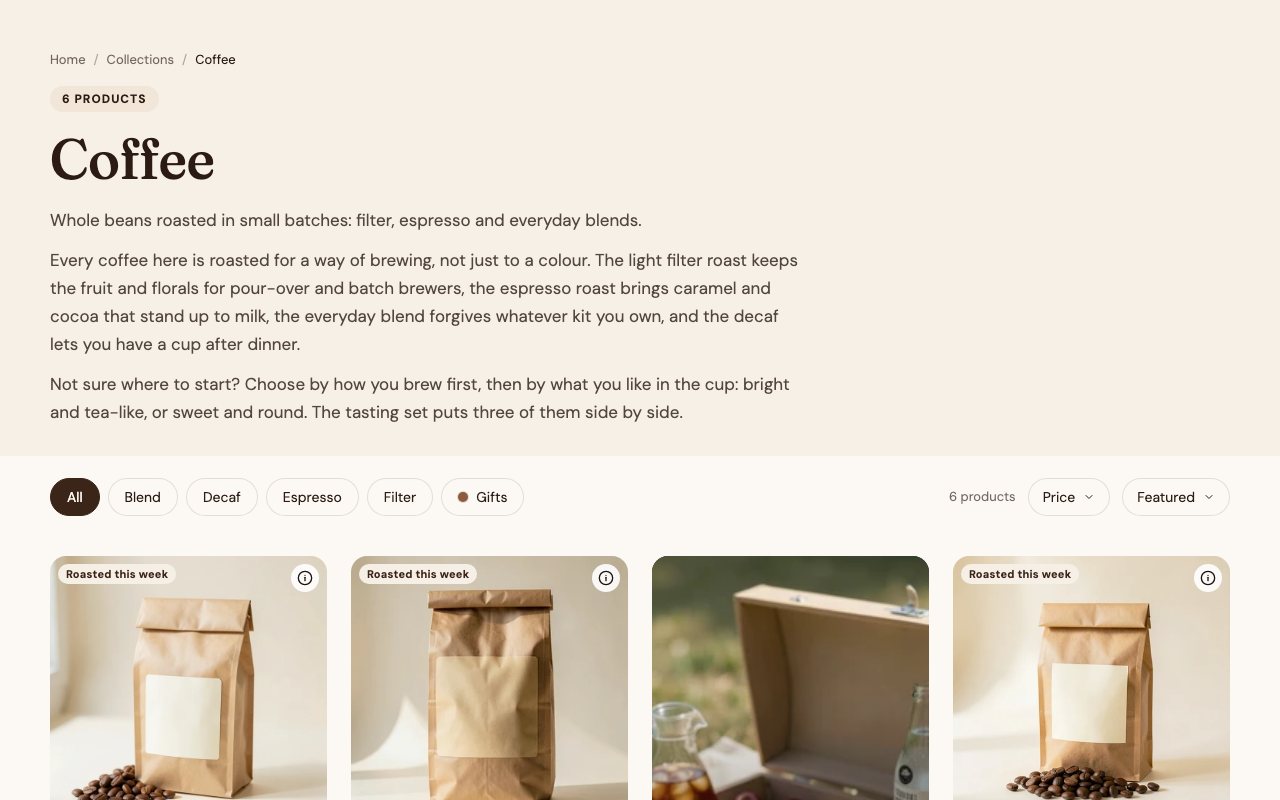
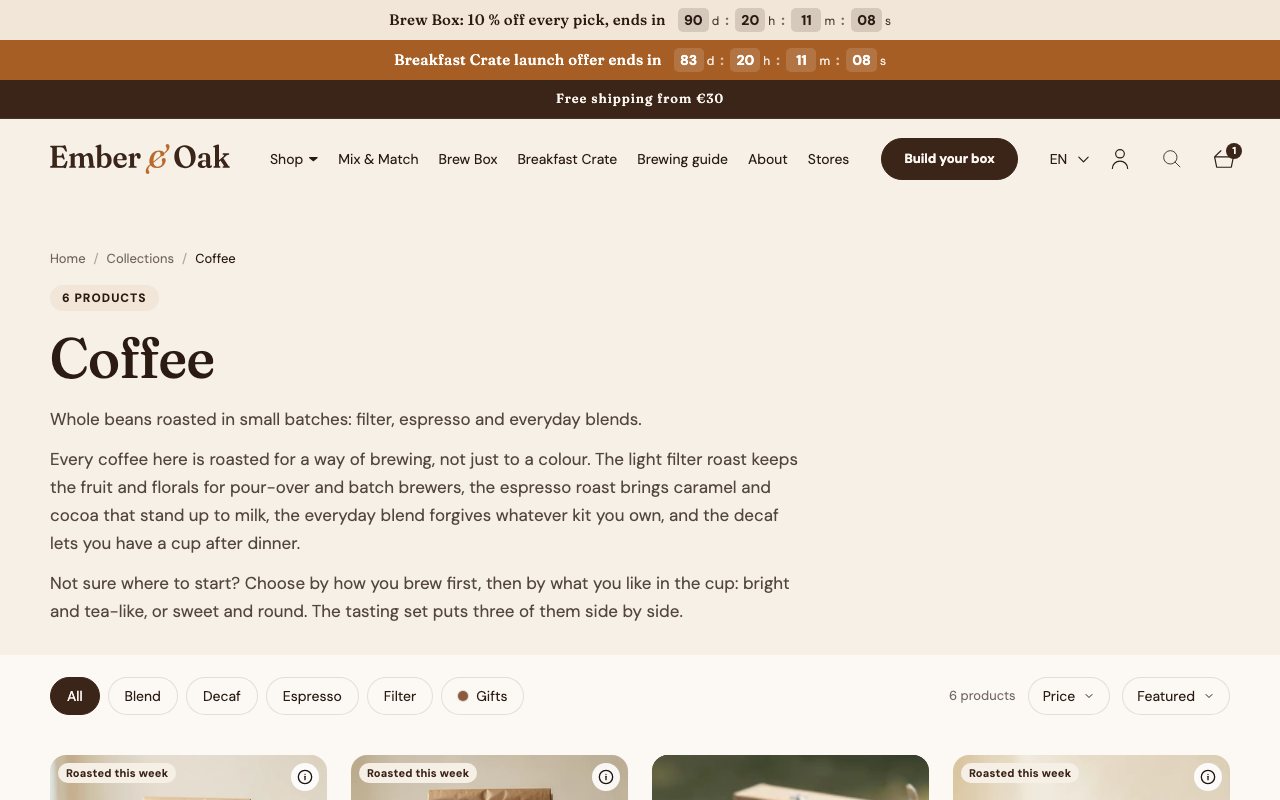
Collection heroCollection hero

Breadcrumbs, the product count, the title and the description, which shows everything when shortening would hide only a few lines.
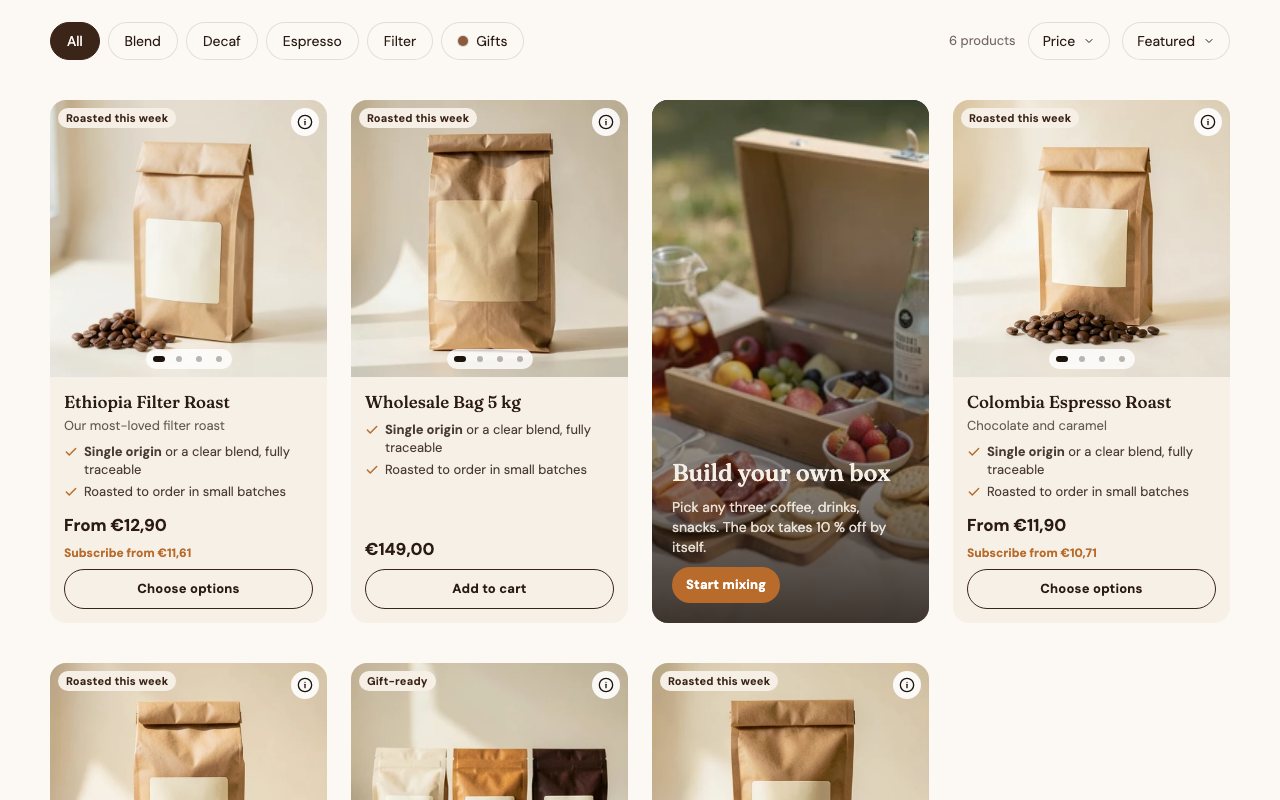
Collection gridCollection grid

Tag pills, a price range, a sort dropdown and a sticky bar over the product cards; a promo tile can sit in the grid.

First built for beneganic, Beautify
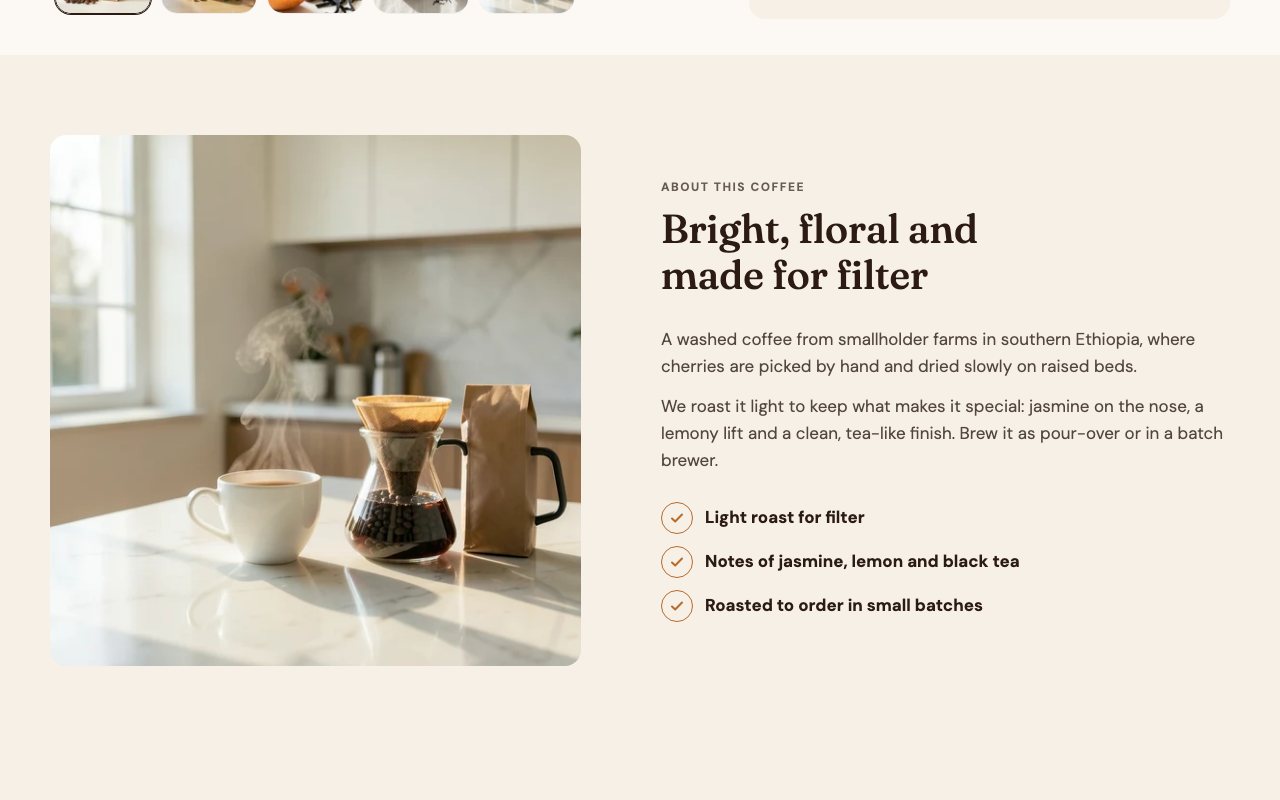
Media with contentMedia with content

An image beside an eyebrow, a headline, text and a check list; either side can come first, per breakpoint.
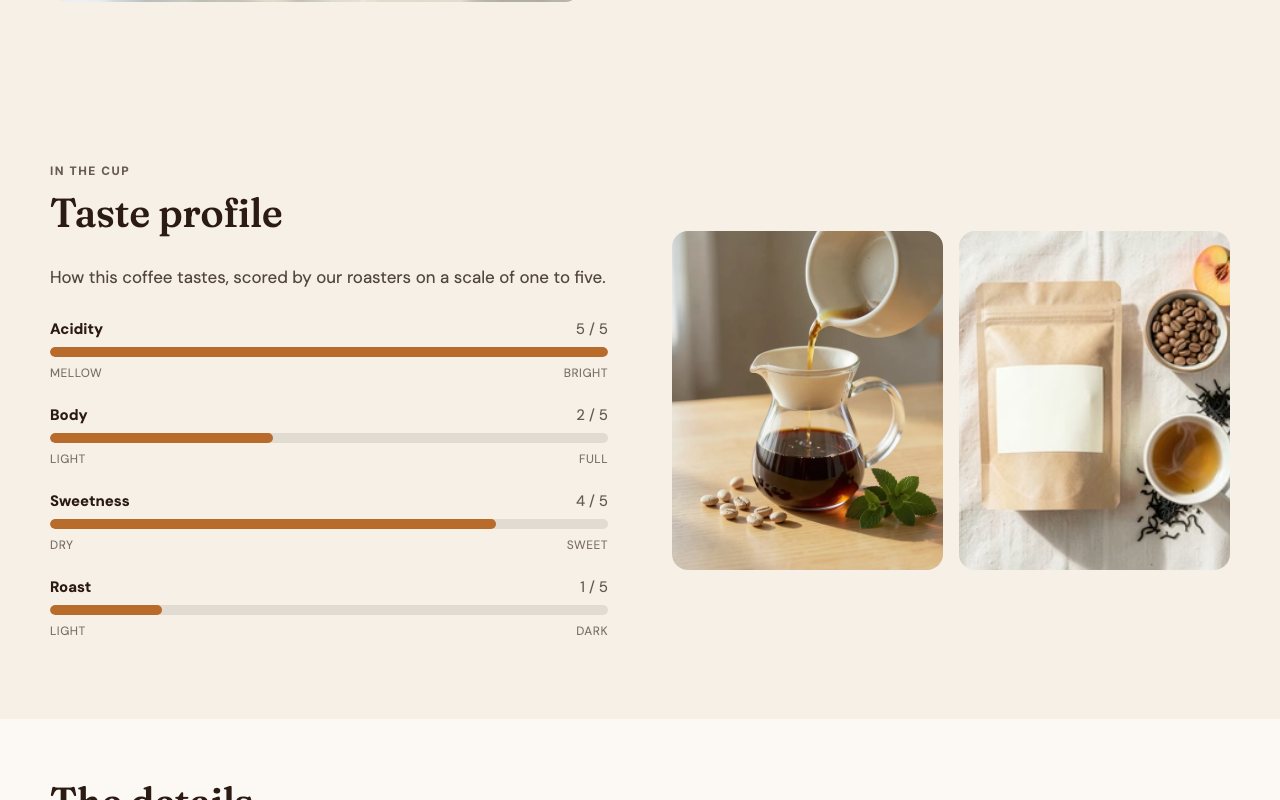
Taste profileTaste profile

Bars scored one to five for acidity, body, sweetness and roast; each bar is a block that reads its value from a product metafield.
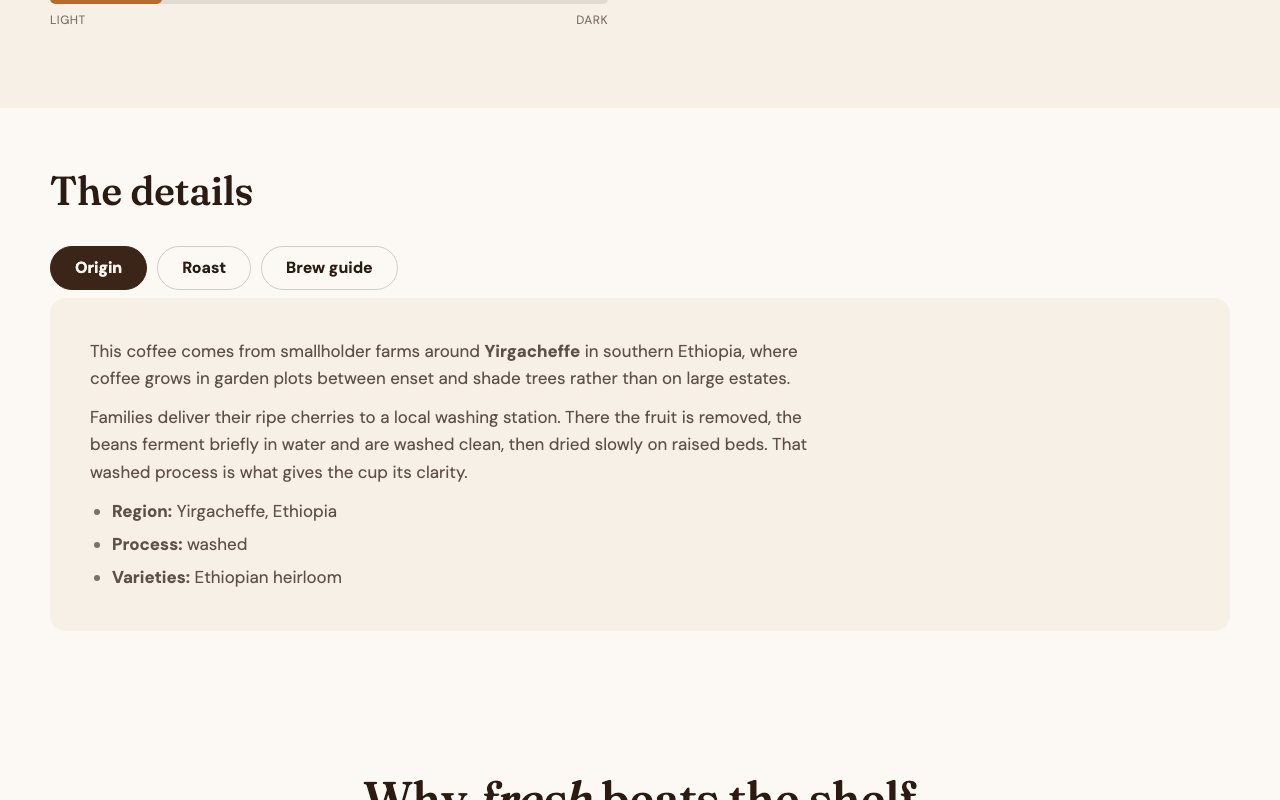
Info tabsInfo tabs

Tabs for origin, roast and brew guide; a tab takes its content from a product metafield or from its own text.
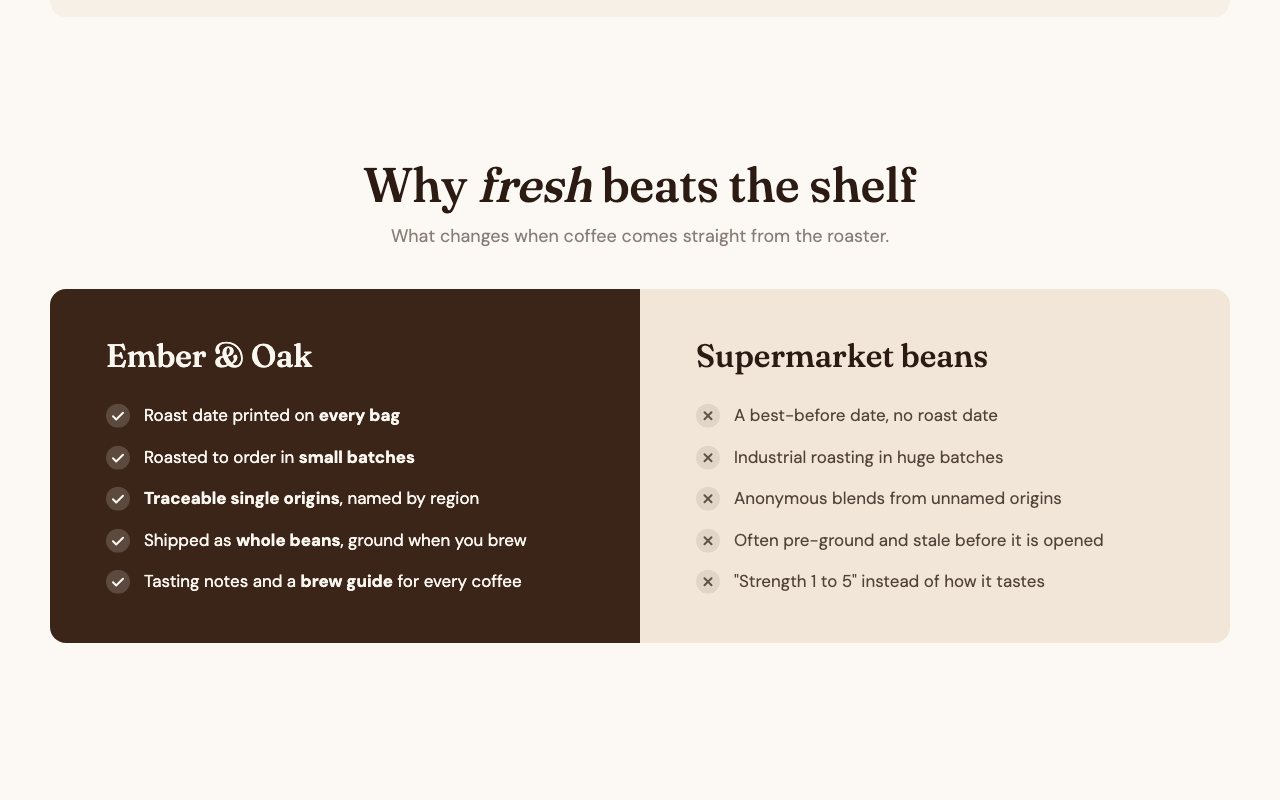
Us vs. themUs vs. them

Two columns, each in its own colour scheme: what the brand does and what the alternative does, as check and cross lists.
RoutineRoutine

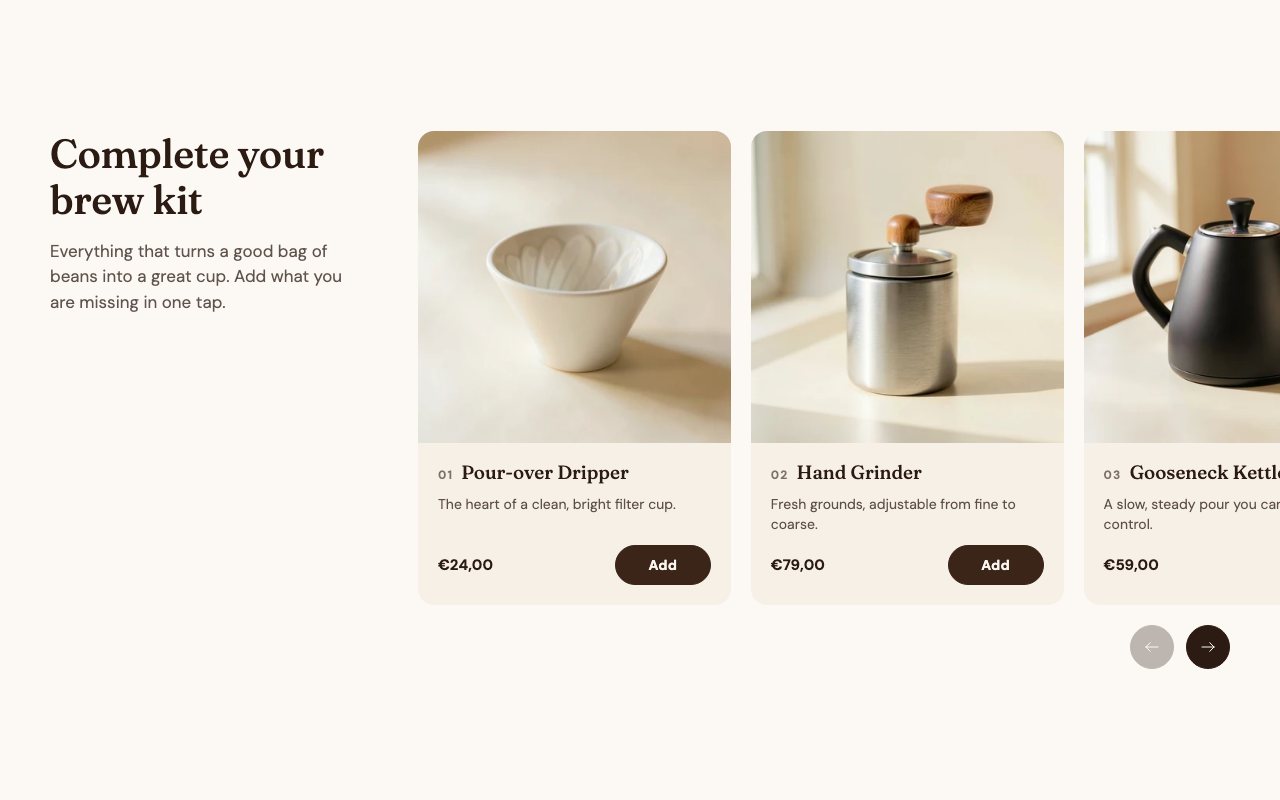
A text column beside a slider of numbered product cards with price and an add button; the slider bleeds off the outer edge.
Quote and mediaQuote and media

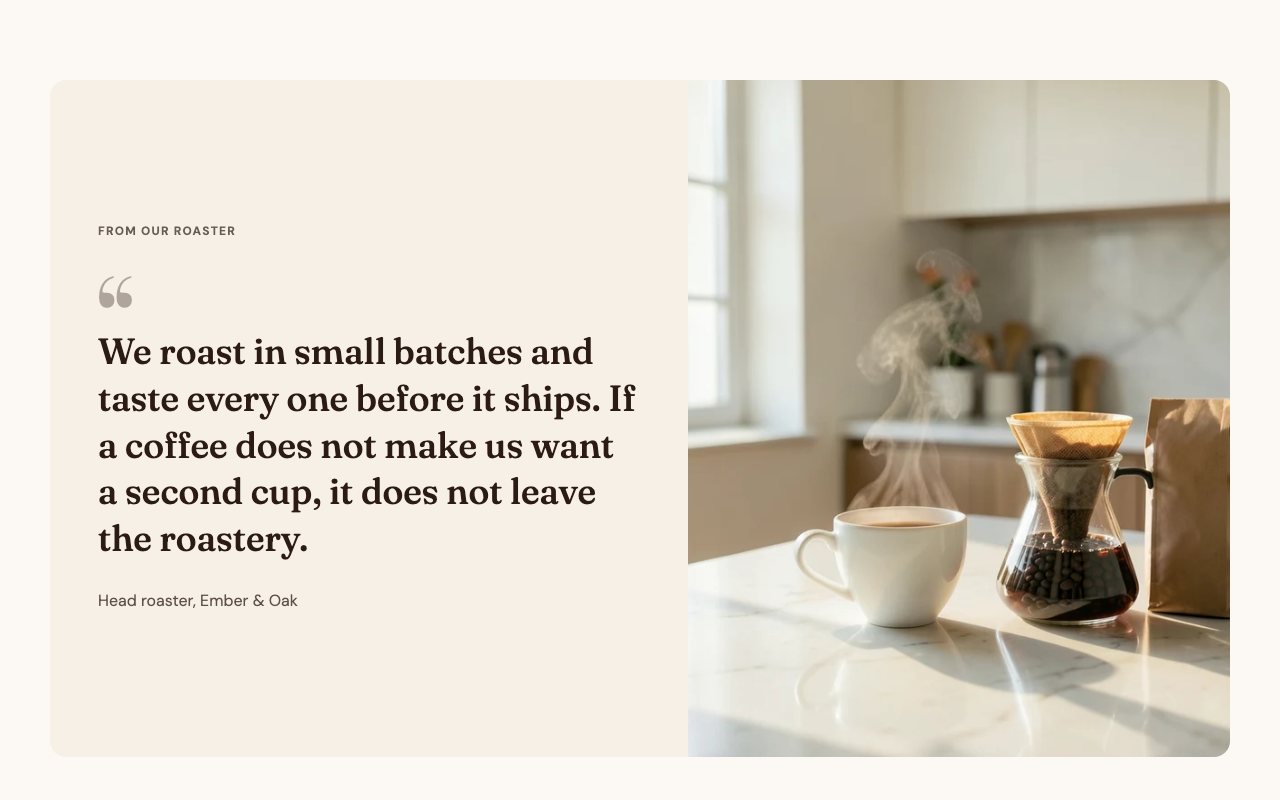
A quote with its attribution and an image or video as one card, the media flush against the quote.
Mega bundleMega bundle

The Mix & Match builder as one section: category tabs, product cards with steppers, the details panel and the fixed bar with slots.

First built for BrekkyBowl
Info splitInfo split

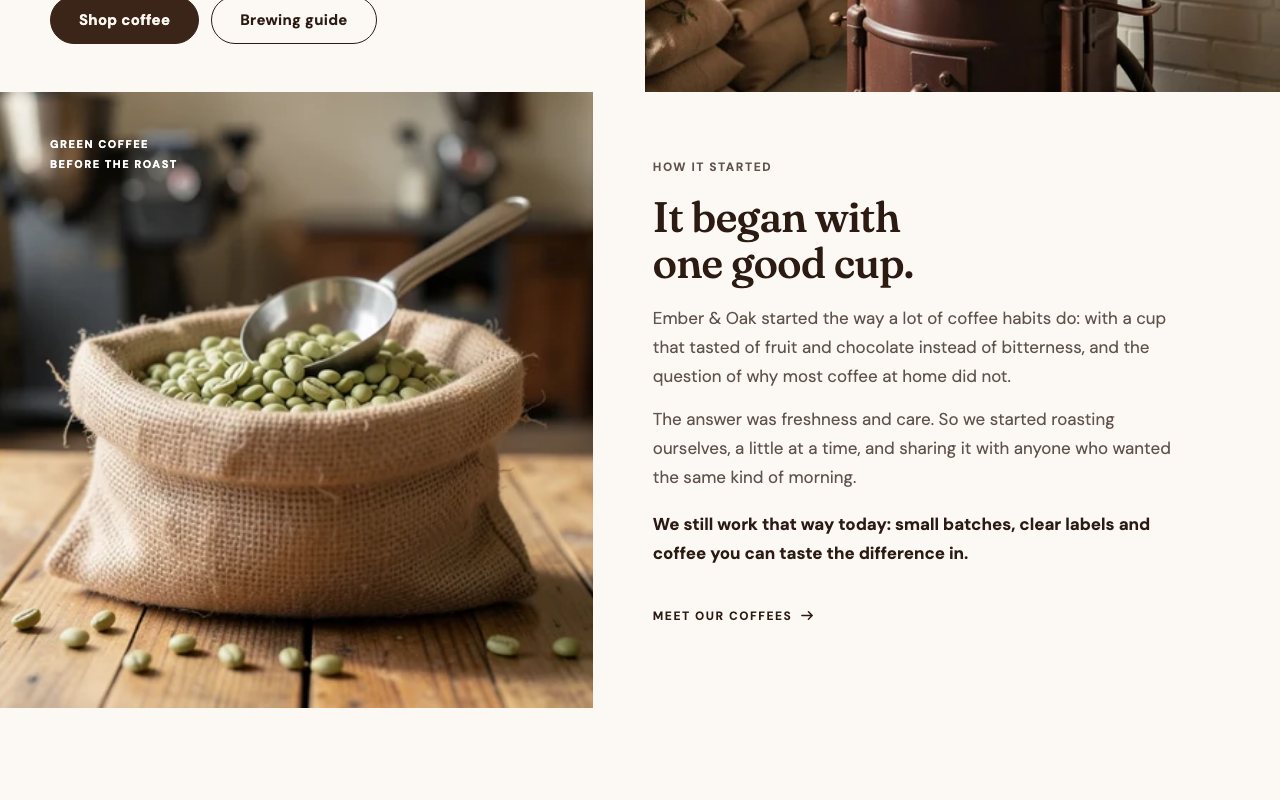
An image and a text column split in two: eyebrow, headline, paragraphs, a highlighted line and a link.

First built for Dr.Balwi2.0
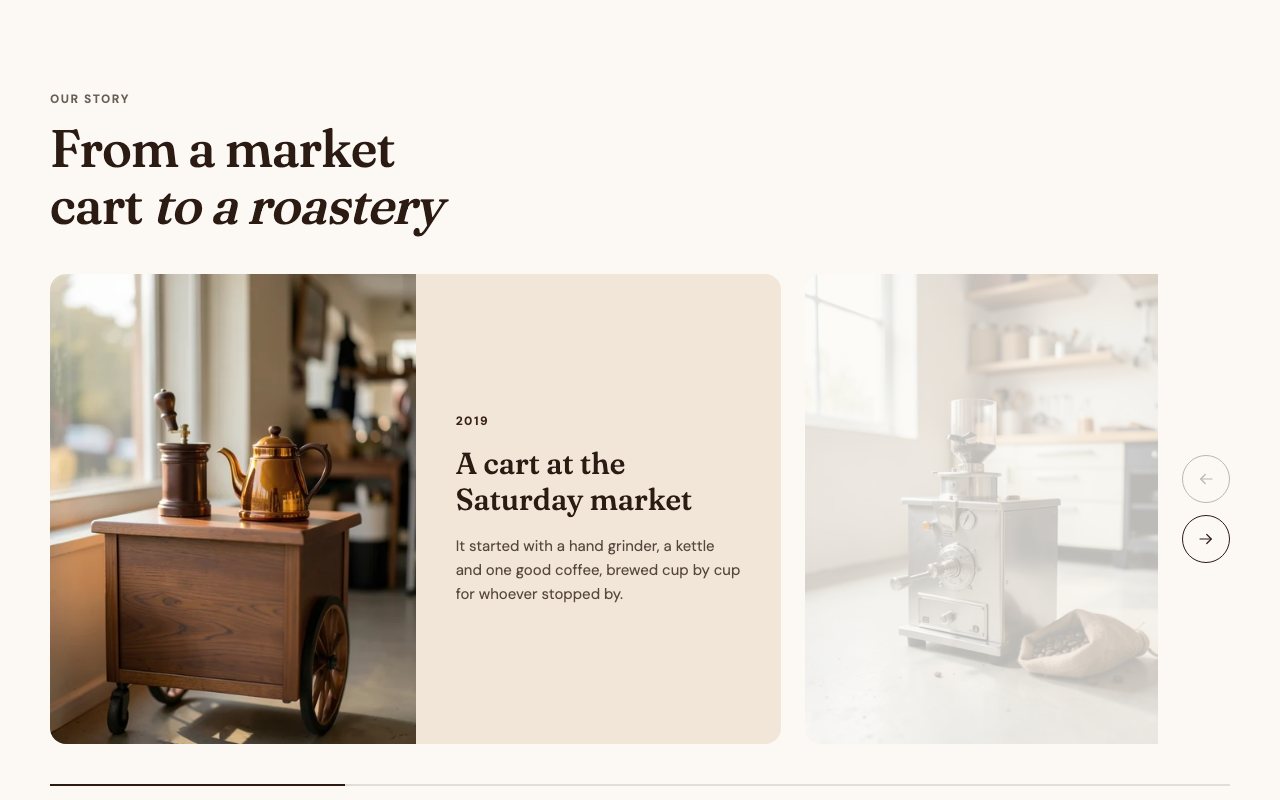
TimelineTimeline

A slider of chapters, a year, a title, a text and a photo each, with the neighbouring cards faded and a progress line.

First built for BrekkyBowl
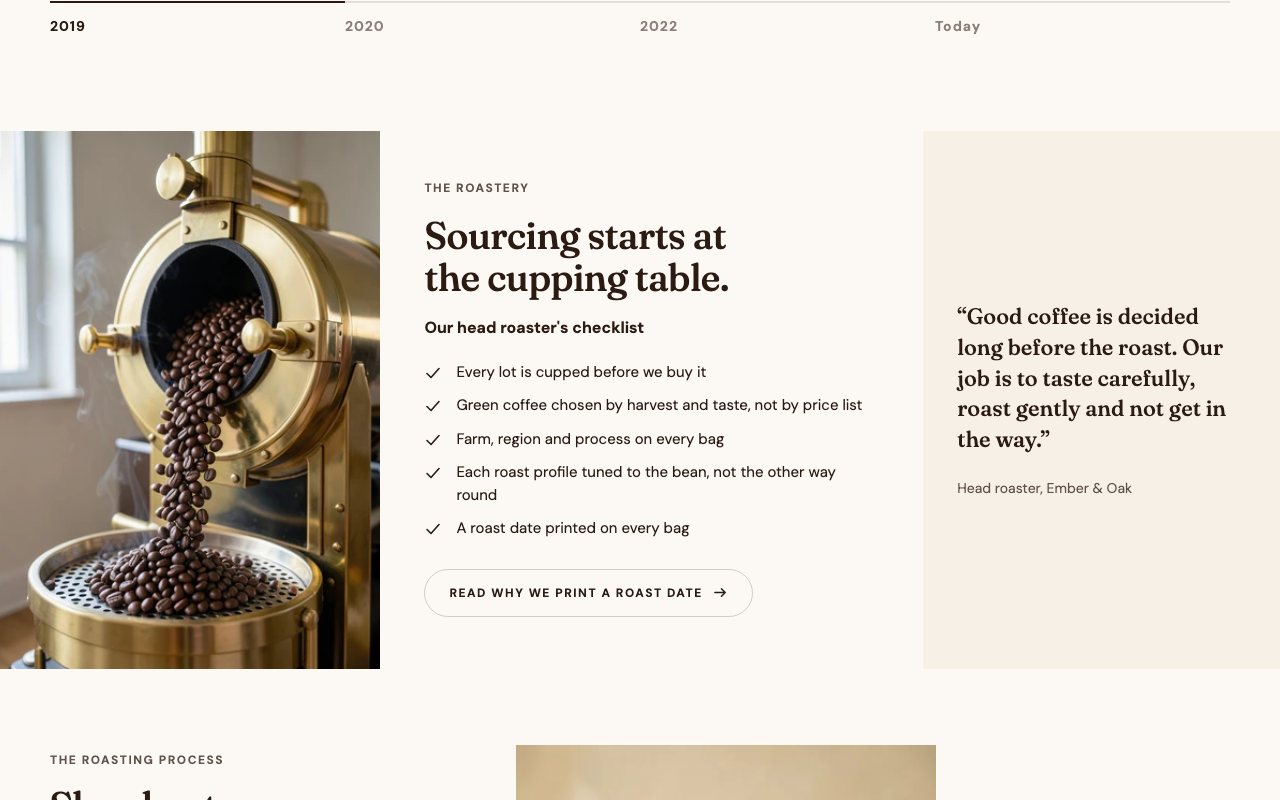
PersonPerson

A portrait, a check list of points and a quote with its attribution in a side card.

First built for Dr.Balwi2.0
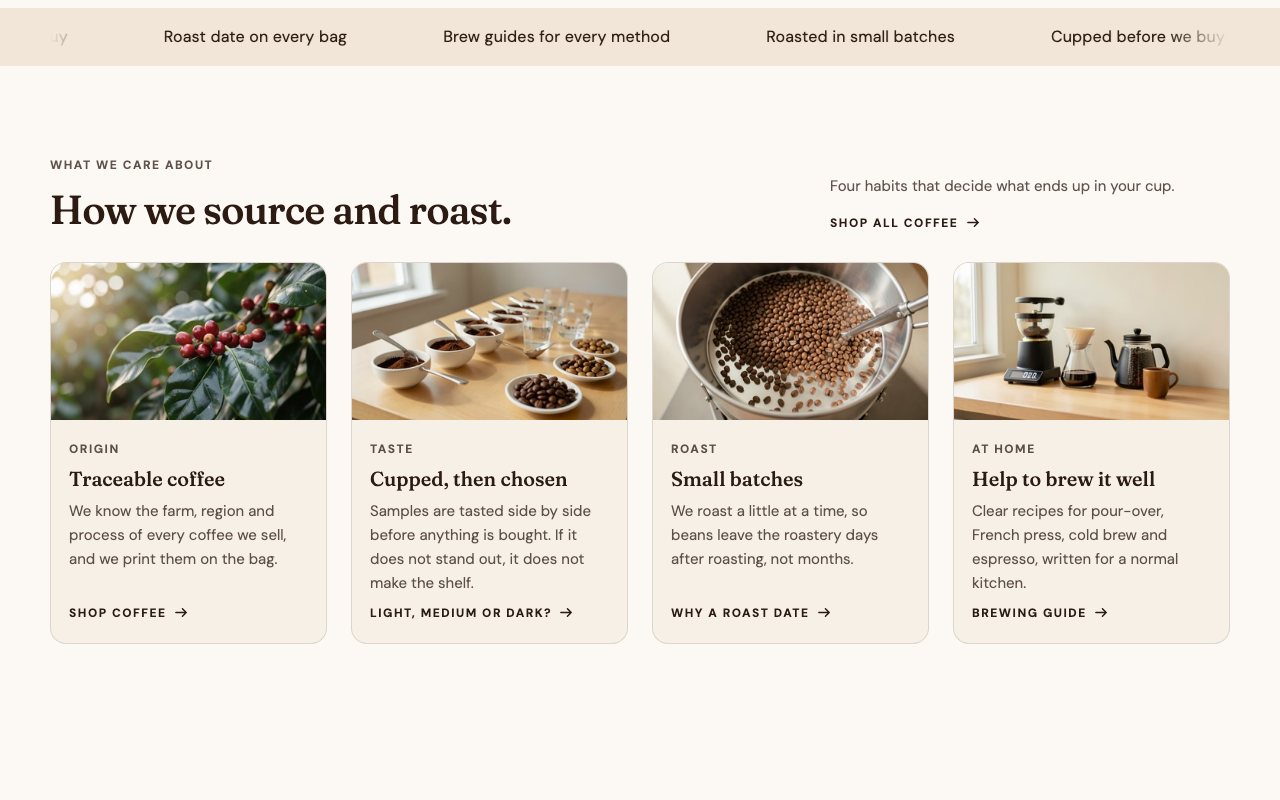
CardsCards

Image cards with a kicker, a title, a text and a link; the header can sit above or beside the grid.

First built for Dr.Balwi2.0
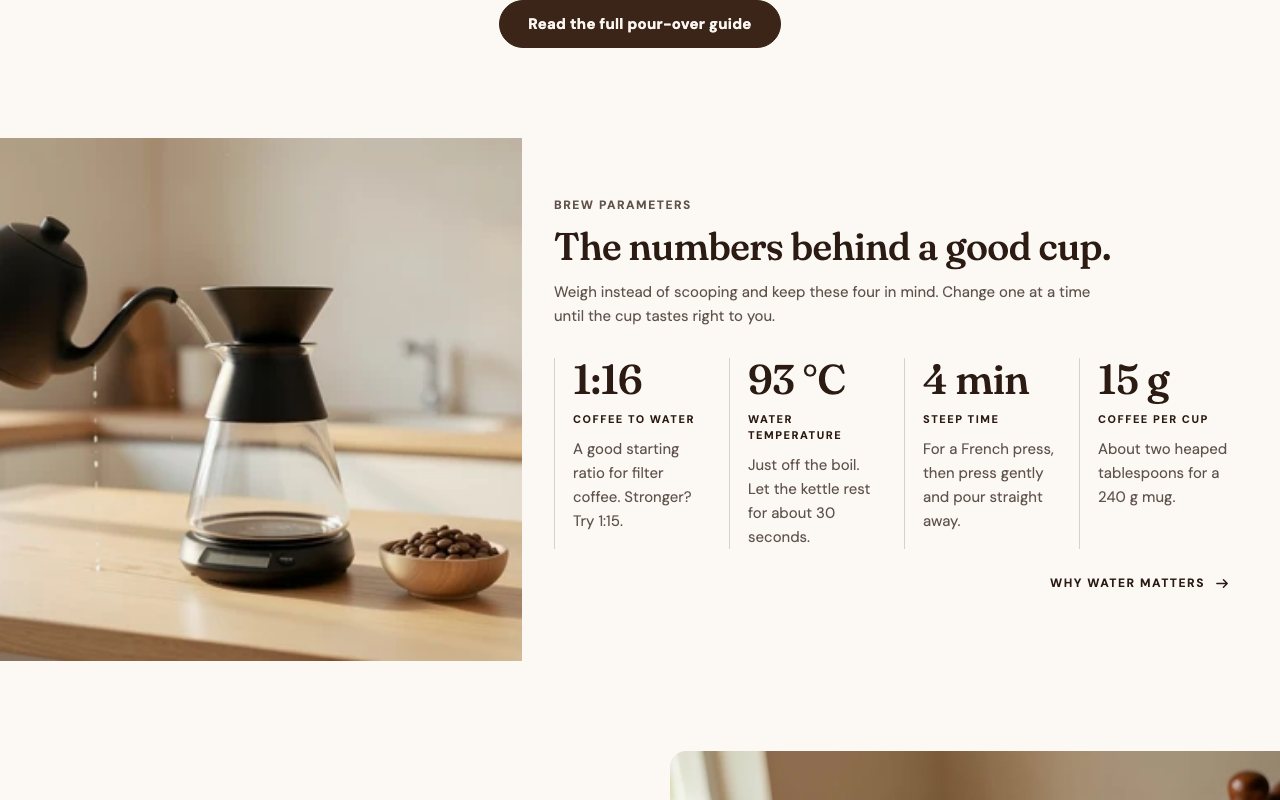
FiguresFigures

A row of numbers with a label and a note each, beside an image: here the four brew parameters.

First built for Dr.Balwi2.0
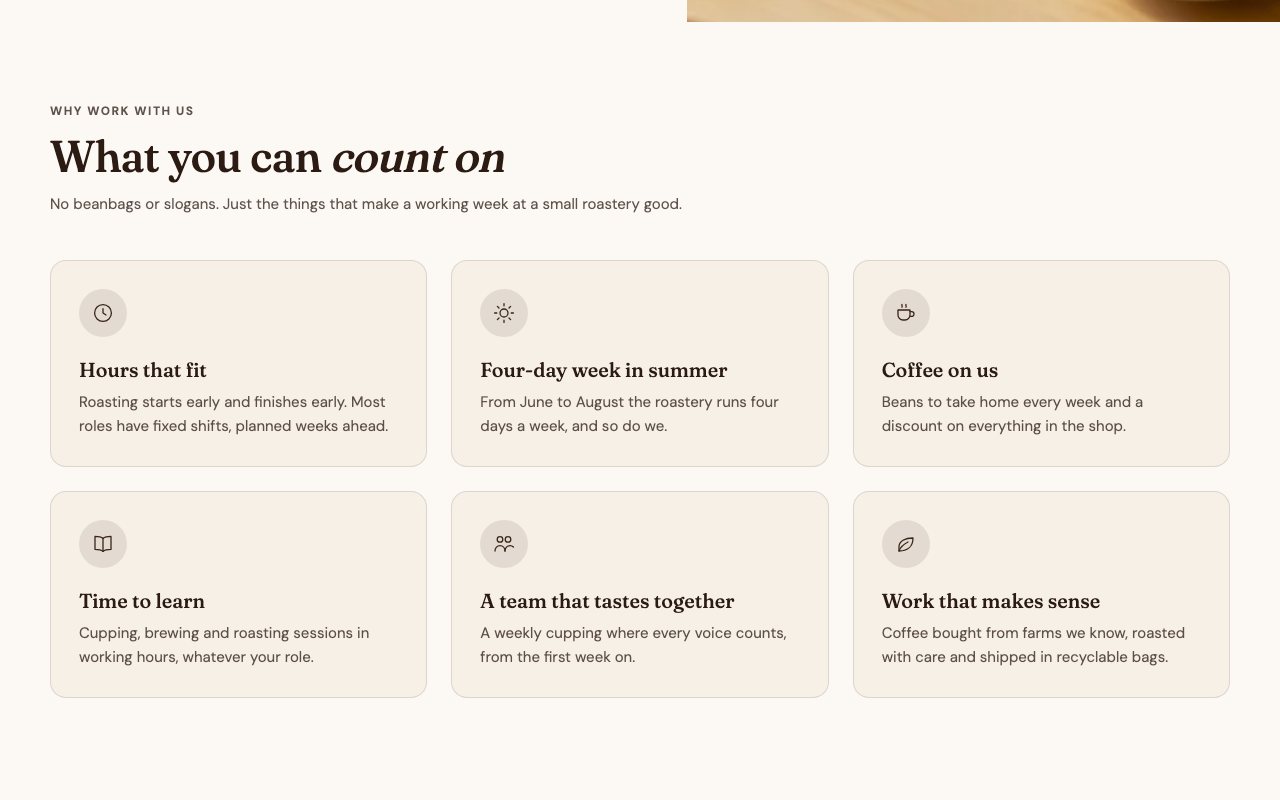
BenefitsBenefits

A grid of cards with a line icon, a title and a text.

First built for Beautify
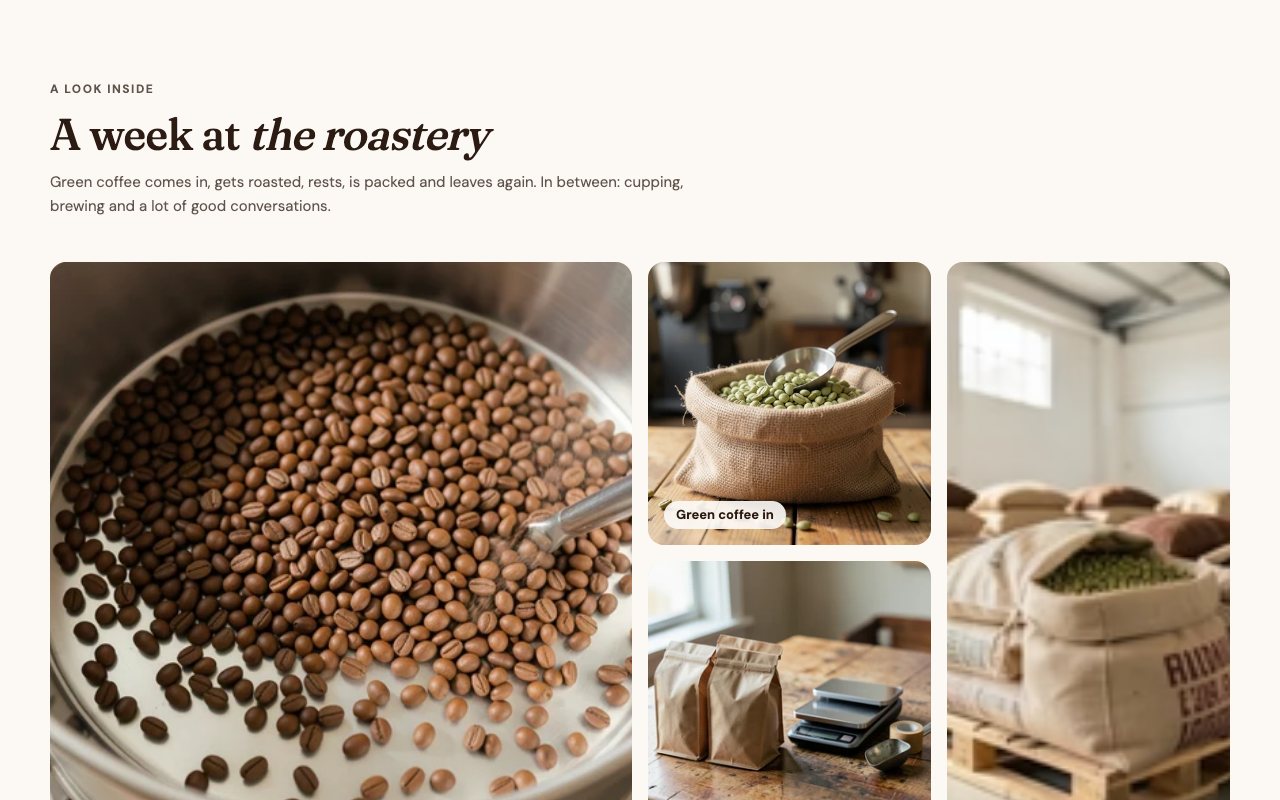
Open positionsOpen positions

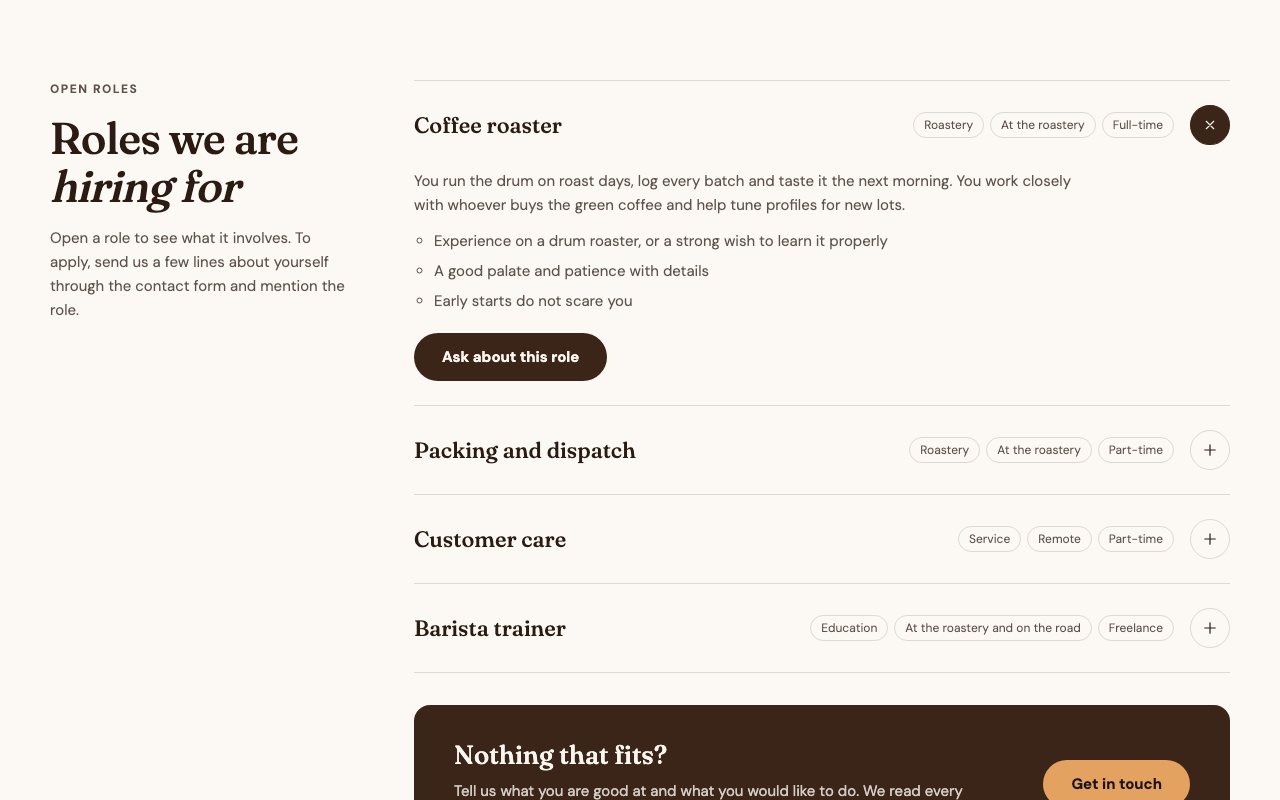
An accordion of roles with team, place and type tags and a button per role, closed by a "Nothing that fits?" card.

First built for Beautify
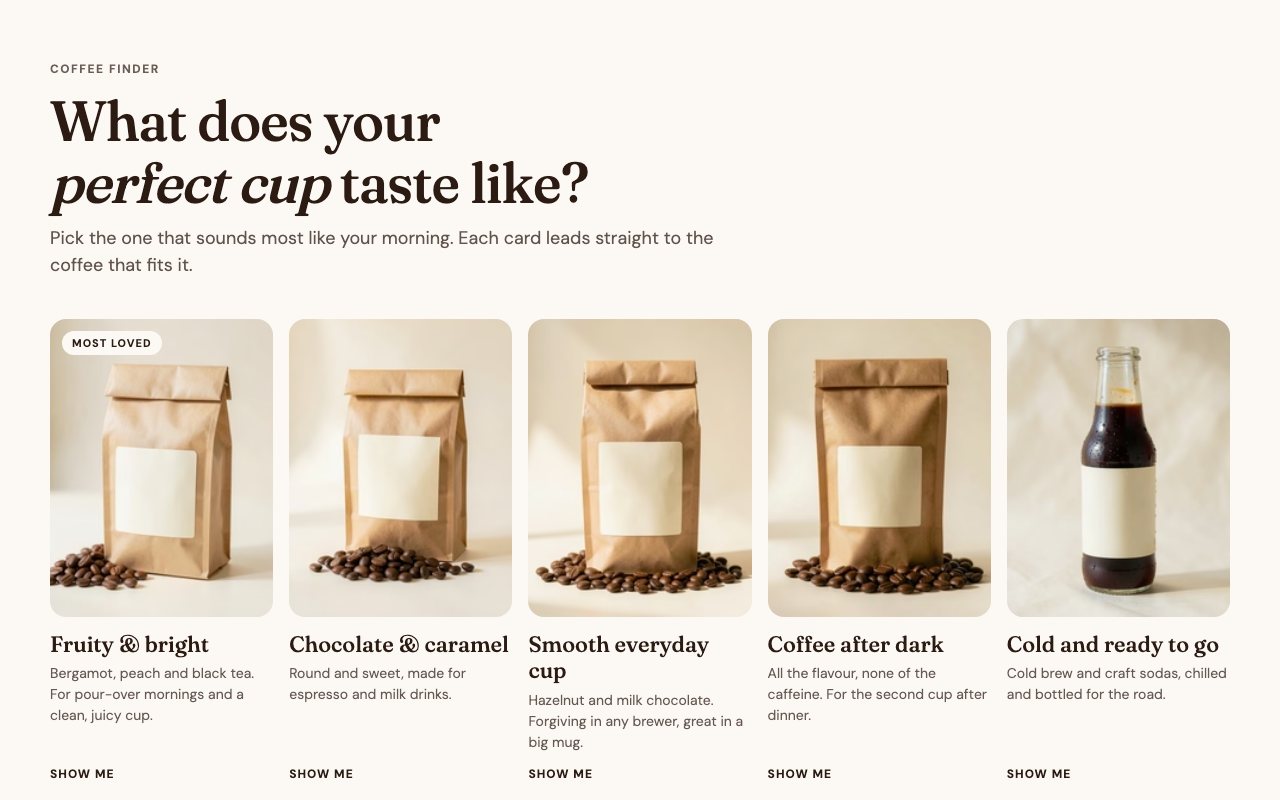
FinderFinder

Taste cards, a product or a collection behind each, with a title, a text and an optional badge.

First built for DrJuliaHeinrich
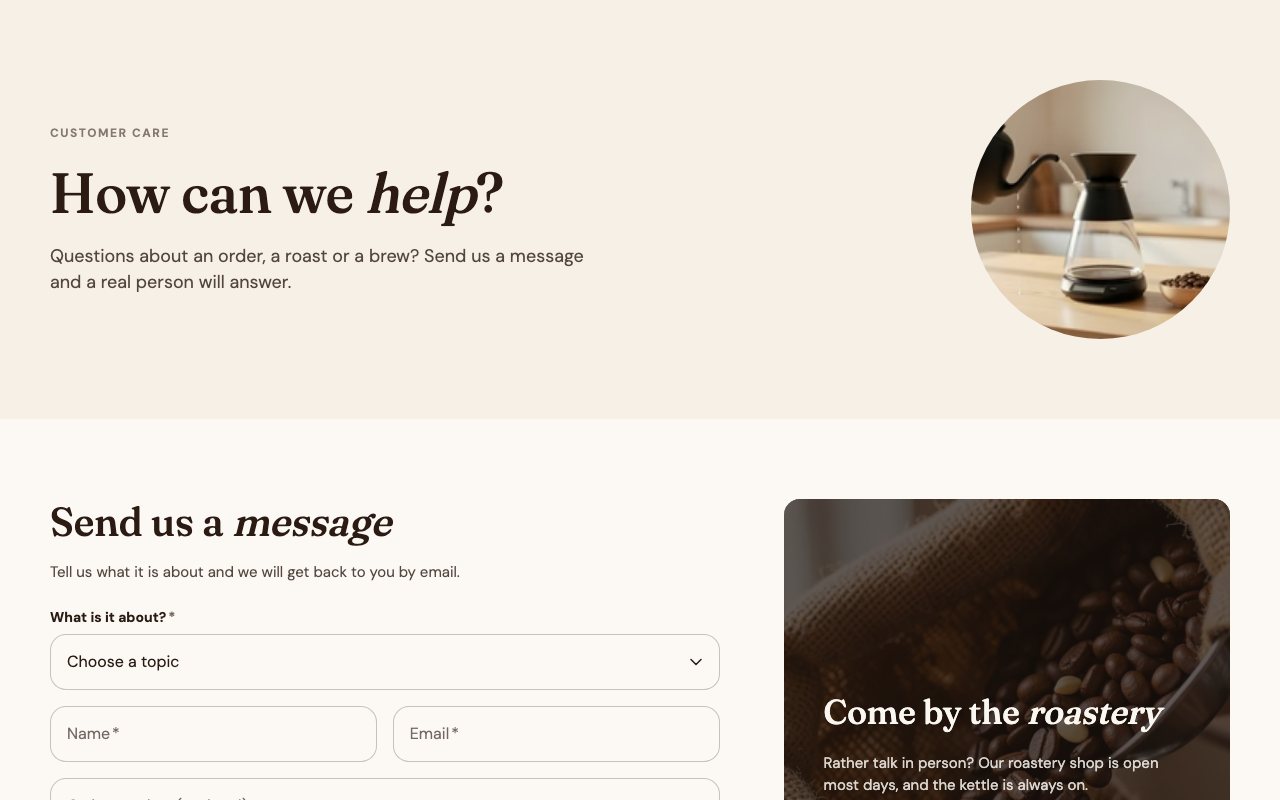
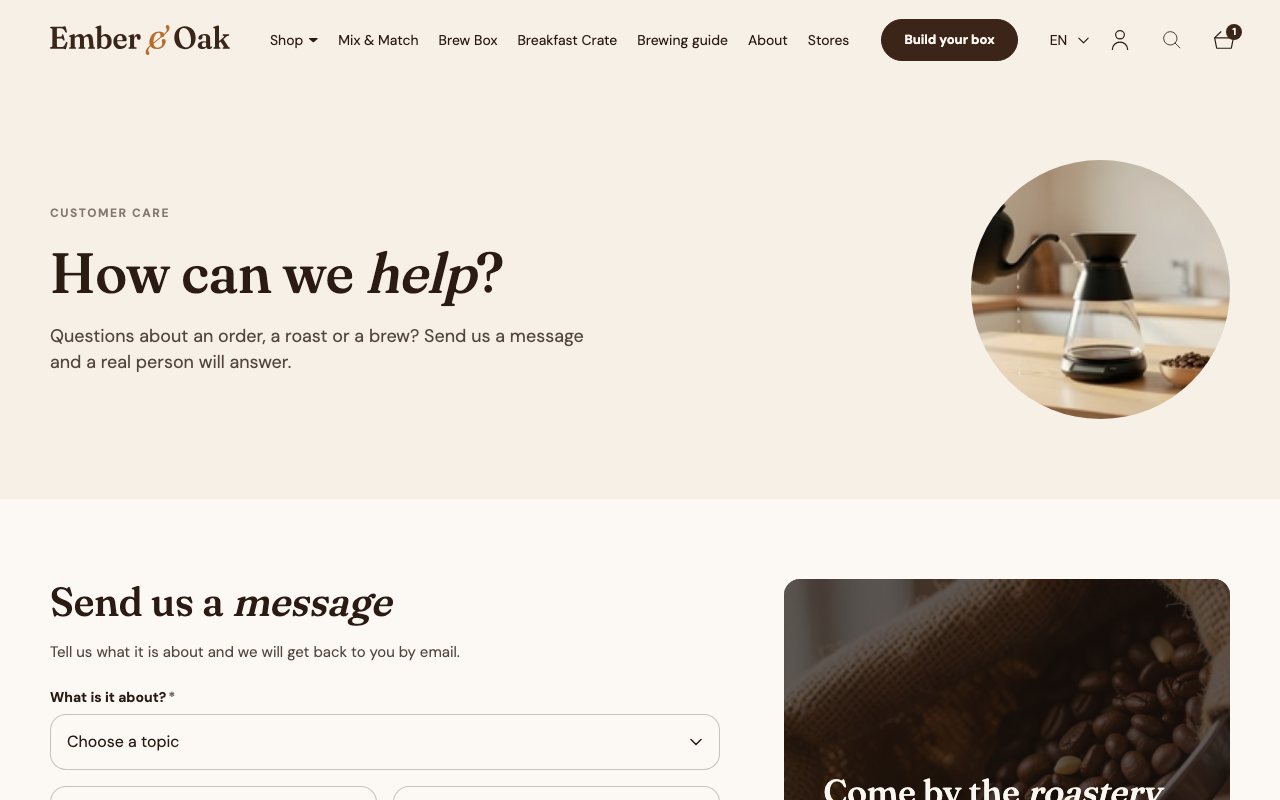
Service heroService hero

An eyebrow, a headline and a line of text beside a round image, for the help, contact and wholesale pages.

First built for HomeVital
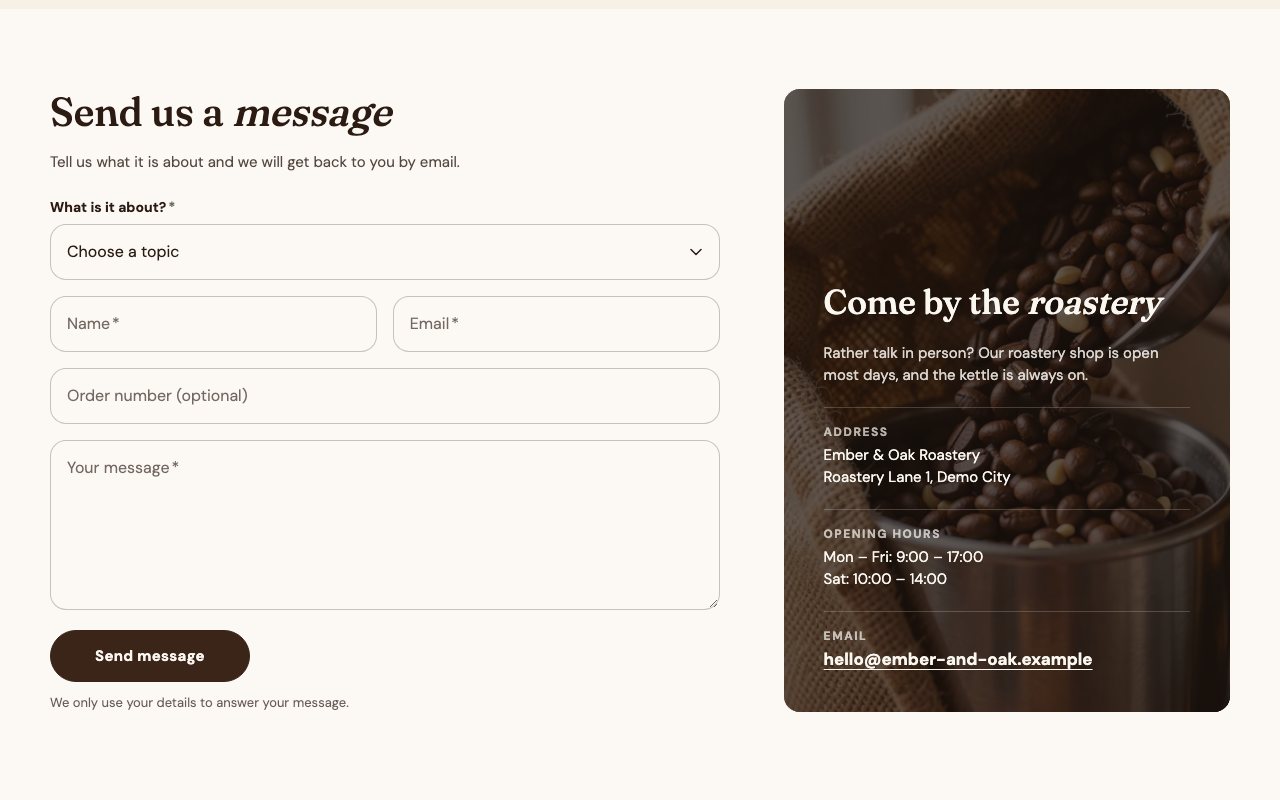
FormForm

A form built from blocks (text, number, phone, select and more) that posts to Shopify's contact form, beside an info card with the address and hours.

First built for Eternal-Vitality2.0
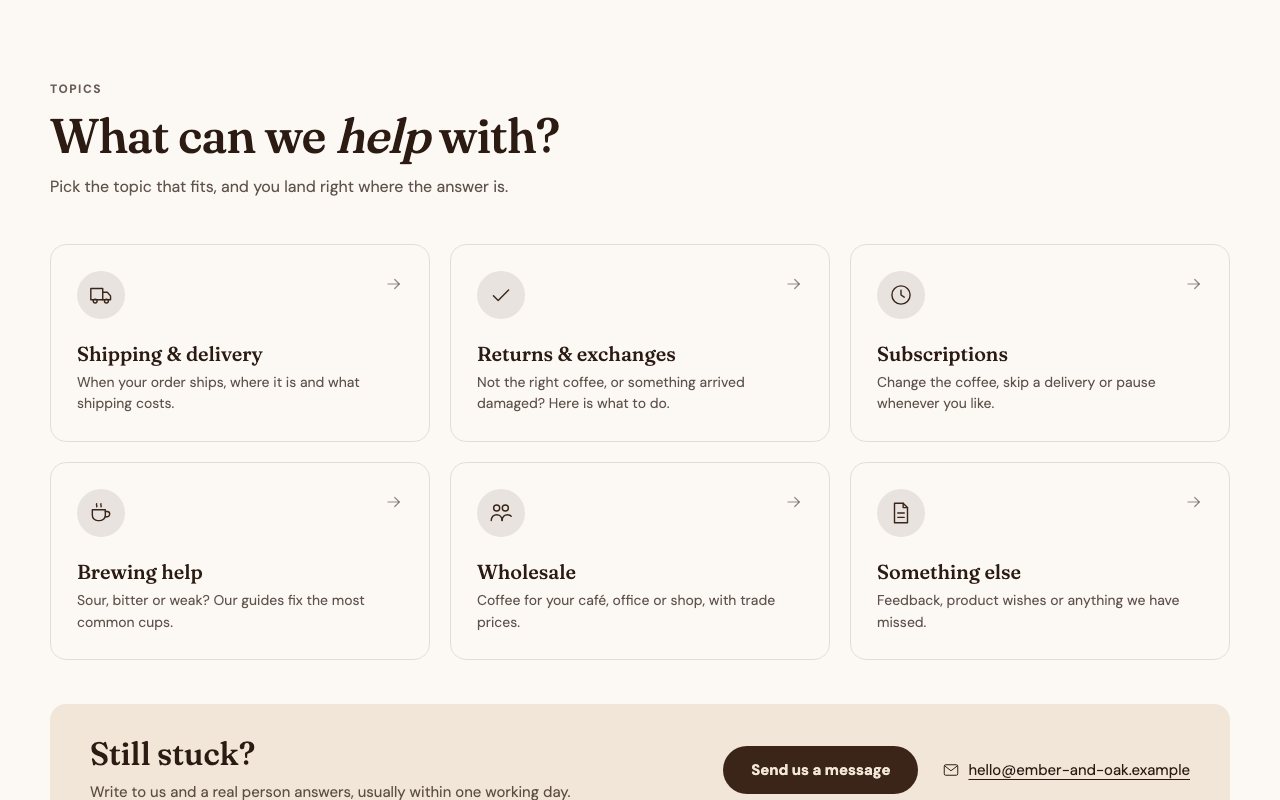
Support topicsSupport topics

Topic cards that link to a page or to an anchor of an FAQ below, closed by a "Still stuck?" bar with the contact button.

First built for Dr.Balwi
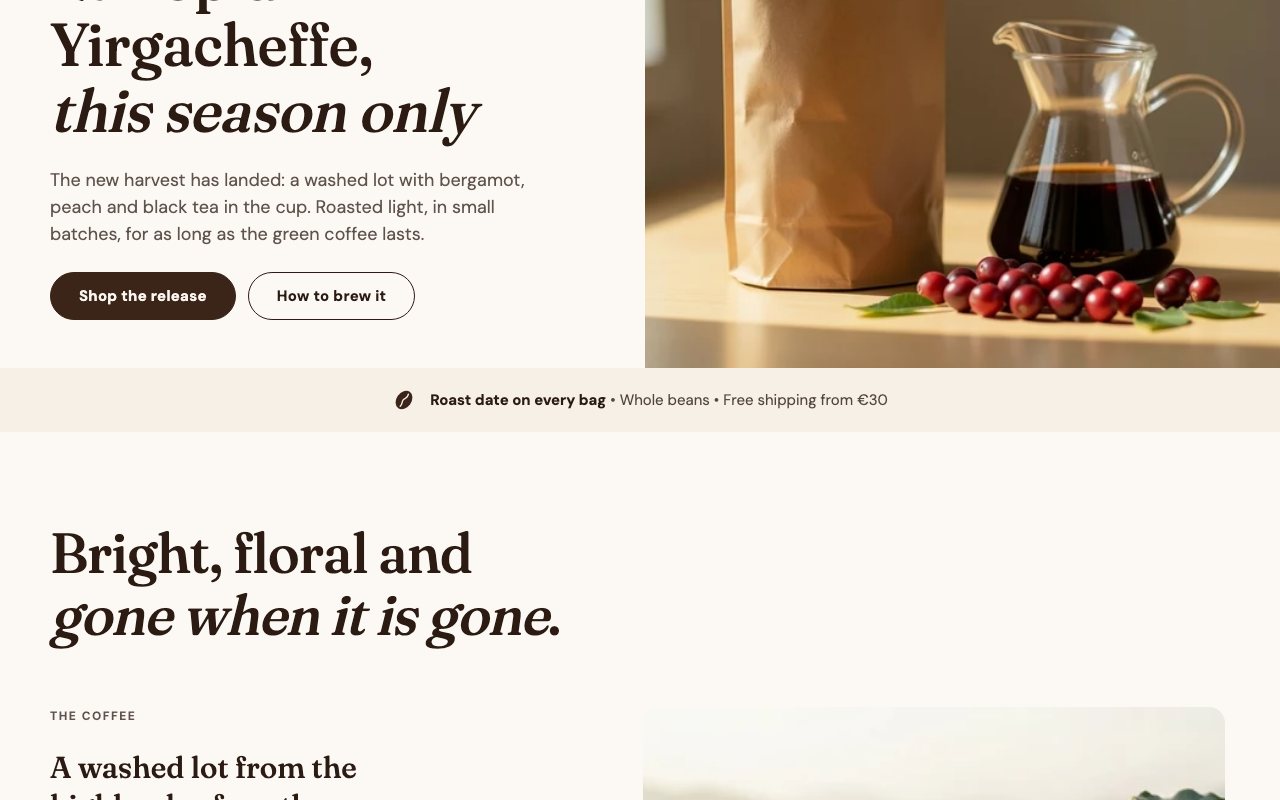
Trust badgeTrust badge

A single line of assurances with a mark or a logo, right under a hero.

First built for HomeVital
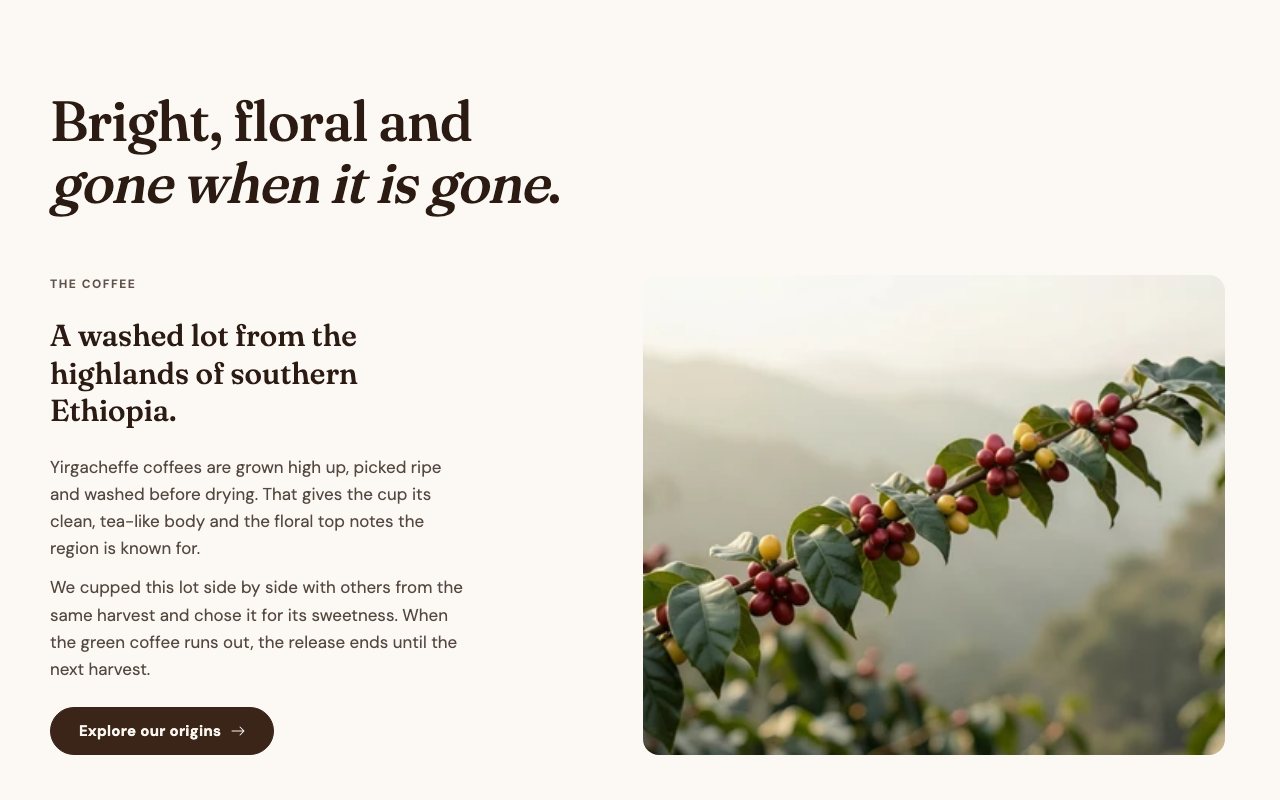
Clear insightsClear insights

A large headline, then an eyebrow, a sub-heading, text and a button beside an image.

First built for HomeVital
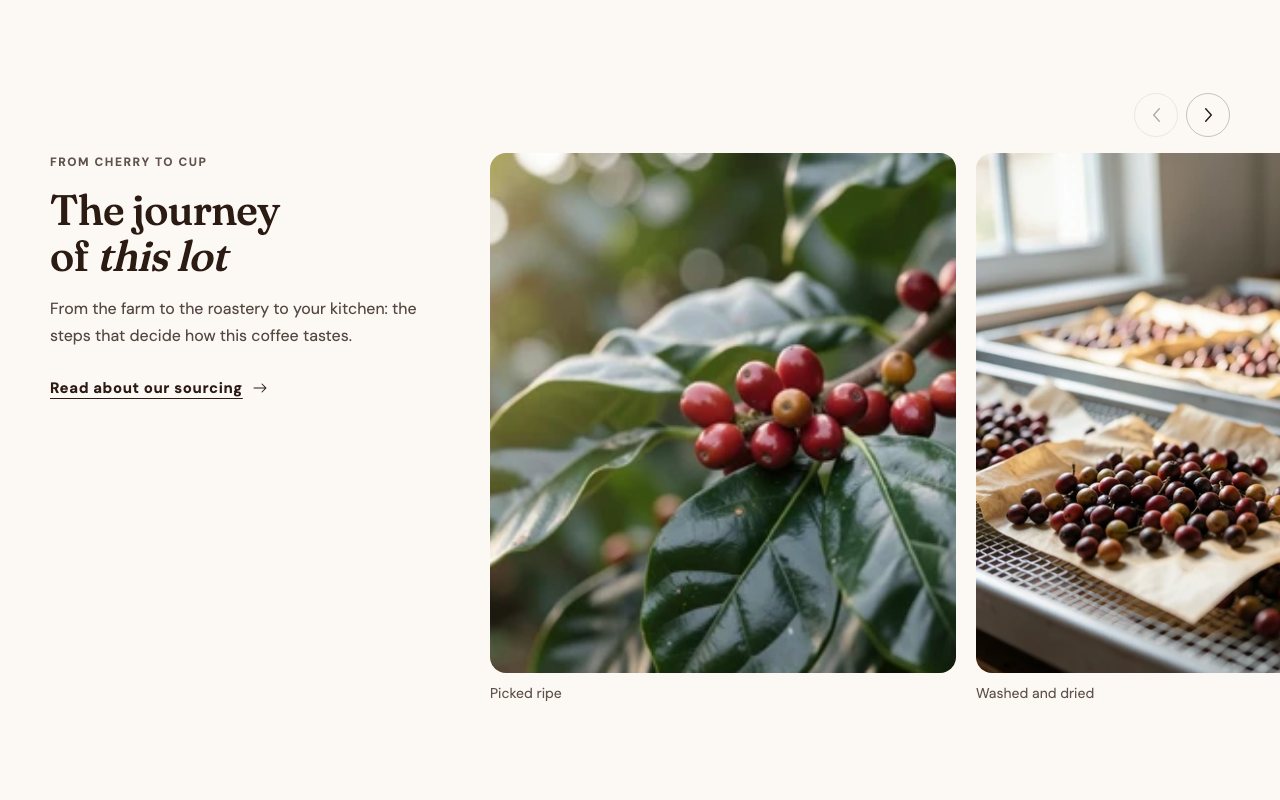
Media sliderMedia slider

A text column beside a slider of images or videos with captions; the slider runs to the screen edge.

First built for HomeVital
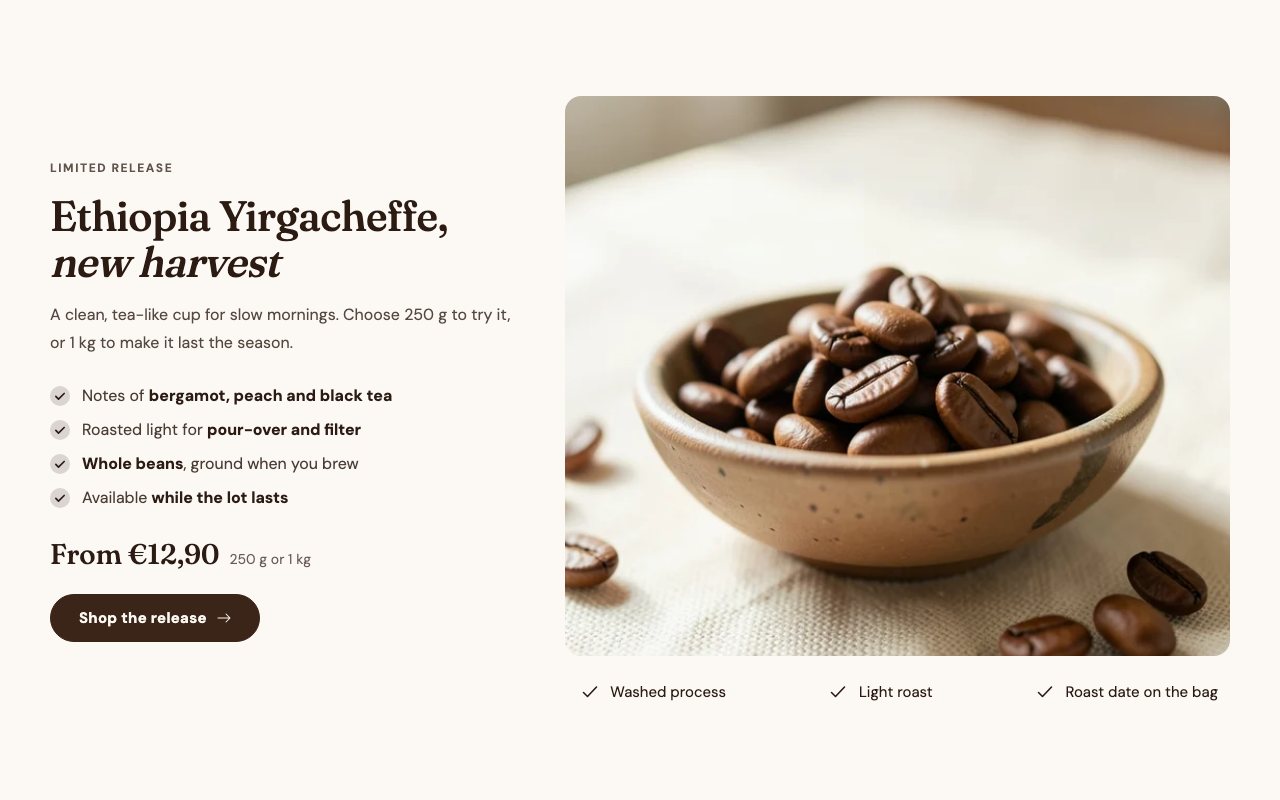
Product highlightProduct highlight

One product with benefits, its price, a button and a large image, with a row of badges under it.

First built for HomeVital
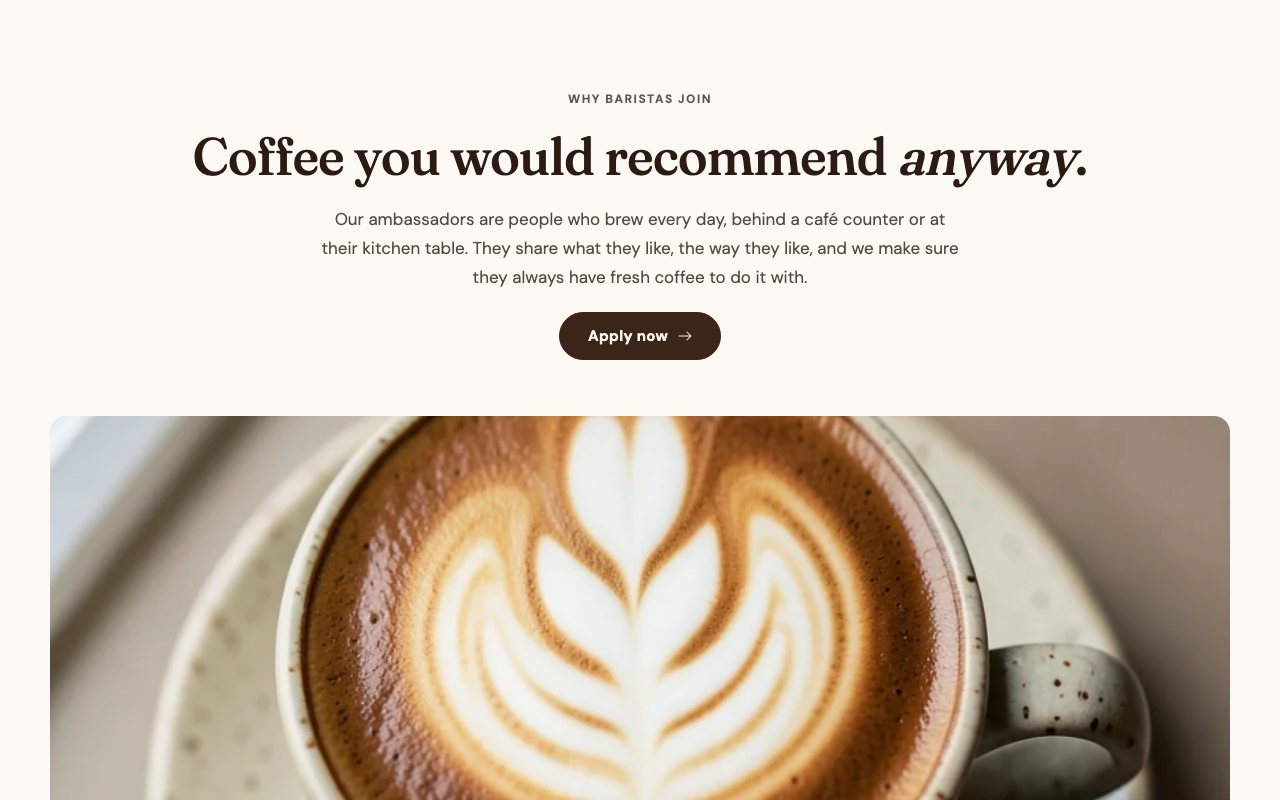
Text and videoText and video

A centred headline, text and button over a video that loads on click, with a poster per breakpoint.

First built for HomeVital
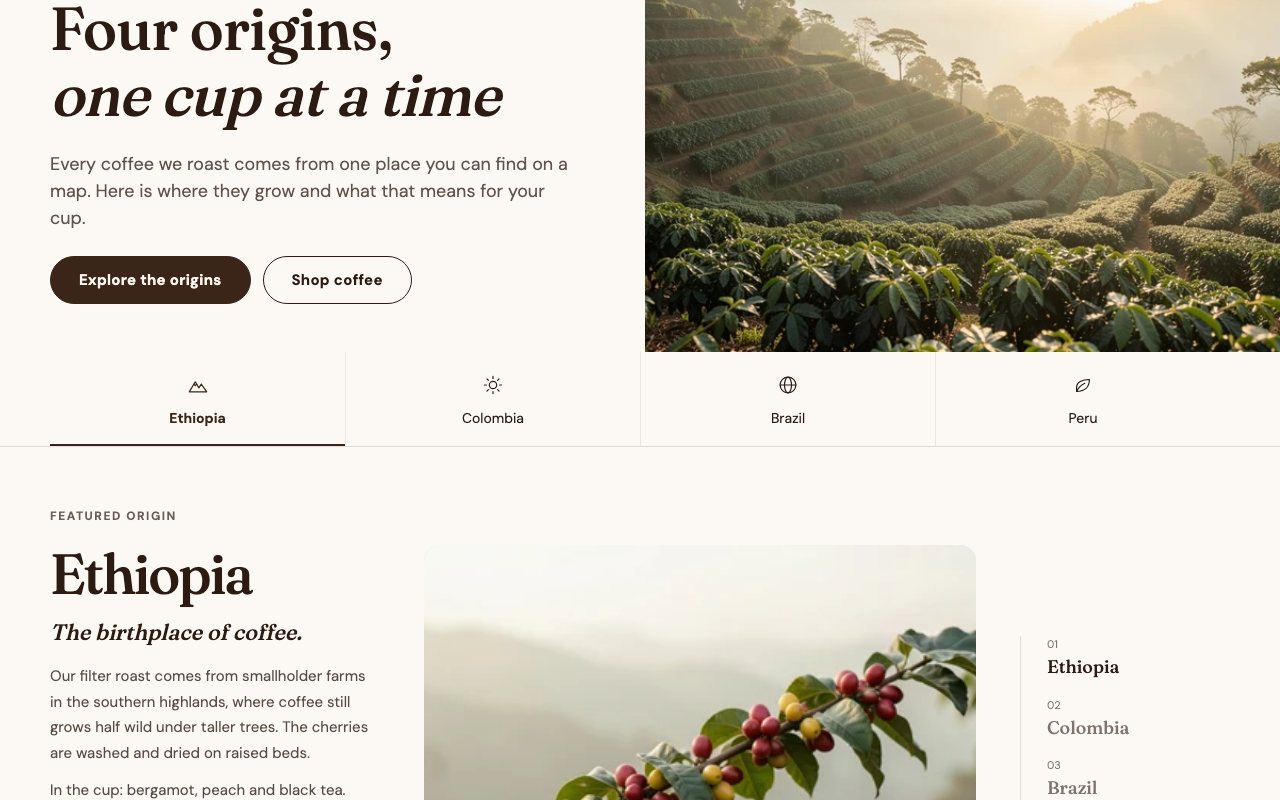
Filter barFilter bar

A row of icon tabs that jump to an anchor or switch the spotlight below it.

First built for Dr.Balwi2.0
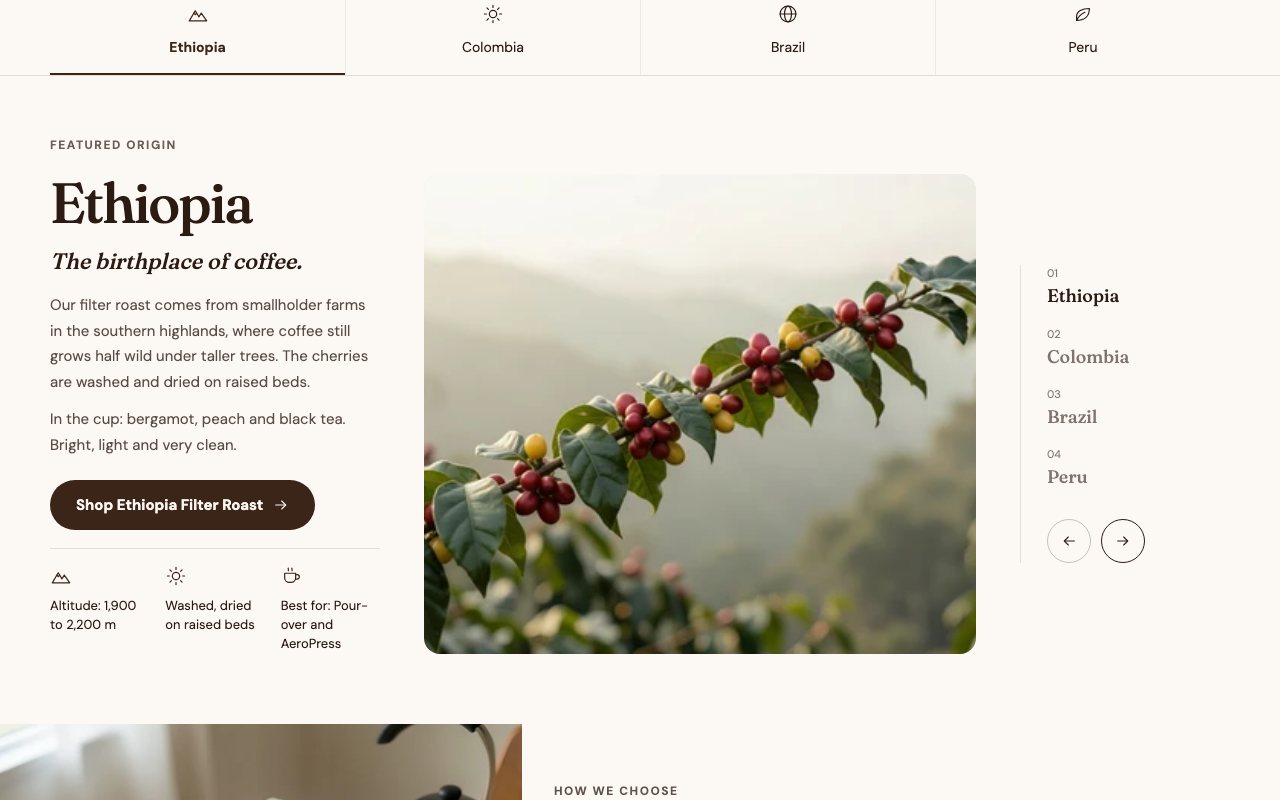
SpotlightSpotlight

A slider of panels, one origin each: name, claim, text, three facts with icons, a photo and a product button, with a numbered list on the side.

First built for Dr.Balwi2.0
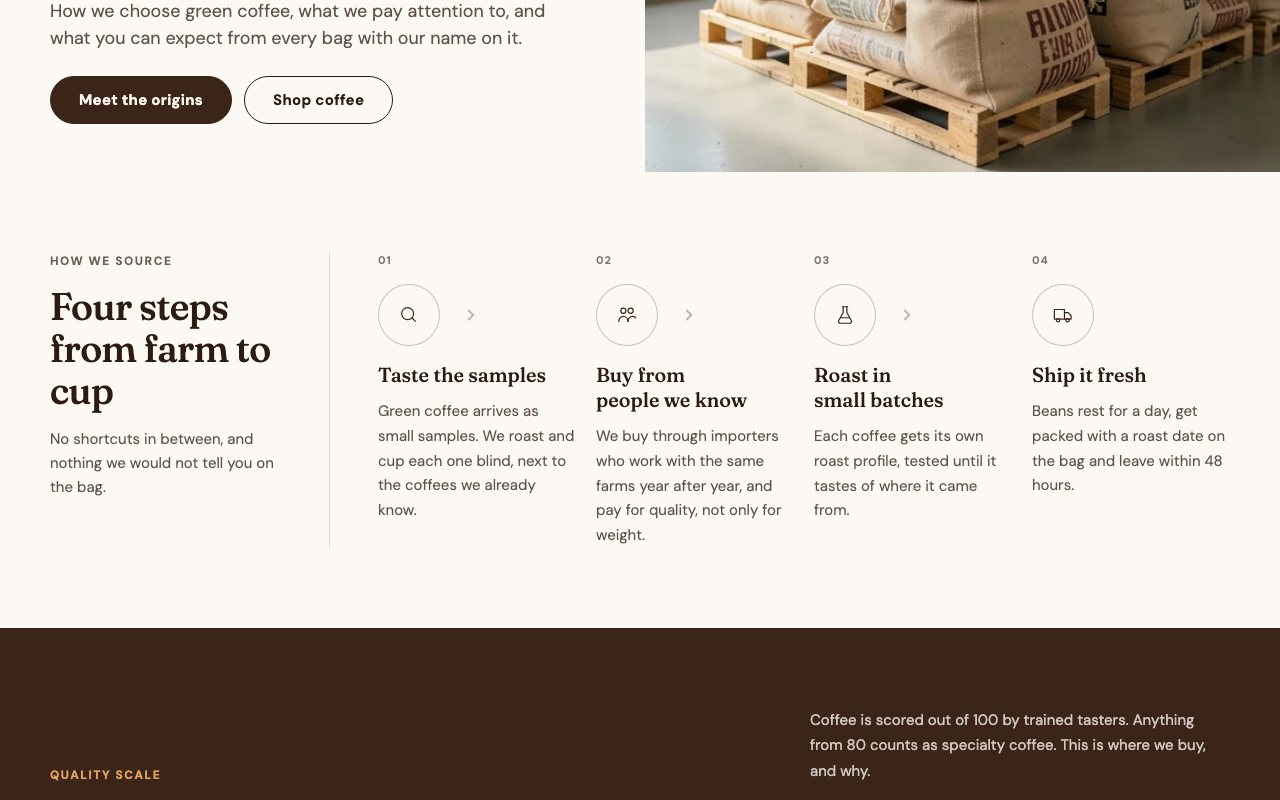
ProcessProcess

Numbered steps with an icon, a title and a text in one row, beside the section heading.

First built for Dr.Balwi2.0
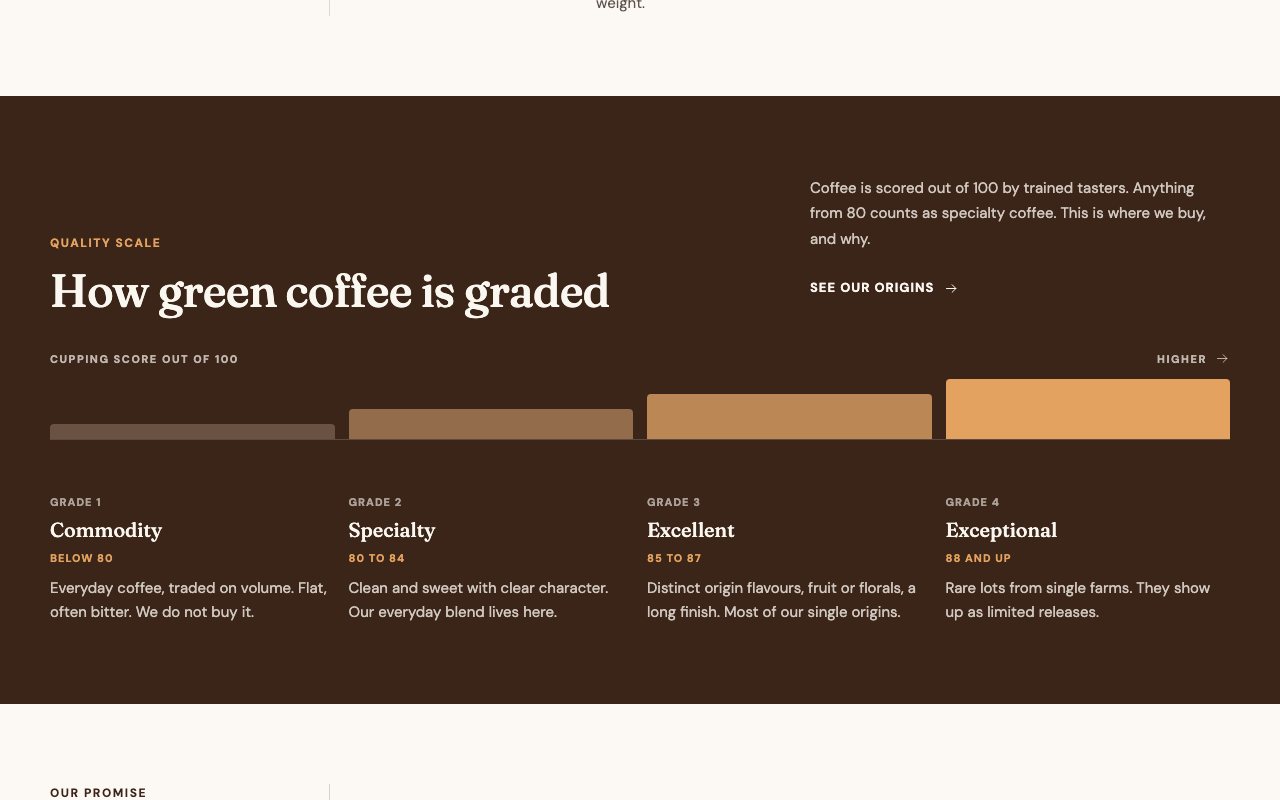
ScaleScale

A graded bar of stages on a dark band, each with a name, a tag and a text: here how green coffee is scored.

First built for Dr.Balwi2.0
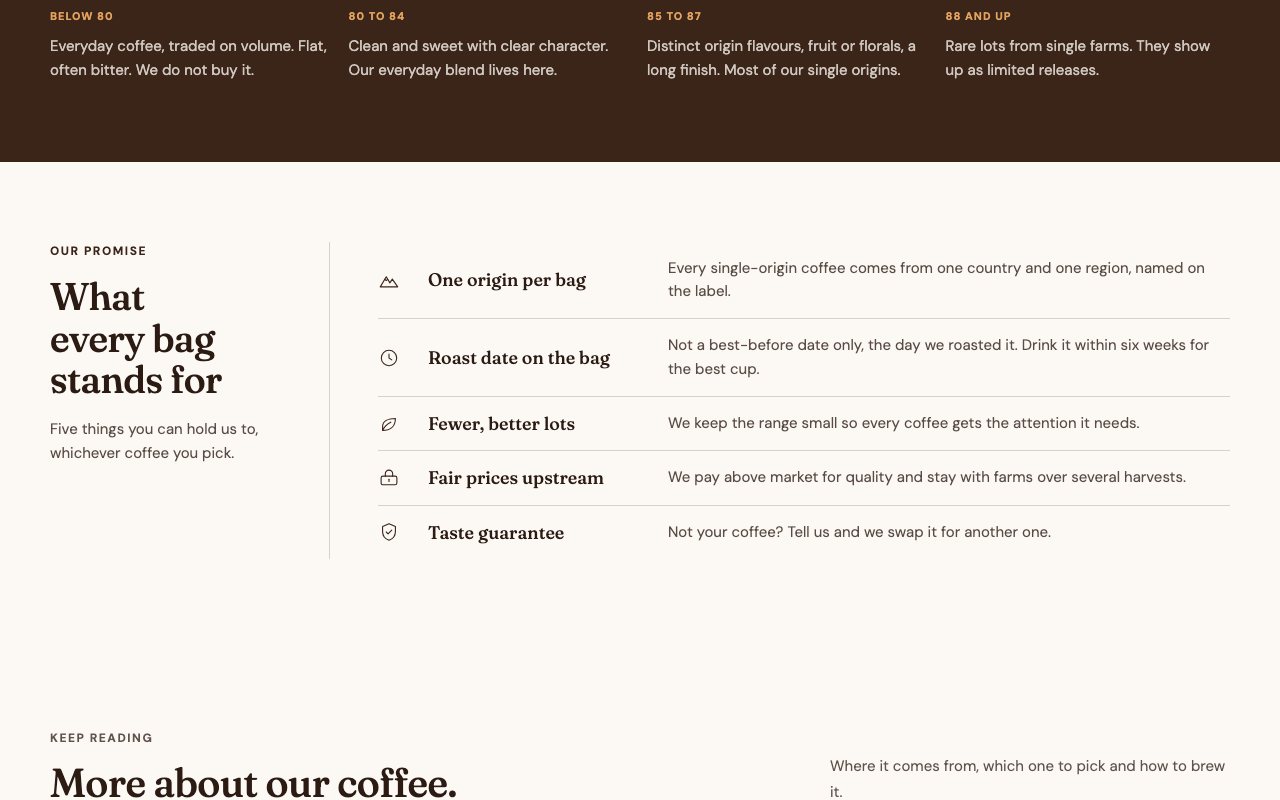
RegisterRegister

A list of rows with an icon, a term and its explanation, beside the heading.

First built for Dr.Balwi2.0
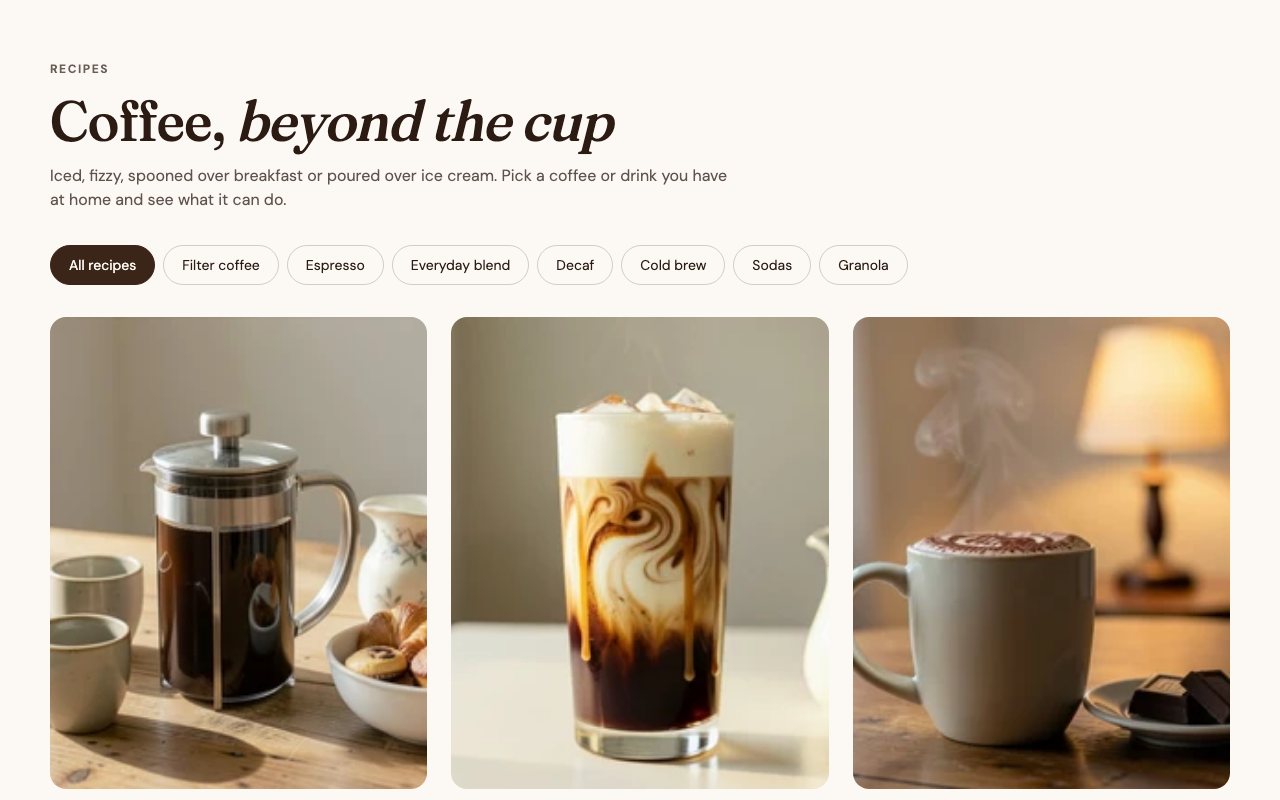
RecipesRecipes

Recipe cards from a blog with filter pills, each pill a block that stands for a set of products.

First built for BrekkyBowl
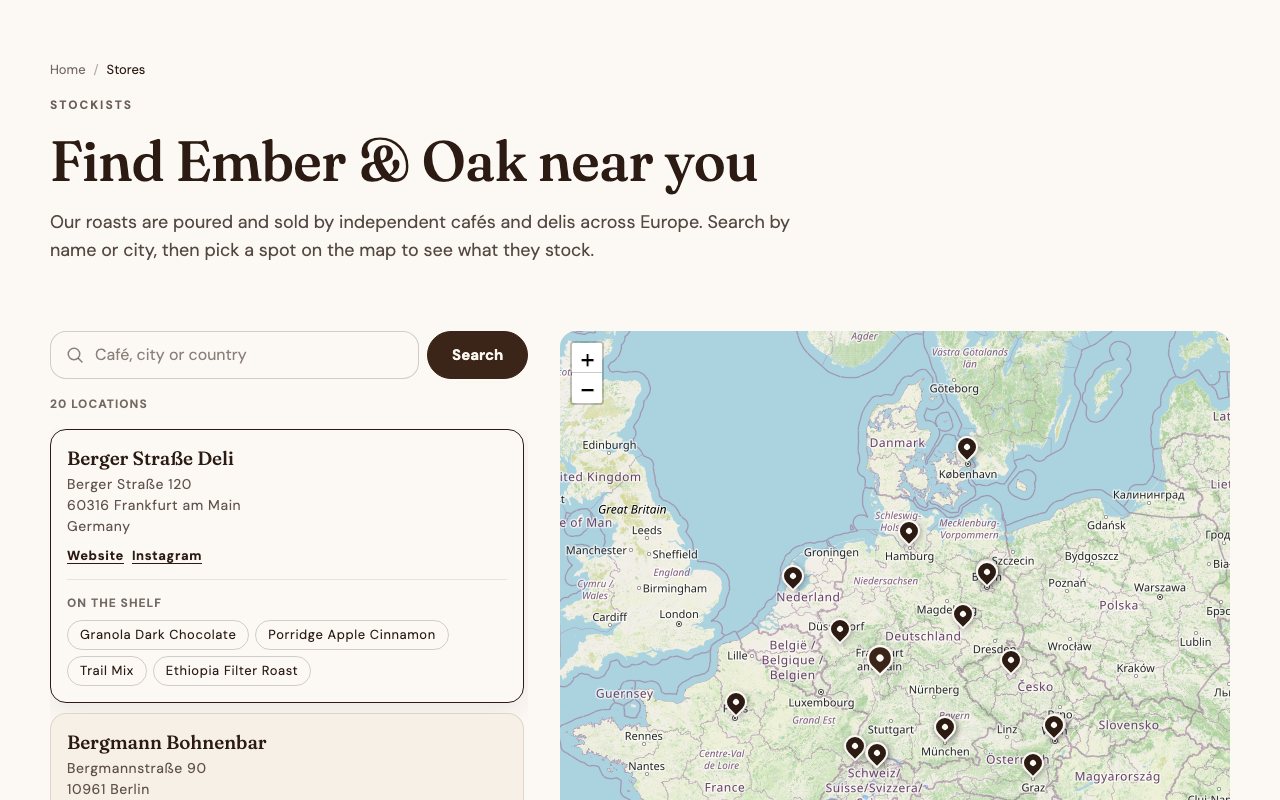
Text heroText hero

Breadcrumbs, an eyebrow, a headline and a text with up to two buttons, for pages that open without an image.

First built for HomeVital
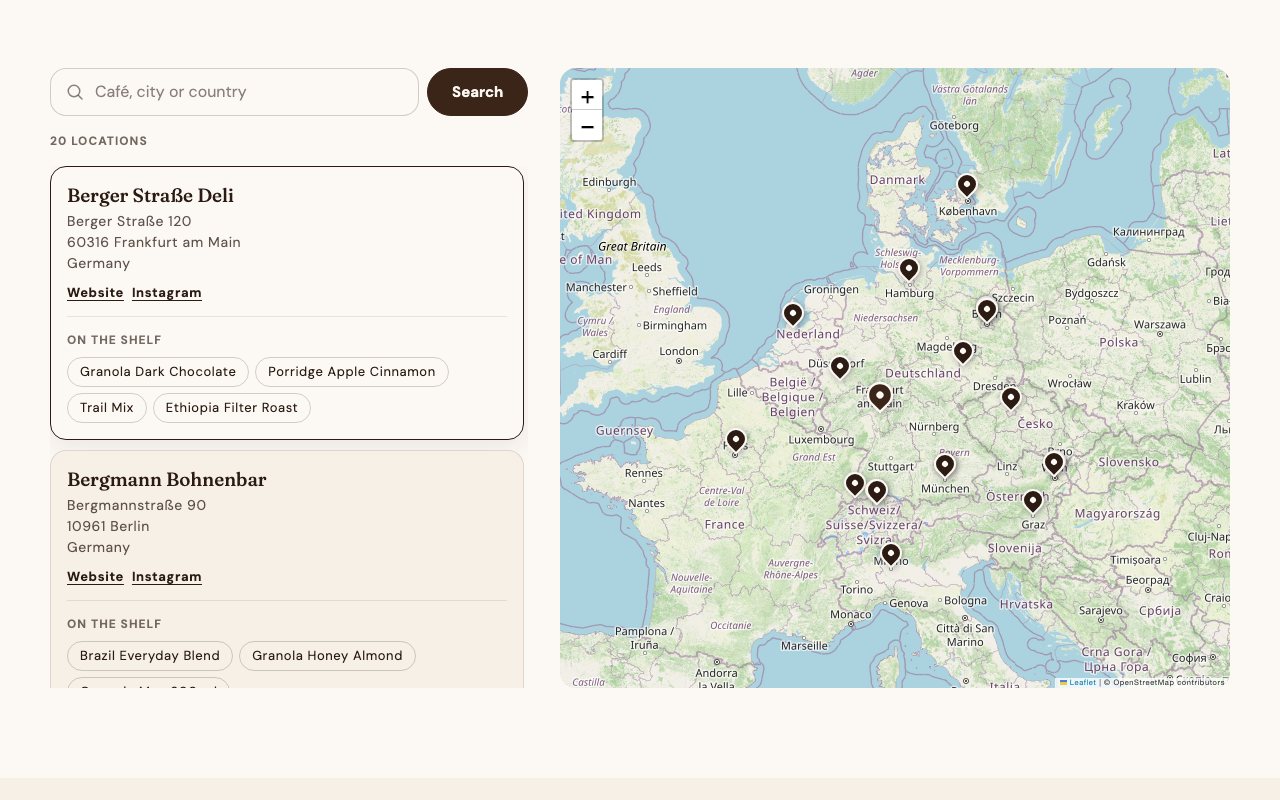
Store finderStore finder

Search, a list of shops with what they stock and a map with pins, read from the Store Locator app's endpoint.

First built for Health-Bar
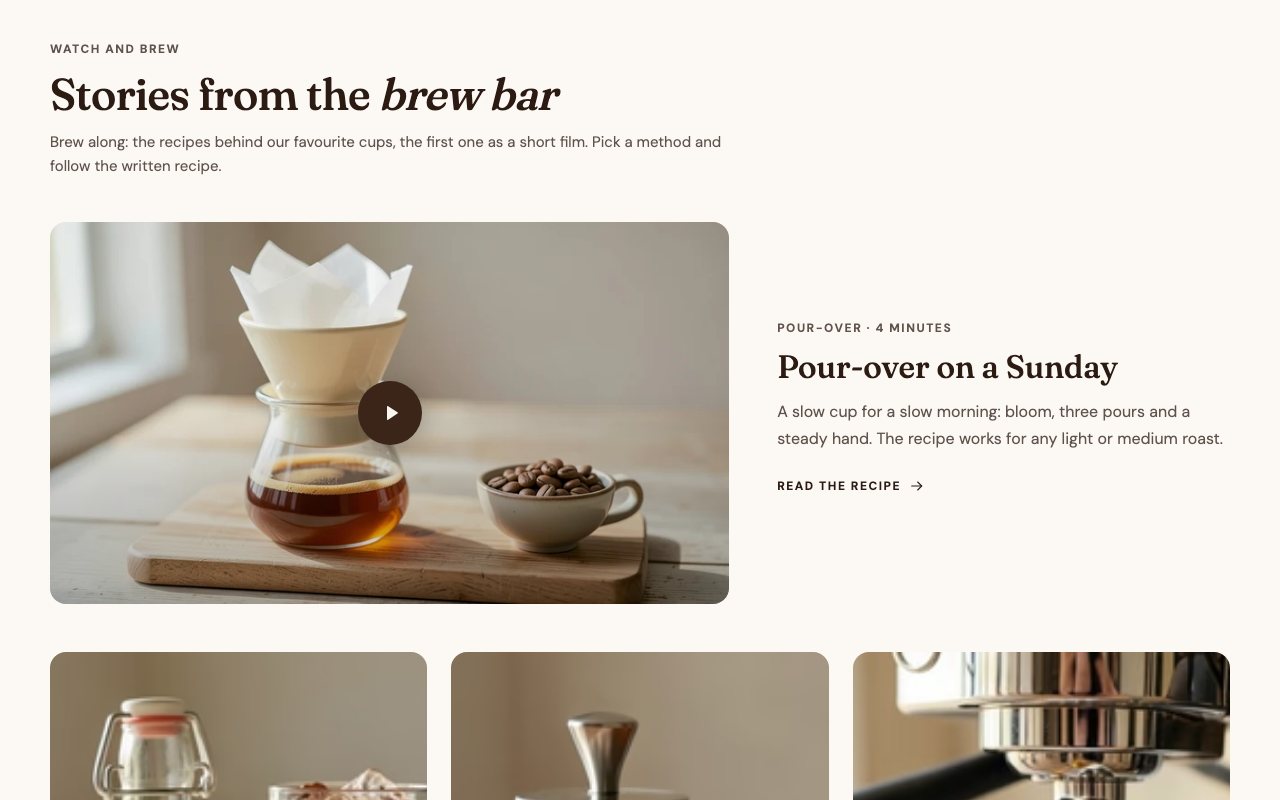
ArticleArticle

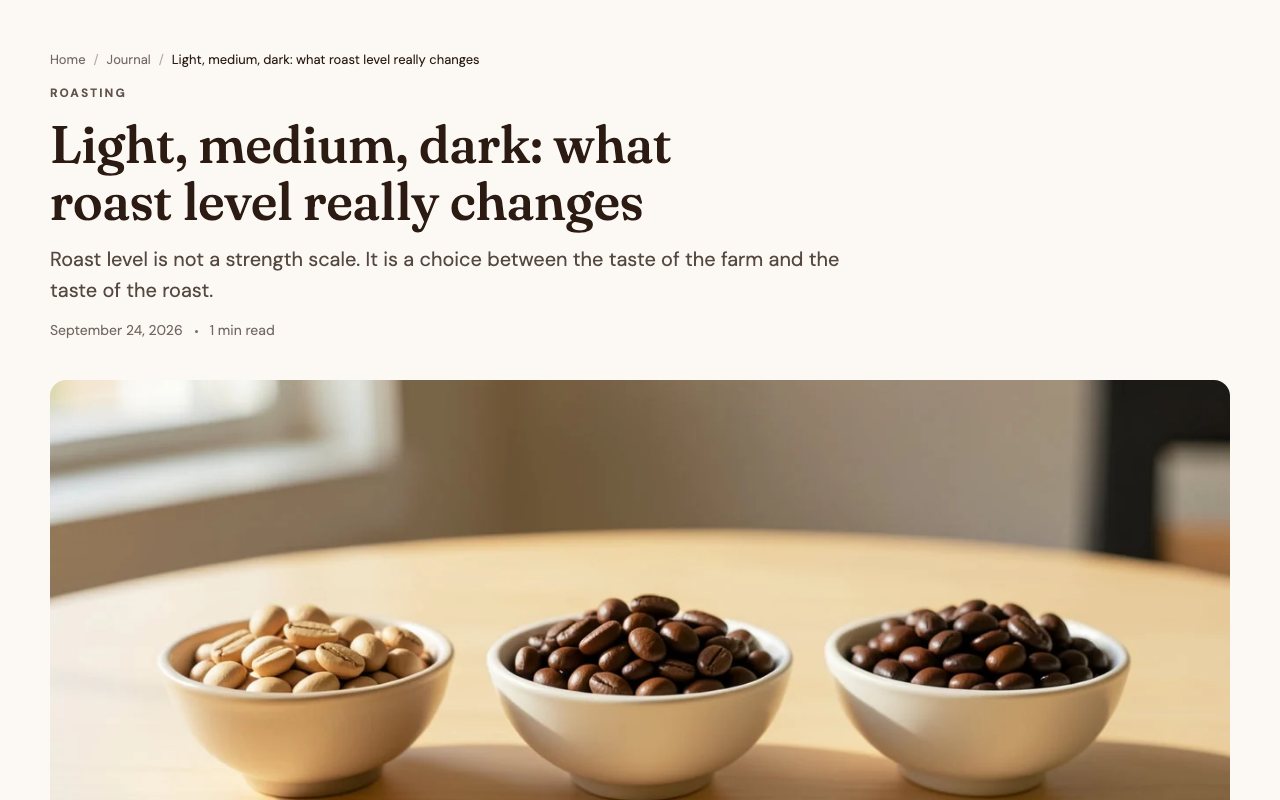
Breadcrumbs, the title, date and reading time, the image, an optional table of contents, share links and the products the article uses.
Want something like this in your store?

Close